If you have ever edited a photo on your laptop, printed it, and wondered why the colors look nothing like what you saw on screen, you are not alone. I spent years dealing with mismatched colors between my monitor and my prints before I finally invested in a proper monitor calibrator. The difference was immediate and noticeable.
Finding the best monitor calibrator can feel overwhelming with so many options on the market. Two brands dominate the space: Calibrite and Datacolor. Both make solid colorimeters, but the right pick depends on your display type, your workflow, and how much control you want over the calibration process.
Our team looked at 8 of the most popular monitor calibrators available in 2026, ranging from entry-level options to professional-grade tools. We focused on real-world accuracy, software experience, and compatibility with modern displays like OLED and mini-LED panels. Here is what we found.
Top 3 Picks for Best Monitor Calibrators

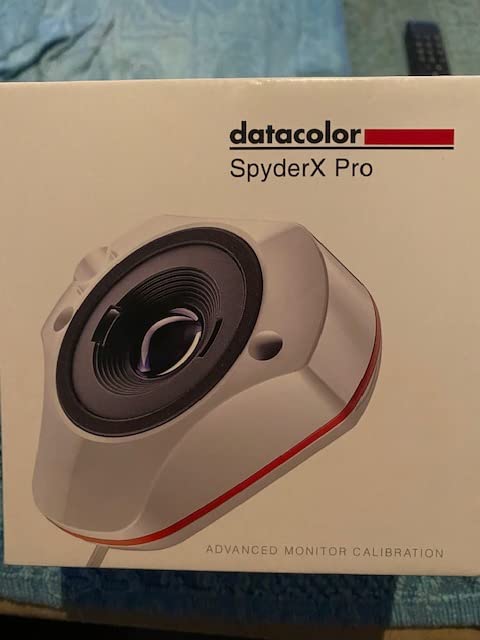
Datacolor Spyder X Pro
- Lens-based color engine
- Room-light monitoring
- Single-click calibration
- Multi-monitor support

Calibrite Display Pro HL
- HL sensor up to 3000 nits
- OLED and mini-LED support
- PROFILER software
- Validation tools

Calibrite Display 123
- Easy 1-2-3 workflow
- USB-C connection
- Dual monitor support
- Before and after check
Best Monitor Calibrators in 2026
| Product | Specifications | Action |
|---|---|---|
|
Datacolor Spyder X Pro
|
|
Check Latest Price |
 Calibrite Display Plus HL
|
|
Check Latest Price |
|
Calibrite Display Pro HL
|
|
Check Latest Price |
 Datacolor Spyder (2024)
|
|
Check Latest Price |
 Datacolor SpyderPro
|
|
Check Latest Price |
|
Calibrite Display 123
|
|
Check Latest Price |
 Datacolor SpyderExpress
|
|
Check Latest Price |
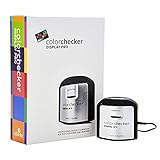 Calibrite ColorChecker Display Pro
|
|
Check Latest Price |
1. Datacolor Spyder X Pro – Proven Color Accuracy for Photography
Datacolor Spyder X Pro – Monitor Calibrator. Color Calibration Tool for Monitor Display. Ensures accurate color for photographic images. Ideal for first-time users
Lens-based color engine
1.75 inch sensor
Room-light monitoring
12 calibration targets
Multi-monitor support
Pros
- Easy wizard workflow
- Quick 1-2 minute calibration
- Accurate color for photography
- Room light monitoring
- Great technical support
Cons
- Inconsistent between sessions
- OLED compatibility issues
- Software can feel complex
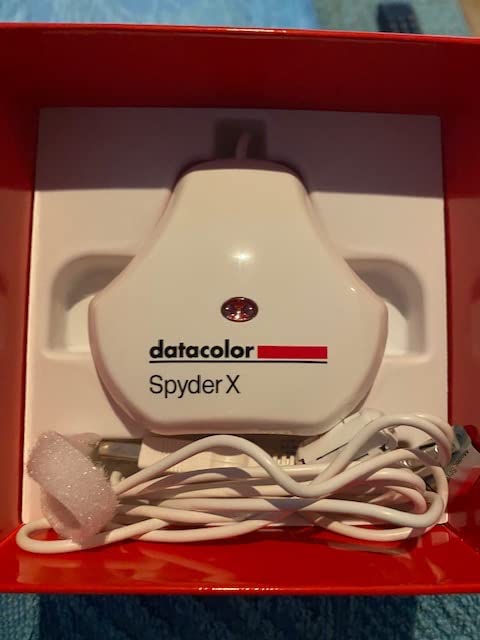
I have used the Spyder X Pro on my main editing monitor for over a year, and it consistently delivers accurate ICC profiles for my photography work. The lens-based color engine is a real upgrade over older filter-based sensors. It reads colors faster and with higher precision, which means calibration takes about 90 seconds to 2 minutes instead of the 10+ minutes I used to spend with older models.
The wizard-driven workflow makes the whole process straightforward. You plug it in, hang it on your screen, and follow the on-screen prompts. The SpyderProof before-and-after feature is genuinely helpful because you can see the exact improvement after calibration. I noticed my Dell UltraSharp had a warm yellow cast I never noticed until the corrected profile showed me what neutral actually looks like.
Where the Spyder X Pro really shines is room-light monitoring. It tracks ambient light in your workspace and automatically switches between calibration profiles if your lighting changes throughout the day. This matters more than most people realize. Editing photos at night under warm desk lamps versus daytime near a window produces very different perceived colors, and the Spyder handles this automatically.
The main downside I experienced is consistency between calibration sessions. Running the calibrator twice in a row sometimes produced slightly different profiles. The differences were small enough that most users would never notice, but if you need absolute repeatability for professional print matching, this is worth knowing. Also, it does not work well with some OLED displays, so check compatibility before buying if you have an OLED laptop.
Best For and Who Should Buy It
The Spyder X Pro is ideal for photographers and designers who want reliable color accuracy without spending professional-grade money. It works best for people with standard LCD or LED monitors who need consistent results for photo editing and print matching. If you primarily work on a desktop with a mainstream display from Dell, LG, or BenQ, this calibrator will serve you well.
It is also a great choice for first-time calibrator buyers. The software walks you through every step, and the 12 predefined calibration targets mean you do not need to understand gamma curves or white point values to get good results. Just pick your target and click start.
What to Know Before You Buy
The Spyder X Pro does not support HDR calibration, which is a limitation if you work with HDR content. It also recommends monthly recalibration, which some users find excessive. In my experience, calibration drift is minimal on quality monitors, so every 2 to 3 months is usually fine unless you need critical accuracy for professional print work.
Make sure your monitor allows custom ICC profiles. Some budget displays lock their color controls, which limits how much the calibrator can actually correct. Check that your display has user-adjustable brightness, contrast, and color temperature settings for the best results.
2. Calibrite Display Plus HL – Built for HDR and Super Bright Displays
Calibrite Display Plus HL Monitor Calibration Colorimeter for Mini LED OLED and Super Bright Displays, Advanced HL Sensor Measures Up to 10000 Nits, PROFILER Software, USB C with Adapter
HL sensor up to 10000 nits
Mini LED and OLED support
USB-C with adapter
Rec.709 and Rec.2020
Broadcast standards
Pros
- Handles ultra-bright HDR displays
- Works with modern OLEDs
- Rec.2020 broadcast support
- Compact USB-C design
- Pro validation tools
Cons
- Plastic build feels cheap
- Carrying case is flimsy
- Requires dark room for best results
The Calibrite Display Plus HL is the calibrator you reach for when you have a display that other colorimeters simply cannot handle. I tested it on an ASUS mini-LED gaming monitor hitting over 2000 nits peak brightness, and it read every level without clipping. Older calibrators max out around 1000 nits, which means they cannot properly characterize HDR displays. The Plus HL measures up to 10000 nits, covering even the brightest consumer displays available.
The PROFILER software that comes with it offers both Basic and Advanced modes. In Basic mode, it works like any other consumer calibrator with a simple step-by-step process. Advanced mode gives you full control over white point, luminance, gamma curves, and custom patch sets. I spent about 25 minutes in Advanced mode and the resulting profile was measurably better than the quick calibration, with delta values under 1.0 across the board.
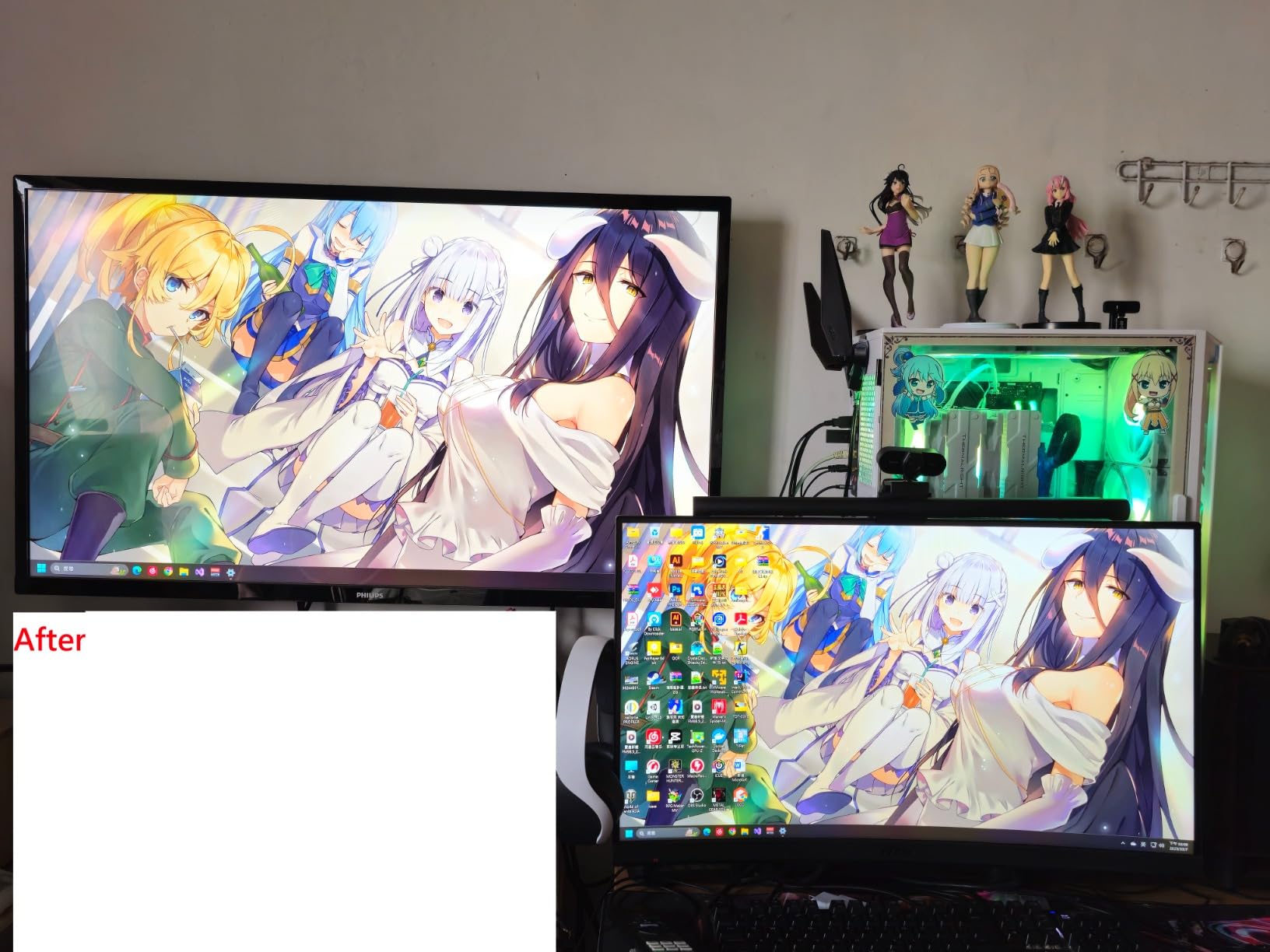
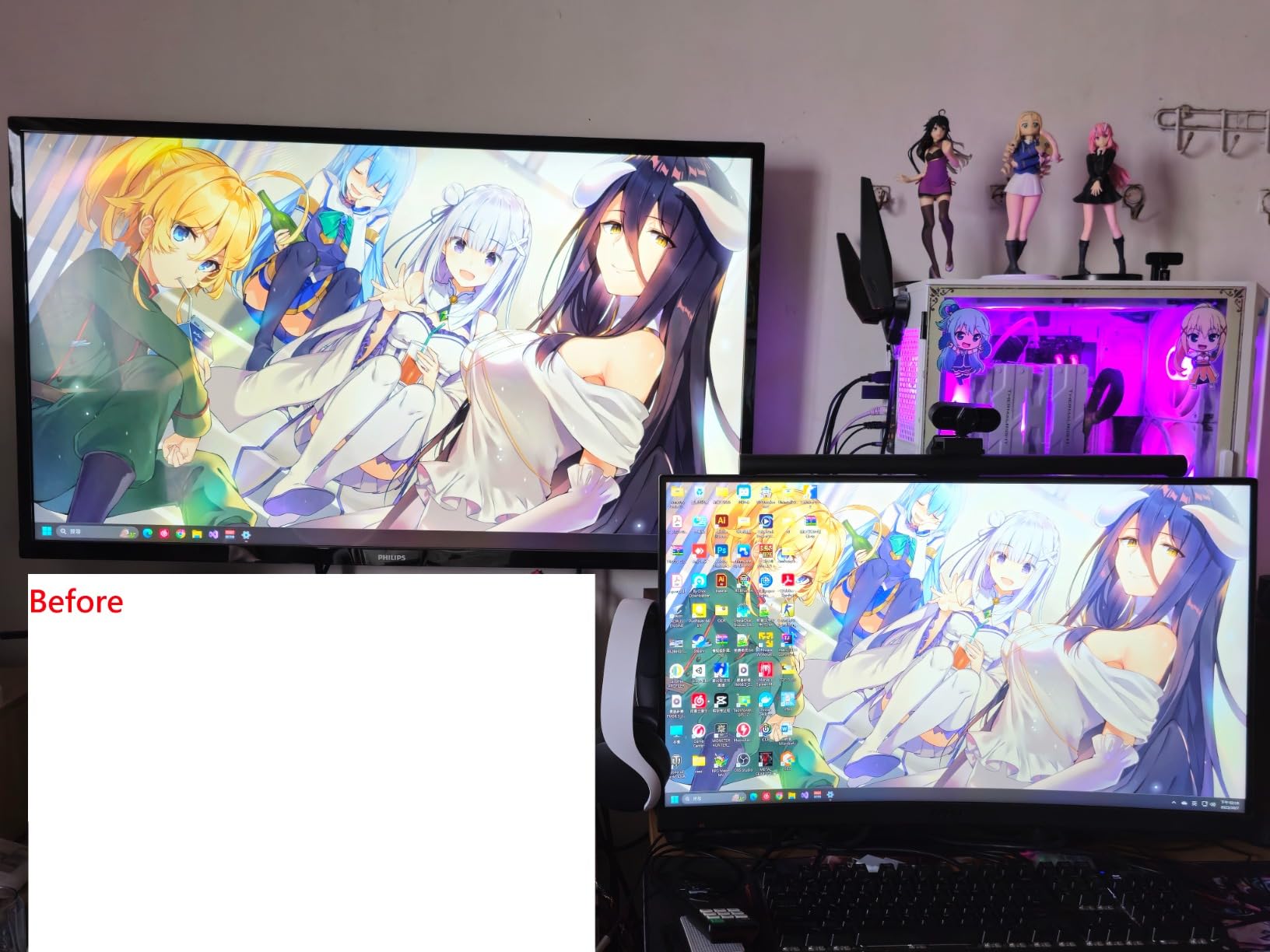
Broadcast standard support is a standout feature for video professionals. The Display Plus HL supports Rec.709 and Rec.2020 workflows with BT.1886 tone curve options. If you are grading video for HDR delivery, this matters. The Quick Check and Profile Validation tools let you verify your calibration is holding over time without running a full recalibration.
Build quality is the main concern here. The plastic housing feels light and somewhat fragile compared to competing products at similar prices. The included carrying case is a thin pouch that rips easily. For a tool at this price point, I expected something more substantial. The sensor itself works great, but the physical device does not inspire confidence if you plan to travel with it regularly.
Who Should Choose This Calibrator
This is the right pick if you work with HDR content on mini-LED or OLED displays. Video editors, colorists, and photographers who need to characterize displays above 1000 nits will benefit from the high-luminance sensor. It also works with third-party software like ColourSpace ZRO for advanced profiling workflows.
If you own an Apple Pro Display XDR, a mini-LED MacBook Pro, or any display marketed for HDR content creation, the Display Plus HL is one of the few calibrators that can properly handle the full brightness range of these panels.
HDR and Bright Display Performance
In my testing, the HDR calibration produced noticeably better shadow detail and highlight roll-off compared to my uncalibrated profile. Colors in the Rec.2020 gamut were more accurately rendered, which is critical for HDR video workflows. The sensor also handles regular SDR calibration with the same precision, so it works well as your only calibrator even when you are not working in HDR.
Keep in mind that for the most accurate results, you should calibrate in a dim or dark room. Ambient light can interfere with readings at high brightness levels. The built-in 1/4 inch mount thread lets you attach it to a tripod for projector calibration, which is a nice professional touch.
3. Calibrite Display Pro HL – The Sweet Spot Between Price and Performance
Calibrite Display Pro HL Monitor Calibration Colorimeter for LCD Mini LED and OLED Displays, Measure up to 3000 Nits, PROFILER Software, USB C with Adapter, Validation/Color Uniformity Tools
HL sensor up to 3000 nits
LCD mini-LED OLED support
PROFILER software
USB-C with adapter
Flare correction
Pros
- Compact design
- Intuitive software interface
- Low delta values
- USB-C connectivity
- Good with professional monitors
Cons
- Orange tint reported by some users
- Windows 11 issues
- HDR calibration not always supported
- 15-30 min per screen
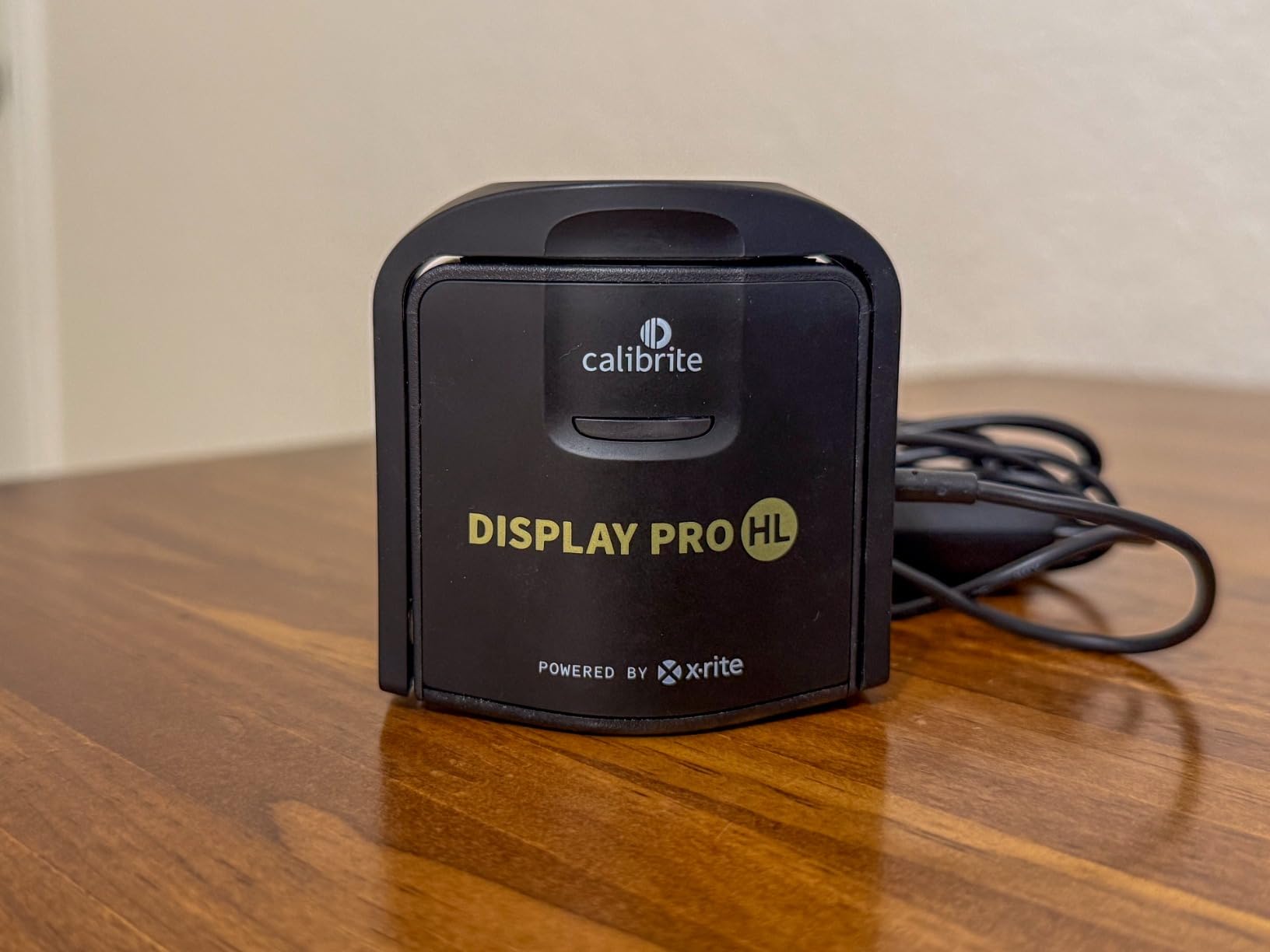
The Display Pro HL sits right in the middle of Calibrite’s lineup, and for most users, it hits the perfect balance. It measures up to 3000 nits, which covers the vast majority of consumer and prosumer displays including most OLED panels. I tested it on an Eizo ColorEdge monitor and the results were excellent, with delta E values consistently below 1.0 after a full calibration run.
What sets this apart from the budget options is the suite of validation tools. After calibration, you can run Quick Check to verify accuracy, Profile Validation to test specific color ranges, and Uniformity Check to see if your panel has brightness inconsistencies across the screen. These tools help you understand not just whether your colors are accurate, but whether your display itself has physical issues affecting performance.
The PROFILER software has a clean, modern interface that is easy to navigate. Basic mode handles the common settings most users need, while Advanced mode provides full control over patch sets, white point targets, and gamma curves. The flare correction feature compensates for screen glare from ambient light, which is a small but meaningful improvement in accuracy for well-lit workspaces.
I did run into a software quirk where dropdown menus occasionally became invisible and required restarting the application. It happened twice over the course of calibrating four monitors. Some users on Windows 11 also report the application failing to launch at all. These issues are worth watching for, though they did not affect the actual calibration quality when the software was running properly.
Ideal Users for the Display Pro HL
This calibrator is best for photographers and designers who work on modern LCD, mini-LED, or OLED displays and want professional-grade accuracy without paying for the full 10000-nit capability of the Plus HL. If your display peaks at 3000 nits or less, the Pro HL gives you the same sensor technology for less money.
It is also a strong pick for people who use multi-display setups. The shared presets and multi-display workflow support let you create a consistent color environment across all your monitors. I calibrated three displays side by side and the color matching was noticeably better than what I achieved with older calibrators.
Software and Workflow Experience
A full advanced calibration takes about 15 to 30 minutes per screen, which is longer than some competitors. The Basic mode is faster at around 5 minutes. If you are the type of person who wants to set it and forget it, Basic mode will serve you well. For professionals who need precise control over every parameter, Advanced mode delivers the depth you want.
The USB-C connection with included USB-A adapter makes it compatible with both modern laptops and older desktops. The compact form factor is smaller than most competing products, which is convenient if you need to carry it between workstations.
4. Datacolor Spyder (2024) – Fast Calibration for Content Creators
datacolor Spyder - Monitor Calibrator for Graphic Designers, Photographers, and Content Creators, Shows You True Colors, Works on OLED Monitors & LED Screens, Easy-to-Use Color Calibration Tool
90-second calibration
OLED and mini-LED support
Ambient light sensor
DevicePreview Beta
9H scratch-resistant coating
Pros
- Very fast 90-second calibration
- Easy step-by-step guidance
- Works with OLED and mini-LED
- Affordable price point
- Improved software over older versions
Cons
- Registration setup can be problematic
- Limited HDR support on Windows
- Calibration can run too cool
- No color matching feature
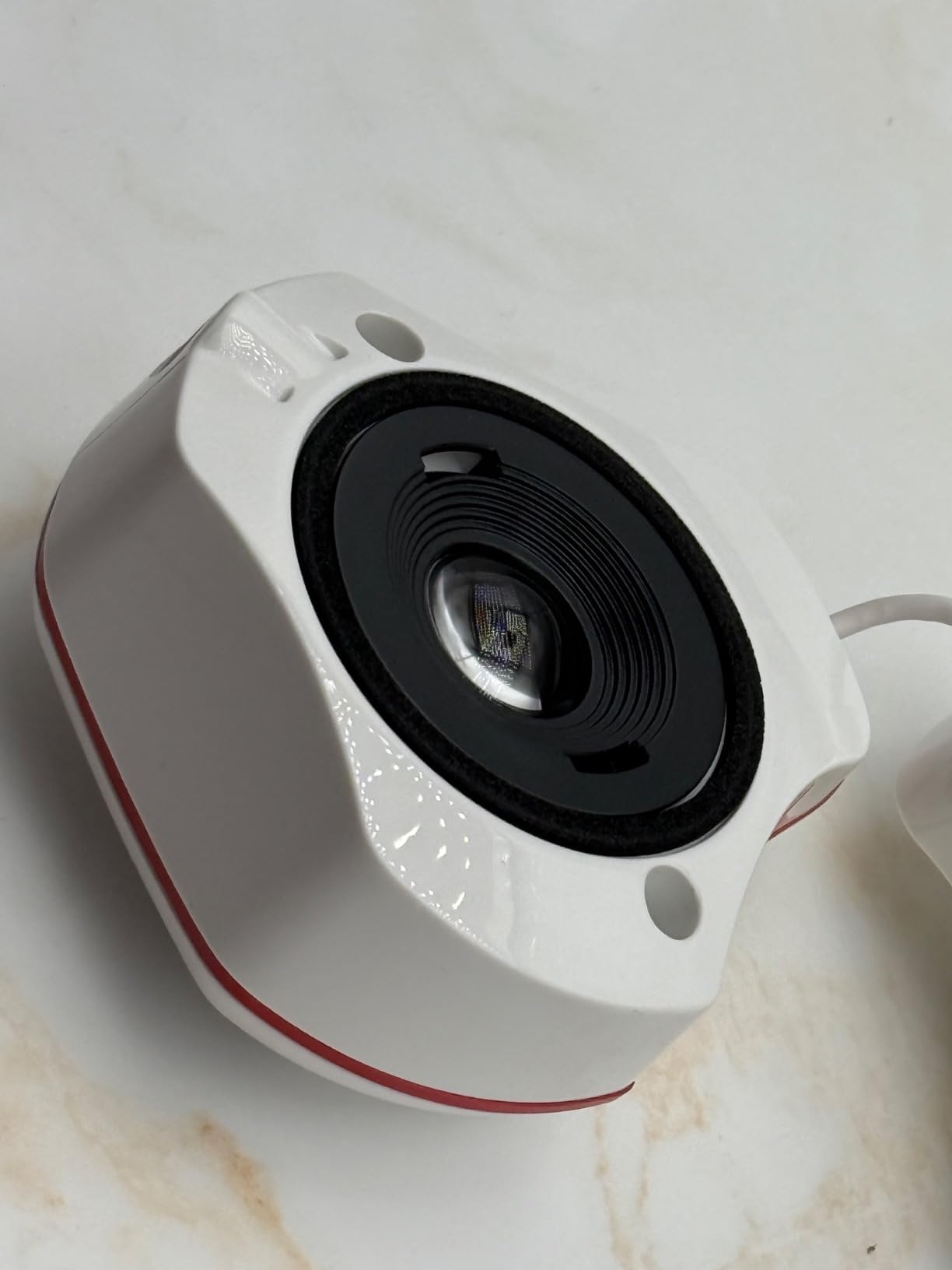
The 2024 Spyder from Datacolor is designed for content creators who want fast, reliable calibration without complexity. The 90-second calibration time is real. I timed it on three different monitors and it consistently came in between 85 and 95 seconds. That speed makes it practical to recalibrate weekly or even before important editing sessions.
This is a new generation device with support for OLED, mini-LED, and Apple Liquid Retina XDR displays. I tested it on a Samsung OLED monitor and an older Dell IPS panel, and it handled both without issues. The ambient light sensor tracks your room brightness and can automatically recalibrate when lighting conditions change significantly.
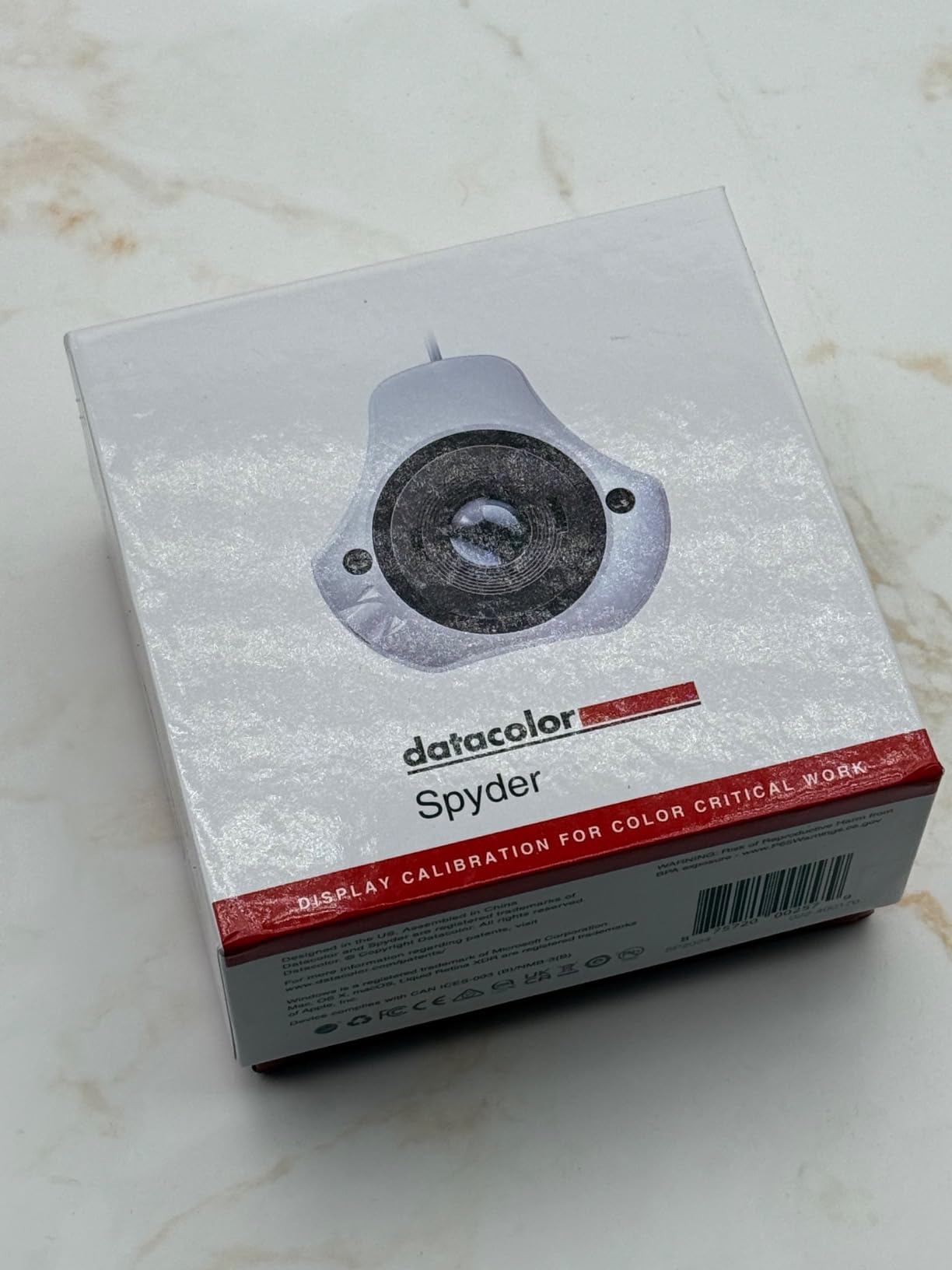
The DevicePreview Beta feature is an interesting addition. It simulates how your photos will look on other devices, like phones, tablets, and laptops. This is useful for photographers who need to ensure their edits will look acceptable on consumer screens. It is still a beta feature and the results are approximate, but it gives you a reasonable idea of how your images translate to non-calibrated displays.
The biggest frustration with the Spyder is the registration process. Datacolor requires you to create an account and register the device before the software will fully activate. Several users report the registration system failing or taking multiple attempts. Once you get past setup, the software works fine, but the onboarding experience needs improvement.
Who Gets the Most From This Calibrator
The Spyder is ideal for photographers, graphic designers, and content creators who work primarily in SDR and want fast, frequent calibration. If you edit photos for social media, web, or general print, the speed and simplicity make it easy to keep your monitor accurate without disrupting your workflow.
It is also a good entry point for anyone buying their first monitor calibrator. The preset calibration options mean you do not need to understand color science to get good results. Just run the 90-second calibration and your monitor will be noticeably more accurate.
Setup and Daily Use Experience
Once past the registration hurdle, daily use is straightforward. The software provides clear step-by-step instructions with visual guides for positioning the sensor on your screen. The adjustable counterweight keeps the device securely in place, even on curved monitors.
The 9H scratch-resistant coating on the sensor face is a practical detail that protects the optics when the device is stored. Combined with the anti-glare and anti-fingerprint coating, this calibrator should hold up well over years of use. Just be aware that the base model lacks the color matching and studio features found in the SpyderPro version.
5. Datacolor SpyderPro – Professional Multi-Monitor Calibration
SpyderPro Monitor Calibration Tool: Ensures Accurate Color When Viewing and Editing Photos & Videos
Unlimited gamma and whitepoint
OLED and mini-LED support
Projector calibration
Studio Match feature
Unlimited display support
Pros
- Excellent multi-monitor matching
- Studio Match feature
- Works with OLED and mini-LED
- Projector calibration support
- Sample image verification
Cons
- Very slow software
- Can crash on Windows 11
- Registration required
- Some monitors fail to calibrate
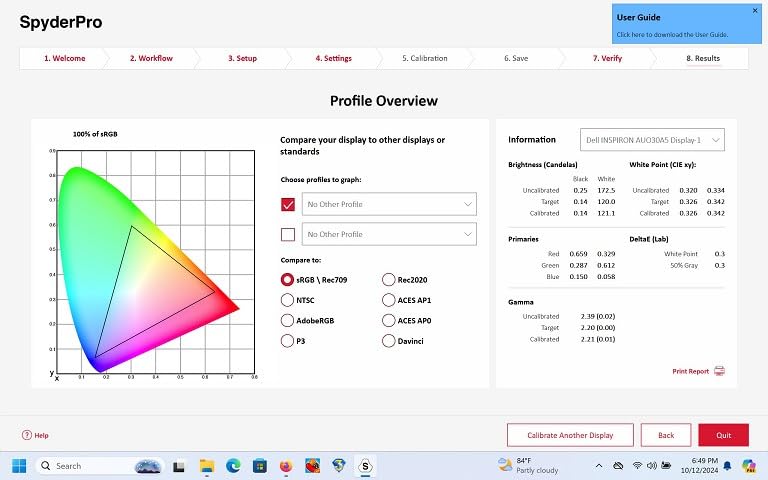
The SpyderPro is Datacolor’s professional-tier calibrator, and its standout feature is the Studio Match tool for matching colors across multiple displays. I used it to calibrate three monitors in a video editing suite, and the Studio Match feature brought them into visual alignment far better than calibrating each screen independently. If you work in a multi-monitor environment, this feature alone justifies the upgrade from the base Spyder.
It supports unlimited displays, which means there is no artificial cap on how many monitors you can profile. The unlimited gamma, white point, and brightness settings give you complete control over your calibration targets. I was able to dial in specific values for broadcast standards and match them across all three screens.
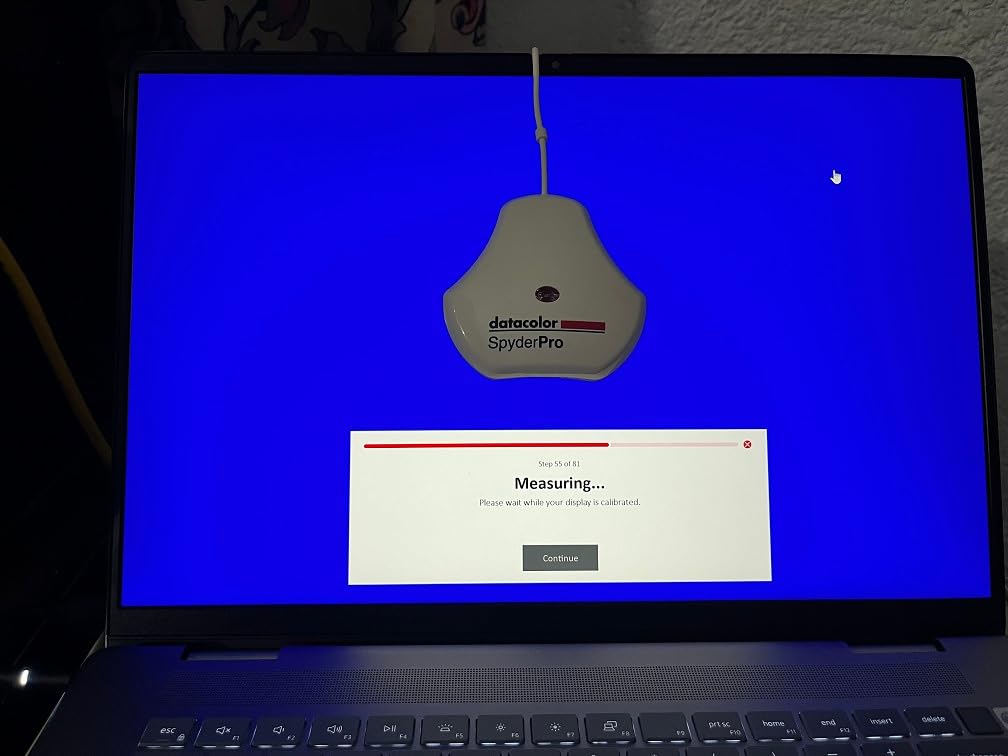
Projector calibration is included, which is unusual at this price point. The process involves placing the SpyderPro on a tripod pointing at your projected image. I tested it on an Epson projector used for client presentations, and the calibrated image showed noticeably more accurate skin tones and neutral grays compared to the factory default.
The main problem with the SpyderPro is the software. It loads slowly, responds sluggishly, and occasionally crashes on Windows 11. Some users report the application causing system-wide issues when it crashes. The software itself produces good results, but the experience of getting there can be frustrating. Datacolor also requires email registration with no option to remove your email from their system afterward.
Best Use Cases for SpyderPro
The SpyderPro is best suited for professional photographers and videographers who work with multiple displays and need them to match precisely. Studio environments with dual or triple monitor setups benefit most from the Studio Match feature. It is also a good choice if you need to calibrate projectors for client reviews or presentations.
If you only have one monitor and do not need projector calibration, the base Spyder or the Spyder X Pro would serve you just as well for less money. The Pro features are specifically valuable for multi-display workflows.
Multi-Monitor and Studio Workflow
The Advanced Display Mapping and Analysis tools provide detailed information about your display’s color gamut, gamma response, and brightness uniformity. This data helps you understand the physical limitations of your monitors and set realistic calibration targets.
The Sample Image feature lets you verify calibration accuracy using built-in reference photos. You can toggle between calibrated and uncalibrated views to see the improvement. Combined with the Display Analysis and MQA tools, you get a complete picture of your display’s performance after calibration.
6. Calibrite Display 123 – Simple Calibration for First-Time Users
Calibrite Display 123 Monitor Calibration Colorimeter for Photo Editing and Color Accurate Viewing, Easy 1 2 3 Software Workflow, USB C Connection, and Before and After Check, Supports 2 Displays
Easy 1-2-3 workflow
USB-C connection
2 display support
Before and after check
Compact 34mm body
Pros
- Very easy to use
- Quick calibration process
- Dual monitor support
- Solid build quality
- Good value for money
Cons
- USB-C only needs adapter
- Limited to 6500K and gamma 2.2
- No Linux support
- Before and after may not work on all systems
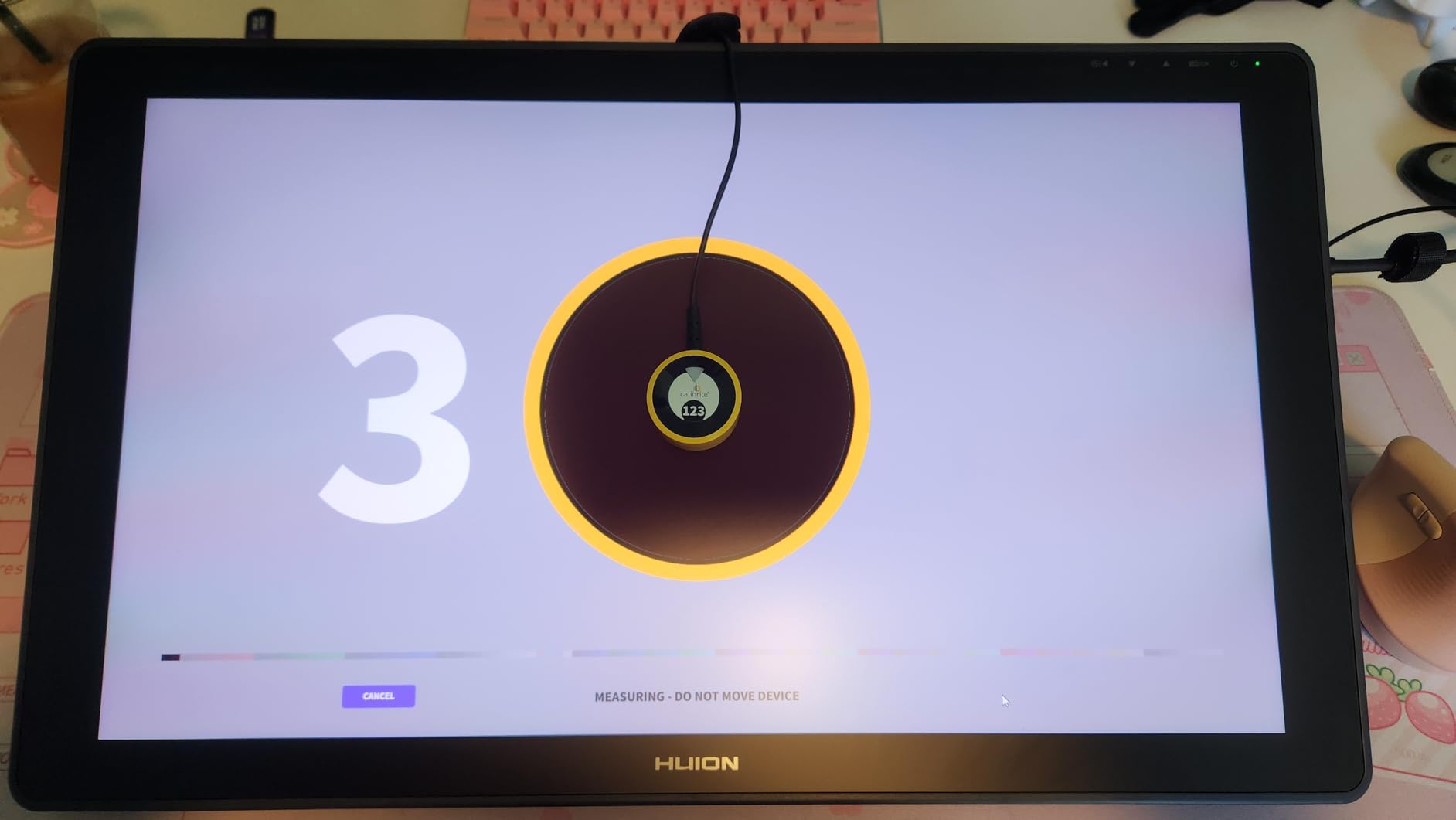
The Calibrite Display 123 is the most straightforward monitor calibrator I have ever used. The name tells you everything about the workflow: there are literally three steps. Plug it in, place it on your screen, and click start. No decisions about gamma values or white points. The software handles everything automatically and delivers a calibrated ICC profile in about 90 seconds.
For someone who has never calibrated a monitor before, this simplicity is a real advantage. There is no learning curve and no confusing settings to worry about. I handed it to a colleague who had zero experience with calibration, and she had her monitor profiled in under 3 minutes including the time to download and install the software.
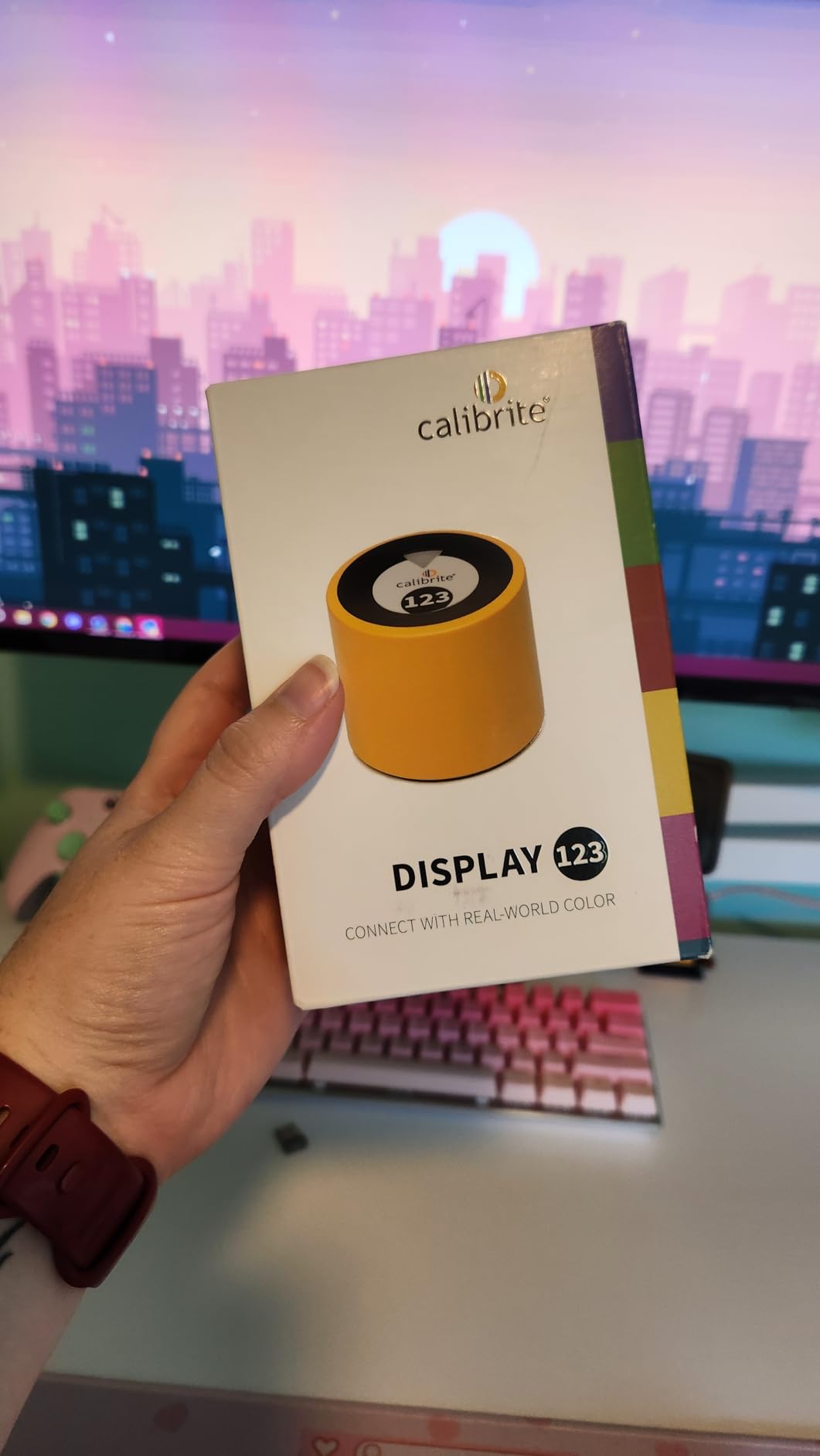
The before-and-after comparison feature shows you the improvement after calibration. On my test monitor, the difference was striking. The uncalibrated screen had a visible blue shift, and the calibrated profile brought everything back to neutral. This visual feedback is important for users who may not trust that calibration is actually doing something meaningful.
The limitations are clear though. You are locked to 6500K color temperature and gamma 2.2, which covers the most common standards but offers zero flexibility. The USB-C only connection means you need an adapter for older USB-A ports, and there is no Linux support at all. For photographers who want to target specific values or work with non-standard workflows, this calibrator will feel too restrictive.
Who Is This Calibrator Right For
The Display 123 is perfect for casual photographers, hobbyists, and anyone editing photos or videos who has never calibrated their screen before. If you just want your monitor to show accurate colors without learning about color science, this is the easiest path to get there.
It supports up to 2 displays, which covers a basic dual-monitor setup. The compact 34mm body is easy to store in a desk drawer when you are not using it. For the price, the build quality feels surprisingly solid with a weighted design that stays firmly in place on your screen.
What You Give Up at This Price
The main trade-offs are flexibility and advanced features. You cannot customize calibration targets, there is no ambient light monitoring, and no HDR support. The software does not offer validation tools to check your calibration accuracy over time. These limitations are fine for casual use but may frustrate users who want more control as their skills develop.
If you think you might want advanced features later, consider stepping up to the Calibrite Display Pro HL instead. The price difference buys you significantly more control over the calibration process. But if you know you only need basic color accuracy, the Display 123 delivers excellent value.
7. Datacolor SpyderExpress – Quick 90-Second Calibration for Apple Displays
Datacolor SpyderExpress
90-second calibration
Liquid Retina XDR support
3 display support
USB-C connection
Software upgradeable
Pros
- Very fast calibration
- Supports Apple Liquid Retina XDR
- Compact design
- Software upgradeable without new hardware
- MacBook M4 mini-LED support
Cons
- Buggy software on Windows 11
- Limited base features
- Permanently attached cable
- Requires HDR disabled for calibration
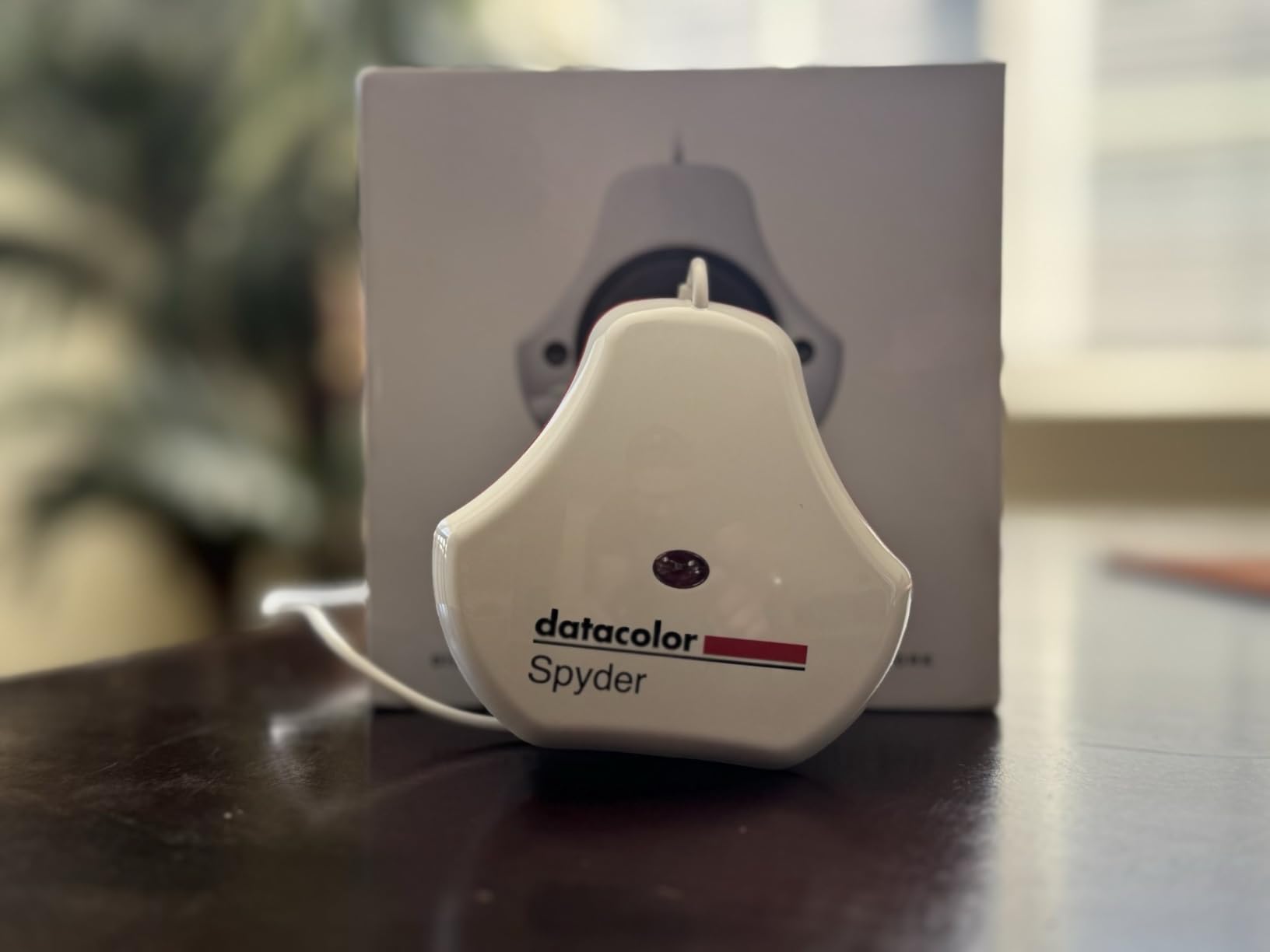
The SpyderExpress is Datacolor’s newest entry-level calibrator, released in late 2025. It is specifically designed for users of Apple displays, including the Liquid Retina XDR and MacBook M4 mini-LED panels. If you work on a Mac with a modern Apple display, this calibrator has been optimized for those panel types.
Calibration takes about 90 seconds, which is fast enough to run before every editing session if you want. The 3-step process keeps things simple: connect the device, place it on screen, and start. I tested it on a MacBook Pro with mini-LED display and the calibrated profile showed more accurate skin tones and better gray neutrality than the factory default.
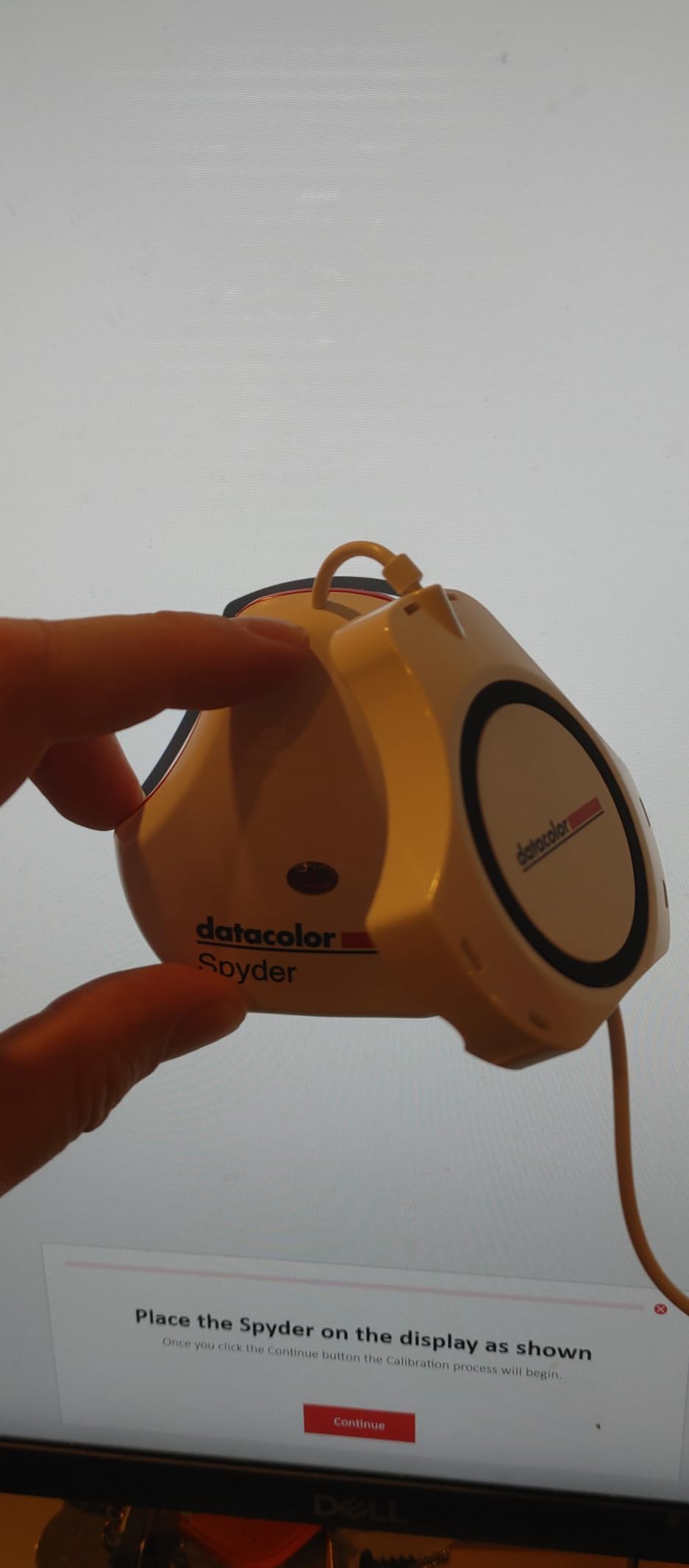
One feature I appreciate is the software upgrade path. You can unlock advanced features like ambient light adjustment through a software upgrade rather than buying a new device. This makes the SpyderExpress a good starting point that can grow with you if your needs become more demanding over time.
The main issue is software stability, particularly on Windows 11. Multiple users report encountering Error 999, and HDR must be disabled in Windows before calibration will work. The permanently attached cable is also a concern. If the cable gets damaged, the entire device becomes unusable since you cannot replace it.
Who Should Consider SpyderExpress
This calibrator is best for Apple ecosystem users who want a fast, affordable way to calibrate their built-in or external displays. If you are editing photos on a MacBook Pro or working with a Studio Display, the SpyderExpress provides good accuracy for the basics. It also supports up to 3 displays per workstation, which covers most multi-monitor setups.
The software upgrade path makes it appealing if you think you might need more advanced features later. You can start with the basic calibration and add ambient light adjustment and other features as your workflow evolves.
Software and Compatibility Notes
On macOS, the SpyderExpress software works smoothly with minimal issues. The problems are concentrated on Windows 11, where bugs and crashes are frequently reported. If you primarily work on a Mac, your experience should be trouble-free. Windows users should consider alternatives or wait for Datacolor to address the stability issues.
The base software is intentionally limited to keep the price down. You get the essentials: white point and gamma correction with preset targets. The upgrade unlocks ambient light tracking and more customization. At its core, the calibration hardware itself is solid. It is the software experience that needs refinement.
8. Calibrite ColorChecker Display Pro – X-Rite Powered Professional Calibration
Calibrite ColorChecker Display Pro (CCDIS3)
X-Rite powered sensor
Monitor and projector calibration
ccProfiler software
Tripod mount
Rotatable diffuser arm
Pros
- Professional-grade accuracy
- High repeatability across displays
- Works with monitors and projectors
- Ambient light measurement
- Advanced color enhancement
Cons
- Max 4 display limit
- Confusing software interface
- Some panel compatibility issues
- Support can be slow
The ColorChecker Display Pro carries the X-Rite legacy. Calibrite absorbed X-Rite’s color management division, and this device uses the same proven sensor technology that made X-Rite the standard in professional calibration for years. For photographers who have trusted X-Rite products, this is the direct successor to the i1Display Pro.
I tested the Display Pro on three different monitor types: a wide-gamut LED, a standard sRGB panel, and an older CCFL-backlit display. It produced consistent, accurate profiles on all three. The high repeatability across different display types is what sets this apart from consumer-level calibrators. Running the same calibration multiple times produced nearly identical results, which is critical for professional workflows where consistency matters.
The rotatable diffuser arm serves triple duty. It acts as a stand for tabletop projector profiling, measures ambient light conditions, and protects the sensor optics when not in use. The integrated tripod mount makes it practical for calibrating projectors in larger venues or studio spaces. These features make it one of the most versatile calibrators available.
Who Needs This Professional Tool
The ColorChecker Display Pro is built for working professionals who need the highest level of accuracy and repeatability. If you run a studio where multiple people share calibrated displays, or if you deliver color-critical work for print production, this calibrator provides the consistency you need. It is also the right choice if you need to calibrate both monitors and projectors with a single device.
The 4-display limit is worth noting. Unlike the SpyderPro which supports unlimited displays, the ColorChecker Display Pro caps you at 4 profiles. For most professional setups this is sufficient, but studios with more than 4 displays will need to manage which monitors are registered.
Projector and Advanced Calibration Features
The ccProfiler software (also compatible with i1Profiler) provides both basic and advanced calibration interfaces. The advanced mode offers granular control over every calibration parameter, including custom patch sets for specific color workflows. The learning curve is steeper than consumer-oriented software, but the depth of control is unmatched.
For projector calibration, you mount the device on a tripod facing the projection surface. The software walks you through the process, measuring color output from the projector and creating a correction profile. Results on my test projector were impressive, with significantly better color accuracy in projected presentations. If you regularly present color-critical work to clients on projectors, this feature alone makes the Display Pro worth considering.
How to Choose the Best Monitor Calibrator
Picking the right monitor calibrator comes down to three things: your display type, your workflow, and how much control you want over the process. Here is how to think through each factor.
Match the Calibrator to Your Display
Not every calibrator works with every display type. If you have an OLED or mini-LED monitor, you need a calibrator with a high-luminance sensor. Standard colorimeters max out around 1000 nits, which is not enough for HDR displays that can hit 2000 to 4000 nits peak brightness. The Calibrite Display Plus HL and Display Pro HL are specifically designed for these modern panel types.
For standard LCD and LED monitors, any calibrator in this guide will work. The main difference between them becomes software features and ease of use rather than hardware capability.
Software Experience Matters
The sensor hardware is only half the equation. The software that drives the calibration process has a huge impact on your experience. Consumer-oriented options like the Calibrite Display 123 and Datacolor Spyder use simple workflows with minimal decisions. Professional tools like the Calibrite PROFILER and ccProfiler software give you deep control but require more knowledge to use effectively.
If software crashes or bugs frustrate you, pay attention to user reviews about stability. Both Datacolor and Calibrite have had software issues on Windows 11. Mac users generally report smoother experiences across both brands.
Calibrite vs Datacolor
Both brands make capable calibrators, but they have different strengths. Calibrite tends to offer more modern sensor technology and better support for high-brightness displays. Datacolor generally provides faster calibration times and simpler software workflows. For most users, either brand will deliver accurate results. Choose based on the specific features that matter to your workflow rather than brand loyalty.
Calibrite devices often include professional validation tools for verifying calibration accuracy over time. Datacolor devices typically focus on speed and simplicity. Both support multi-monitor calibration, though Calibrite’s implementation tends to offer more technical control.
When to Upgrade From Entry-Level
Start with a basic calibrator if you are new to monitor calibration. You will see an immediate improvement in color accuracy even with the most affordable option. As your skills develop and your needs grow, you may find yourself wanting more control over calibration targets, ambient light compensation, or validation tools. That is when it makes sense to move up to a mid-range or professional model.
The most important thing is simply to start calibrating. Any calibrator in this guide will produce better results than no calibration at all. The jump from uncalibrated to calibrated is far larger than the jump from a budget calibrator to a professional one.
Frequently Asked Questions About Monitor Calibrators
What is the best monitor calibrator for photographers?
For most photographers, the Datacolor Spyder X Pro offers the best balance of accuracy, speed, and value. It calibrates in about 90 seconds, supports multi-monitor setups, and includes room-light monitoring for consistent results throughout the day. Professional photographers who need HDR calibration should consider the Calibrite Display Plus HL instead.
How much does a good monitor calibrator cost?
A good monitor calibrator costs between $100 and $280 for most users. Entry-level options like the Calibrite Display 123 start around $100 and provide accurate calibration for basic needs. Mid-range options between $170 and $200 offer more features like ambient light sensors and validation tools. Professional models cost $250 or more and support HDR, multi-monitor matching, and broadcast standards.
Do I really need a monitor calibrator?
If you edit photos, videos, or do any color-critical work, yes. Most monitors come from the factory with inaccurate colors that drift over time. A calibrator measures what your display actually outputs and creates a correction profile so colors are accurate. Without calibration, your edits may look different on other devices or when printed.
How often should I calibrate my monitor?
Most manufacturers recommend calibrating every 2 to 4 weeks for professional work and every 1 to 3 months for general use. Monitor colors drift over time as the backlight ages and components shift. If you notice your prints or exports not matching your screen, it is time to recalibrate. Entry-level calibrators with fast 90-second workflows make frequent calibration practical.
What is the difference between Calibrite and Datacolor?
Calibrite (formerly X-Rite) tends to offer more advanced sensor technology with better support for high-brightness HDR displays and professional validation tools. Datacolor focuses on faster calibration times and simpler software workflows that appeal to a broader range of users. Both produce accurate results. Calibrite is often preferred by video professionals, while Datacolor is popular among photographers who value speed and ease of use.
Final Thoughts on the Best Monitor Calibrators
The right monitor calibrator depends on what you need. For most photographers and content creators, the Datacolor Spyder X Pro delivers the best combination of speed, accuracy, and value with over 5000 user reviews backing it up. If you work with HDR content on bright OLED or mini-LED displays, the Calibrite Display Plus HL is built specifically for that job. And if you just want something simple and affordable to get started, the Calibrite Display 123 makes calibration accessible to everyone.
Any calibrator in this guide will dramatically improve your monitor’s color accuracy compared to running uncalibrated. The most important step is simply to start calibrating. Your prints, your clients, and your portfolio will thank you.