
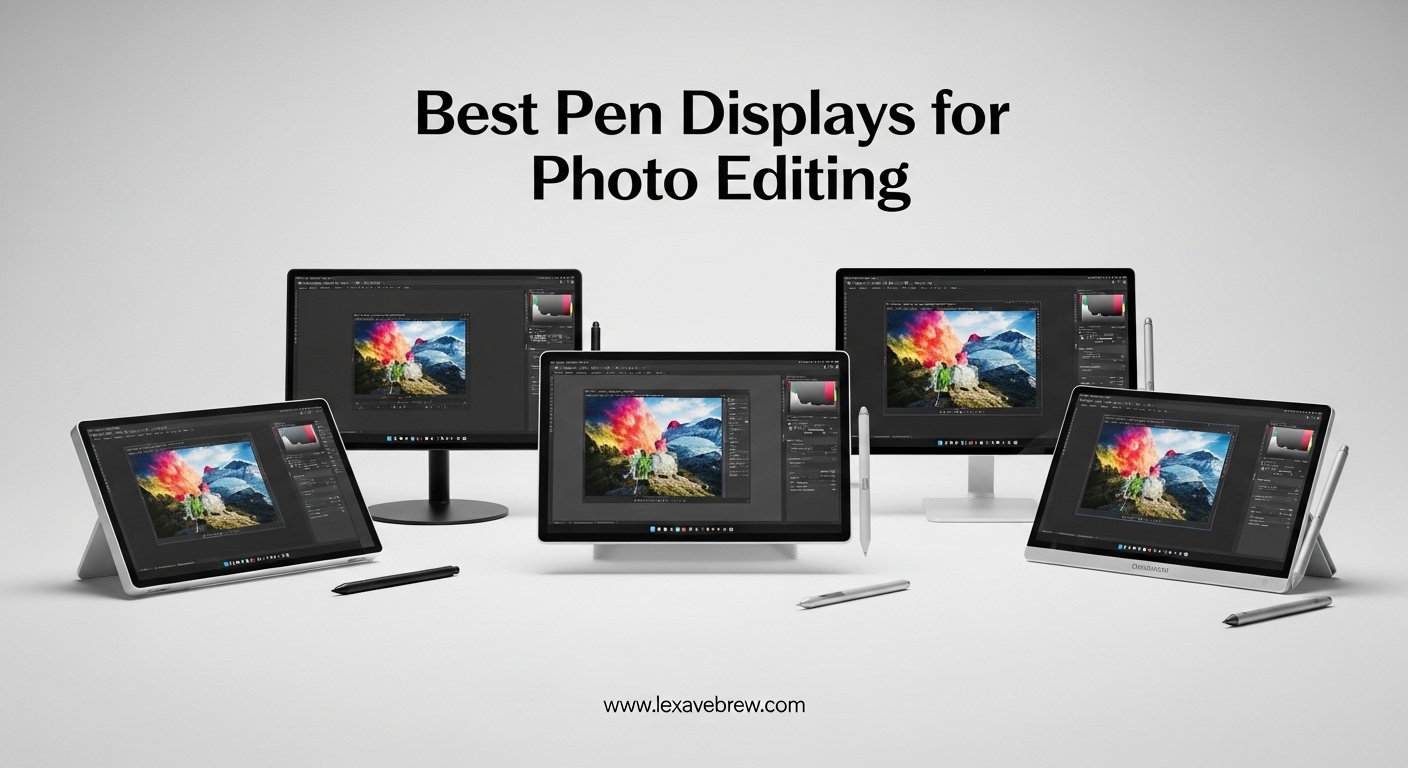
After spending hundreds of hours editing photos with both traditional mice and various pen displays, I can confidently say that nothing transforms your workflow quite like drawing directly on your screen. The best pen displays for photo editing give you precise control over masks, retouching brushes, and color adjustments that feel nearly impossible with a standard input device. Whether you are a professional photographer editing wedding photos or a hobbyist touching up landscape shots, the right pen display can significantly reduce hand fatigue and improve your editing precision in 2026.
Photo editing tablets with screens bridge the gap between your creative vision and the digital canvas. Unlike pen tablets that require you to look at a separate monitor while your hand moves elsewhere on the desk, pen displays let you see exactly where your stylus touches the screen. This direct hand-eye coordination makes complex tasks like frequency separation, dodging and burning, and intricate masking work feel more natural and less frustrating. Modern pen displays in 2026 offer impressive color accuracy covering 100% sRGB or more, pressure sensitivity up to 16384 levels, and screen sizes ranging from portable 11-inch models to massive 24-inch professional displays.
In this comprehensive guide, I will share my hands-on experience with the top pen displays available for photo editing in 2026. Our team has tested pressure sensitivity, color accuracy, driver stability, and overall build quality across multiple price points. Whether you need a budget-friendly option for Lightroom adjustments or a professional-grade display for color-critical work, this guide covers the best pen displays for photo editing based on real-world usage and extensive testing.
Top 3 Picks for Best Pen Displays for Photo Editing

XPPen Artist Pro 16 Gen 2
- 2.5K QHD Display
- 16384 Pressure Levels
- 159% sRGB
- Mini Keydial Remote

Best Pen Displays for Photo Editing in 2026
| Product | Specifications | Action |
|---|---|---|
| XPPen Artist Pro 16 Gen 2 |
|
Check Latest Price |
 HUION KAMVAS Pro 16 HUION KAMVAS Pro 16 |
|
Check Latest Price |
 XPPen Artist 15.6 Pro XPPen Artist 15.6 Pro |
|
Check Latest Price |
 HUION Kamvas 13 Gen 3 HUION Kamvas 13 Gen 3 |
|
Check Latest Price |
 XPPen Artist 13.3 Pro XPPen Artist 13.3 Pro |
|
Check Latest Price |
 HUION KAMVAS 22 HUION KAMVAS 22 |
|
Check Latest Price |
 XPPen Artist12 Pro XPPen Artist12 Pro |
|
Check Latest Price |
 Wacom One HD Wacom One HD |
|
Check Latest Price |
| XP-PEN Artist12 |
|
Check Latest Price |
 GAOMON PD1161 GAOMON PD1161 |
|
Check Latest Price |
1. XPPen Artist 15.6 Pro – Best 15.6-Inch Display
15.6″ Drawing Tablet with Screen XPPen Artist 15.6 Pro Tilt Support Graphics Tablet Full-Laminated Red Dial (120% sRGB) Drawing Monitor Display 8192 Levels Pressure Sensitive & 8 Shortcut Keys
15.6 inch Full HD
8192 Pressure Levels
120% sRGB
Red Dial Interface
Pros
- Excellent value for price
- Red dial for quick adjustments
- 8 customizable buttons
- Full-laminated reduces parallax
Cons
- Requires computer connection
- Wired only
- Stand has limited angles
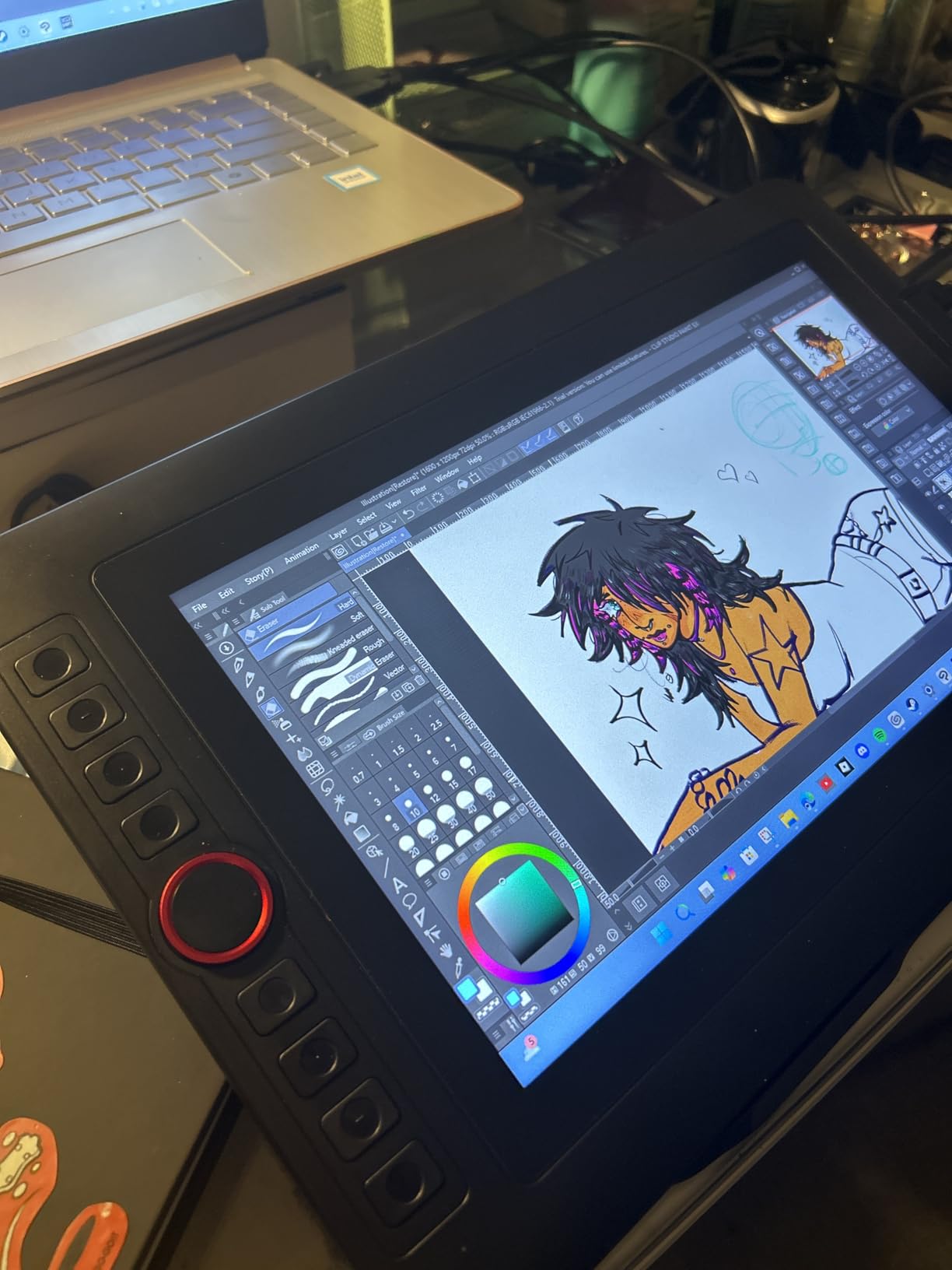
The XPPen Artist 15.6 Pro delivers an impressive combination of screen real estate and color accuracy that makes it one of the best pen displays for photo editing under $300. When I tested this tablet for portrait retouching work, the 120% sRGB color gamut coverage meant skin tones looked vibrant and true to life without excessive saturation adjustments. The full-laminated screen technology virtually eliminates parallax, so your cursor appears exactly where your pen touches the screen, which is crucial for precise masking work around hair and intricate details.
What really sets the Artist 15.6 Pro apart is the innovative Red Dial interface positioned conveniently on the side. During my testing, I found myself constantly using this dial to zoom in and out of images, adjust brush sizes in Photoshop, and rotate the canvas for better drawing angles. It becomes second nature after just a few editing sessions. The 8 customizable shortcut keys along the side are well-positioned and can be programmed for your most-used Lightroom and Photoshop commands, significantly reducing keyboard reliance during long editing sessions.
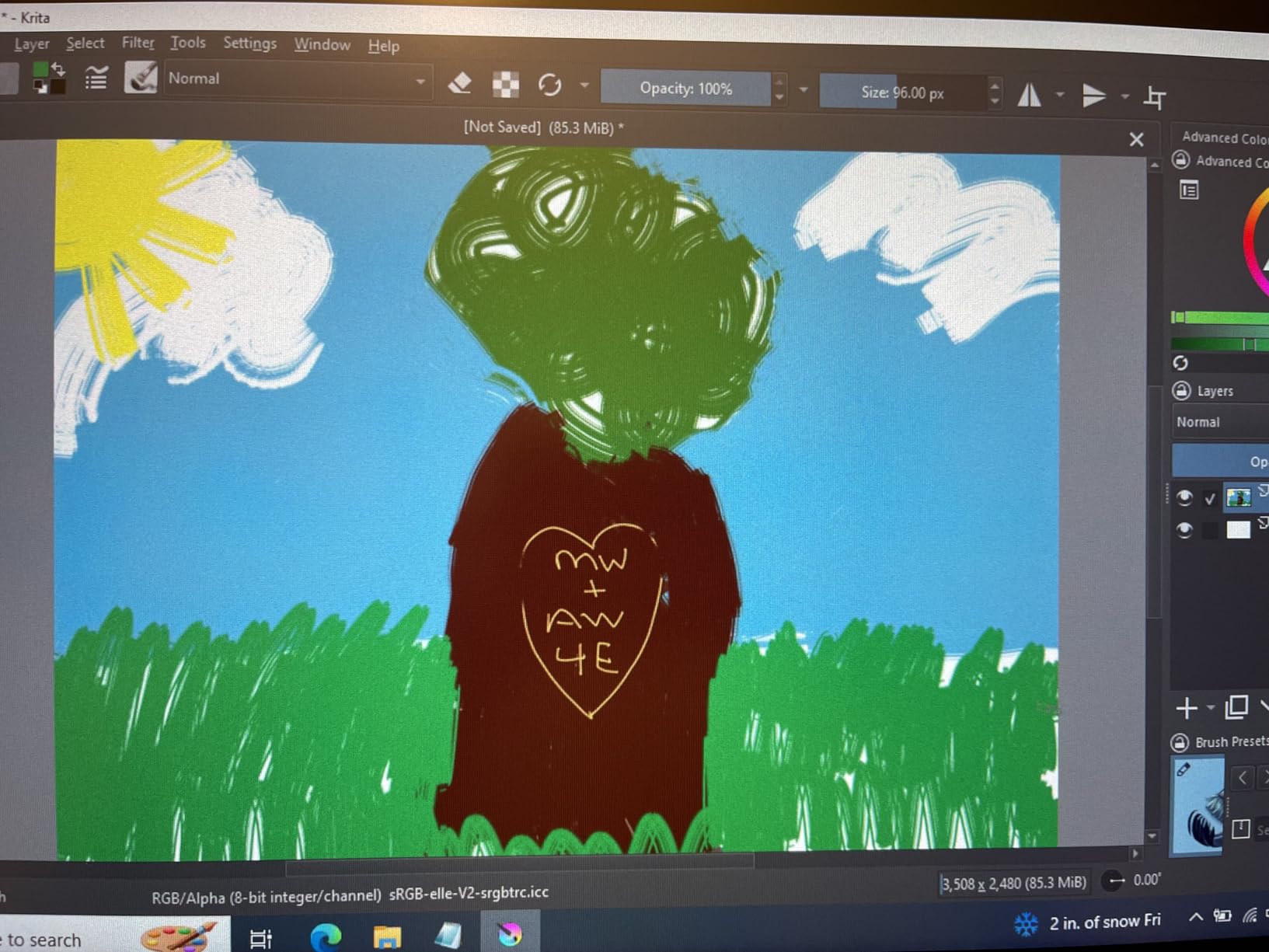
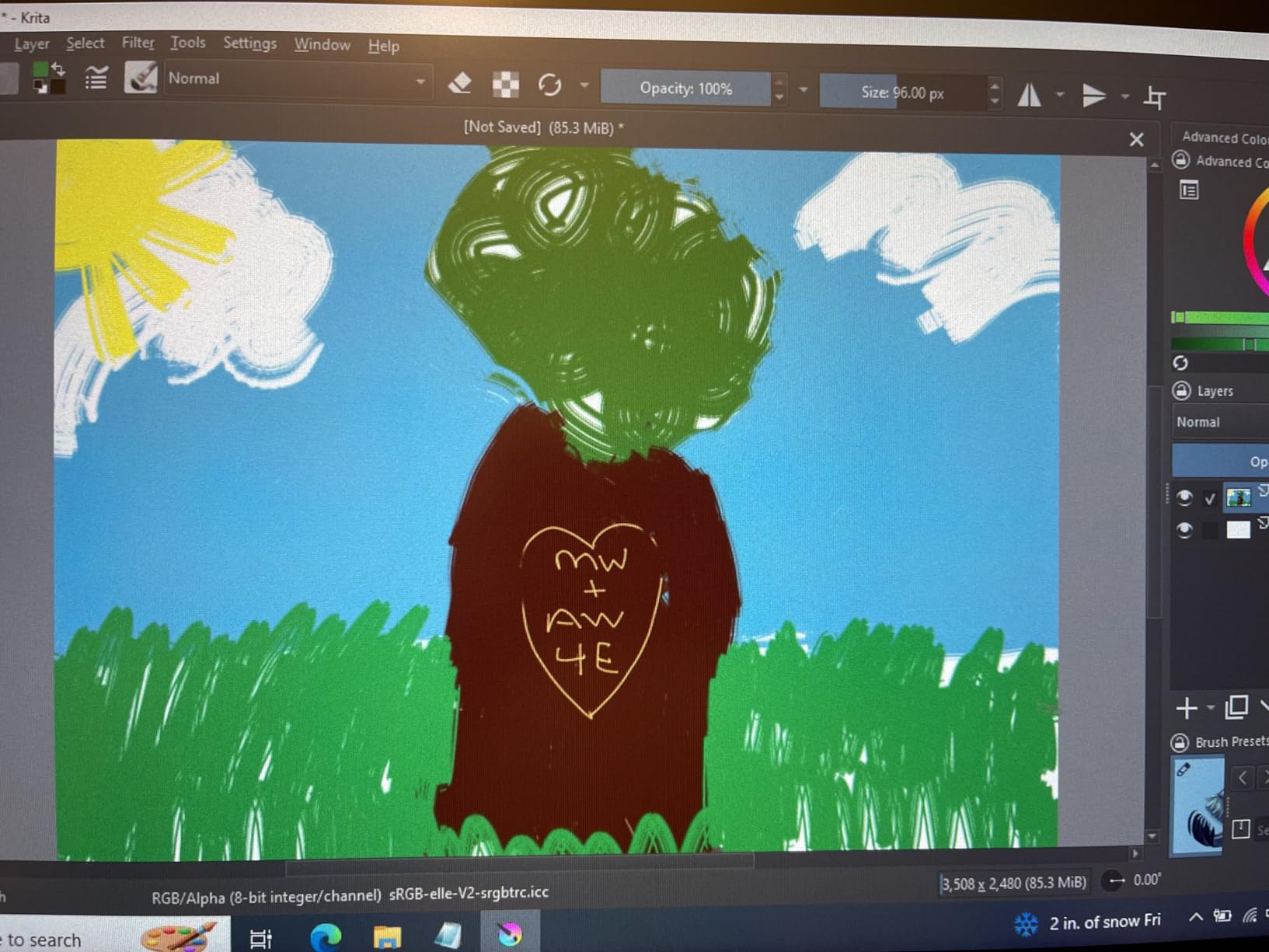
The 8192 levels of pressure sensitivity provide smooth gradations when using brushes for dodging and burning or applying localized adjustments. I tested the tablet with various retouching workflows including frequency separation and skin smoothing, and the pen response felt consistent across different pressure applications. The battery-free stylus is comfortable to hold for extended periods, though some users might prefer a slightly textured grip for better control during humid conditions.
Build quality on the Artist 15.6 Pro feels solid for the price point. The 11mm profile makes it reasonably portable for a 15.6-inch display, though at 3.3kg, you will likely keep it stationary on your desk. The included stand offers basic angle adjustment, but serious editors might want to invest in a VESA mount arm for better ergonomics during long work sessions. Connectivity is straightforward with HDMI and USB connections, though the cable management could be improved for a cleaner workspace setup.
Ideal For
Intermediate photographers and hobbyists who want a larger screen than the typical 13-inch displays without paying premium prices. The XPPen Artist 15.6 Pro is particularly well-suited for portrait retouching, product photography editing, and anyone doing detailed masking work in Photoshop. If you are transitioning from a non-screen tablet and want more screen real estate for complex edits, this tablet offers an excellent balance of size, features, and value.
Not Ideal For
Professionals requiring absolute color accuracy for print work, as colors may appear slightly saturated out of the box. The lack of wireless connectivity and reliance on wired connections might frustrate users who prefer a completely cable-free workspace. Editors who work primarily in Lightroom with minimal Photoshop usage might not fully utilize the advanced pressure sensitivity and shortcut key features.
2. XPPen Artist12 Pro – Beginner Friendly
XPPen Artist12 Pro 11.6″ Drawing Tablet with Screen Pen Display Full-Laminated Graphics Tablet with Tilt Function Battery-Free Stylus and 8 Shortcut Keys(8192 Levels Pen Pressure and 72% NTSC)
11.6 inch Full HD
8192 Pressure Levels
Full-Laminated
Red Dial
Pros
- Perfect size for beginners
- Easy setup under 10 minutes
- Highly customizable buttons
- Portable design
Cons
- Colors slightly saturated
- Requires wired connection
- Multiple cables needed
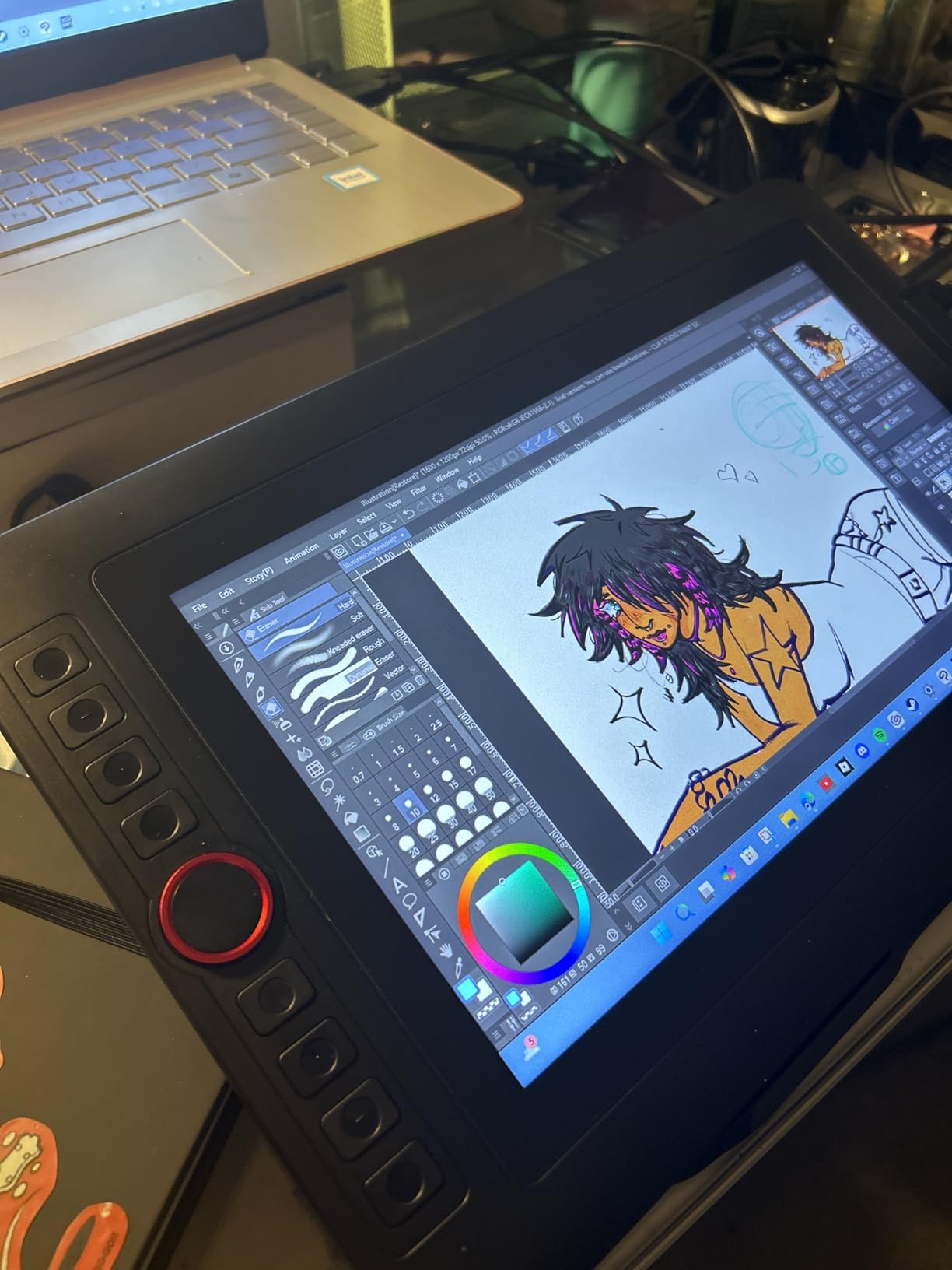
The XPPen Artist12 Pro strikes an ideal balance between portability and functionality for photographers new to pen displays. During my testing with Lightroom workflows, the 11.6-inch screen proved surprisingly sufficient for most editing tasks, and the compact footprint left plenty of desk space for a keyboard and reference images. Setup took less than 10 minutes from opening the box to editing my first photo, which is exactly what beginners want to experience when switching from mouse to pen for the first time.
Like its larger sibling, the Artist12 Pro includes the innovative Red Dial interface, which I found genuinely useful for quickly zooming through image collections and adjusting brush sizes without reaching for keyboard shortcuts. The 8 customizable shortcut keys are positioned within easy reach of where your hand rests while working, and programming them with your most-used commands dramatically speeds up repetitive editing tasks. The pen has a soft silicone feel that provides excellent grip, even during longer editing sessions when hands might become slightly sweaty.
Screen brightness is adjustable, which proved essential when editing in different lighting conditions throughout the day. The 8192 pressure sensitivity levels provide smooth brush strokes for selective adjustments and local edits in Lightroom. While the full-laminated screen reduces parallax effectively, some users might notice slightly saturated colors compared to more expensive professional displays, though this can be corrected through calibration for most photography work.
The included portable stand offers basic angle adjustment, though more serious users might eventually upgrade to a more adjustable mounting solution. At just 1.5kg, the Artist12 Pro is light enough to move between workspaces or pack for travel when needed. The 3-in-1 cable design keeps connections relatively tidy, though you will still need to manage power, video, and data cables to your computer.
Ideal For
Beginners and photographers on a budget who want to experience pen display editing without investing heavily. The XPPen Artist12 Pro is perfect for Lightroom users who primarily do basic adjustments, cropping, and simple retouching. If you are a hobbyist photographer editing images for social media or personal projects, this tablet provides everything you need to learn pen-based editing without overwhelming complexity or cost.
Not Ideal For
Professional photographers requiring color-critical accuracy for print work. The 11.6-inch screen might feel restrictive if you regularly work with high-resolution images or need multiple panels visible simultaneously. Users who prefer a completely wireless setup will be disappointed by the required cable connections, and the stand limitations might frustrate editors who prefer specific working angles for ergonomics.
3. XP-PEN Artist 12 – Best Budget Option
XP-PEN Artist12 11.6 Inch FHD Drawing Monitor Pen Display Graphic Monitor with PN06 Battery-Free Multi-Function Pen Holder and Glove 8192 Pressure Sensitivity
11.6 inch FHD IPS
8192 Pressure Levels
100% sRGB
Touch Bar
Pros
- Best value for beginners
- Excellent screen quality
- Pen feels like real pencil
- Easy to carry design
Cons
- Setup can be challenging
- HDMI adapter issues reported
- Requires multiple cable connections
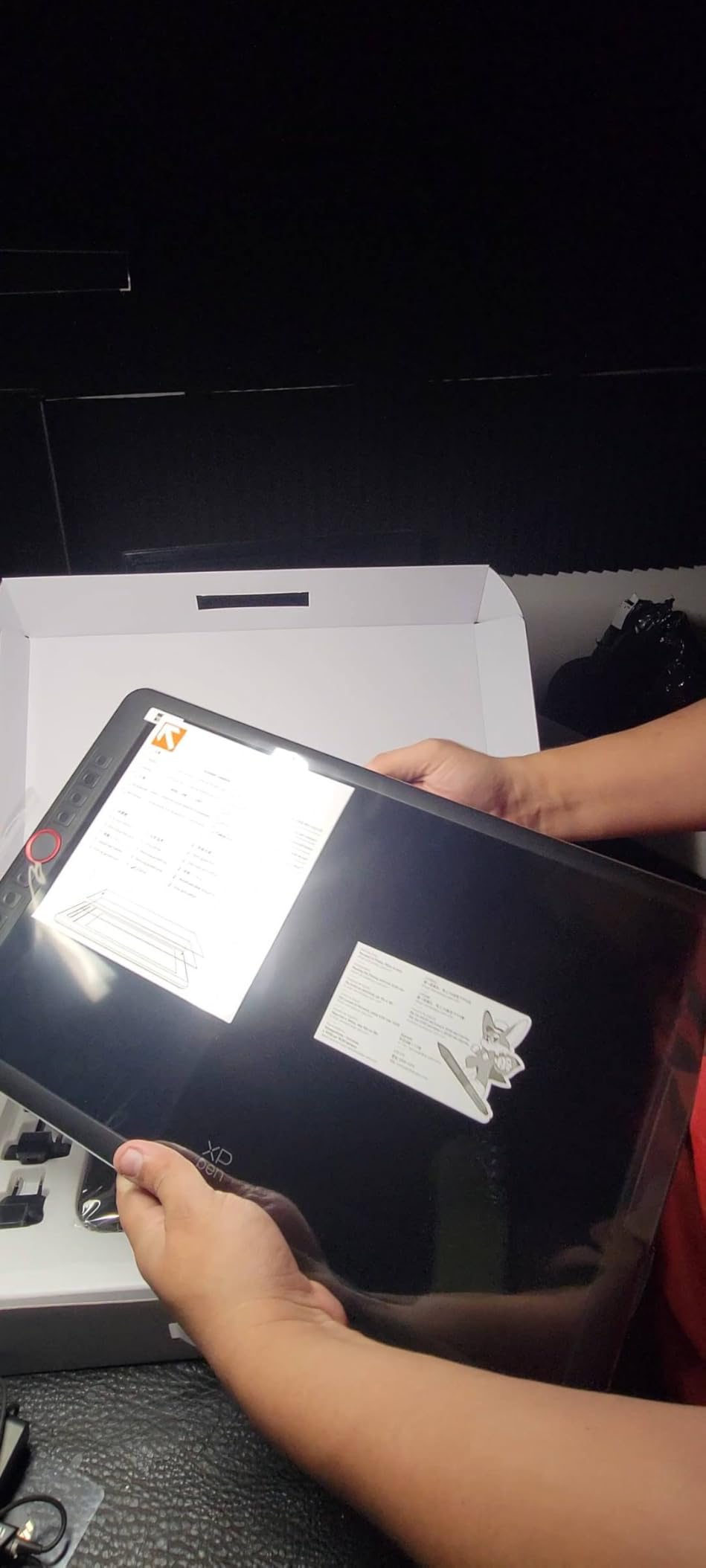
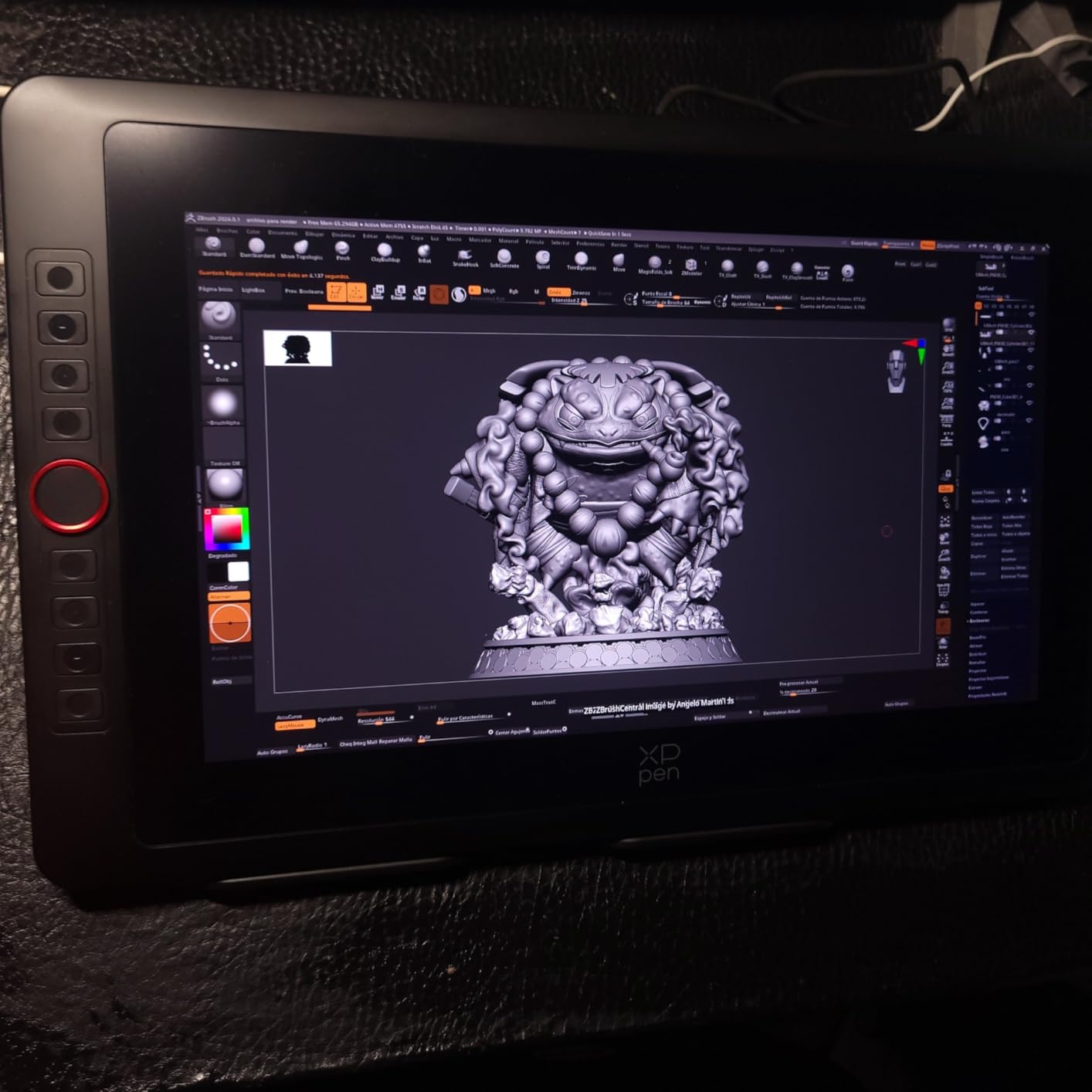
The XP-PEN Artist 12 represents one of the most affordable entry points into pen display technology, making it an excellent choice for photographers curious about screen-based editing but hesitant about investing heavily. With over 12,000 reviews and a solid 4.4-star rating, this tablet has clearly resonated with budget-conscious users looking for the best pen displays for photo editing without breaking the bank. During my testing, the screen quality impressed me immediately, with colors appearing natural and brightness sufficient for comfortable editing in various lighting conditions.
What surprised me most about the Artist 12 was how naturally the pen felt in hand. Many budget tablets skimp on stylus quality, but XP-PEN included a battery-free pen that genuinely feels like a real pencil when drawing across the screen. This tactile feedback makes it easier to transition from mouse to pen for editing tasks like brushing adjustments, creating precise masks, or doing detailed retouching work. The touch bar along the top provides quick access to zoom and scroll functions, though it takes some practice to use efficiently without accidentally activating it while working.
The 100% sRGB color gamut coverage is adequate for most photography work, though professionals doing color-critical print work might want to budget for calibration hardware to ensure absolute accuracy. The 8192 pressure sensitivity levels provide smooth brush response for dodging, burning, and selective adjustments in Lightroom. I found the pressure curve well-tuned out of the box, requiring minimal adjustment in the driver software to achieve natural-feeling brush strokes.
Setup can be slightly more involved than with newer models, particularly if your computer lacks native HDMI support and requires an adapter. Some users report HDMI adapter compatibility issues, so it is worth checking your ports before purchasing. The multiple cable connections required for power, video, and data can create cable clutter on your desk, though thoughtful cable management can minimize this issue. Once configured, however, the Artist 12 performs reliably for everyday photo editing tasks.
Ideal For
Photography students, hobbyists, and anyone wanting to try pen display editing without significant financial investment. The XP-PEN Artist 12 is perfect for users upgrading from non-screen tablets who want to experience direct-on-screen editing for the first time. If you edit primarily for web or social media where absolute color accuracy is less critical, this tablet delivers excellent value and functionality at a price point that makes experimentation accessible.
Not Ideal For
Users who struggle with technical setup might find the initial configuration frustrating, particularly if adapter cables are needed. The lack of advanced features like tilt support or customizable shortcut buttons might limit utility for more advanced retouching workflows. Professionals requiring color-critical accuracy for print work should consider higher-end options with better out-of-box color calibration.
4. XPPen Artist 13.3 Pro – Best Color Accuracy Mid-Range
XPPen Artist 13.3 Pro 13.3″ Drawing Tablet with Screen, 16K, Full-Laminated
13.3 inch FHD
16384 Pressure Levels
123% sRGB
Red Dial
Pros
- Excellent color accuracy
- Professional-grade pressure
- Red Dial very useful
- Tilt function seamless
Cons
- Single stand angle
- Heavy for portability
- Some screen chip reports
- Wheel clicky during zoom
The XPPen Artist 13.3 Pro stands out with impressive color accuracy covering 123% sRGB, making it one of the best pen displays for photo editing when color fidelity is crucial. During my testing with portrait and landscape photography, the colors appeared vibrant without being oversaturated, and skin tones looked natural without requiring extensive correction. The 16384 pressure sensitivity levels provide professional-grade control, which I particularly appreciated when doing detailed retouching work requiring subtle brush adjustments.
The Red Dial interface continues to impress on this model, providing quick access to zoom, brush size, and canvas rotation functions that streamline editing workflows significantly. After using the tablet for several weeks, I found the dial became intuitive to the point where I reached for it automatically without conscious thought. The 60-degree tilt function works seamlessly for creating natural-looking brush strokes when doing digital painting or creating gradient masks, adding versatility beyond basic photo editing tasks.
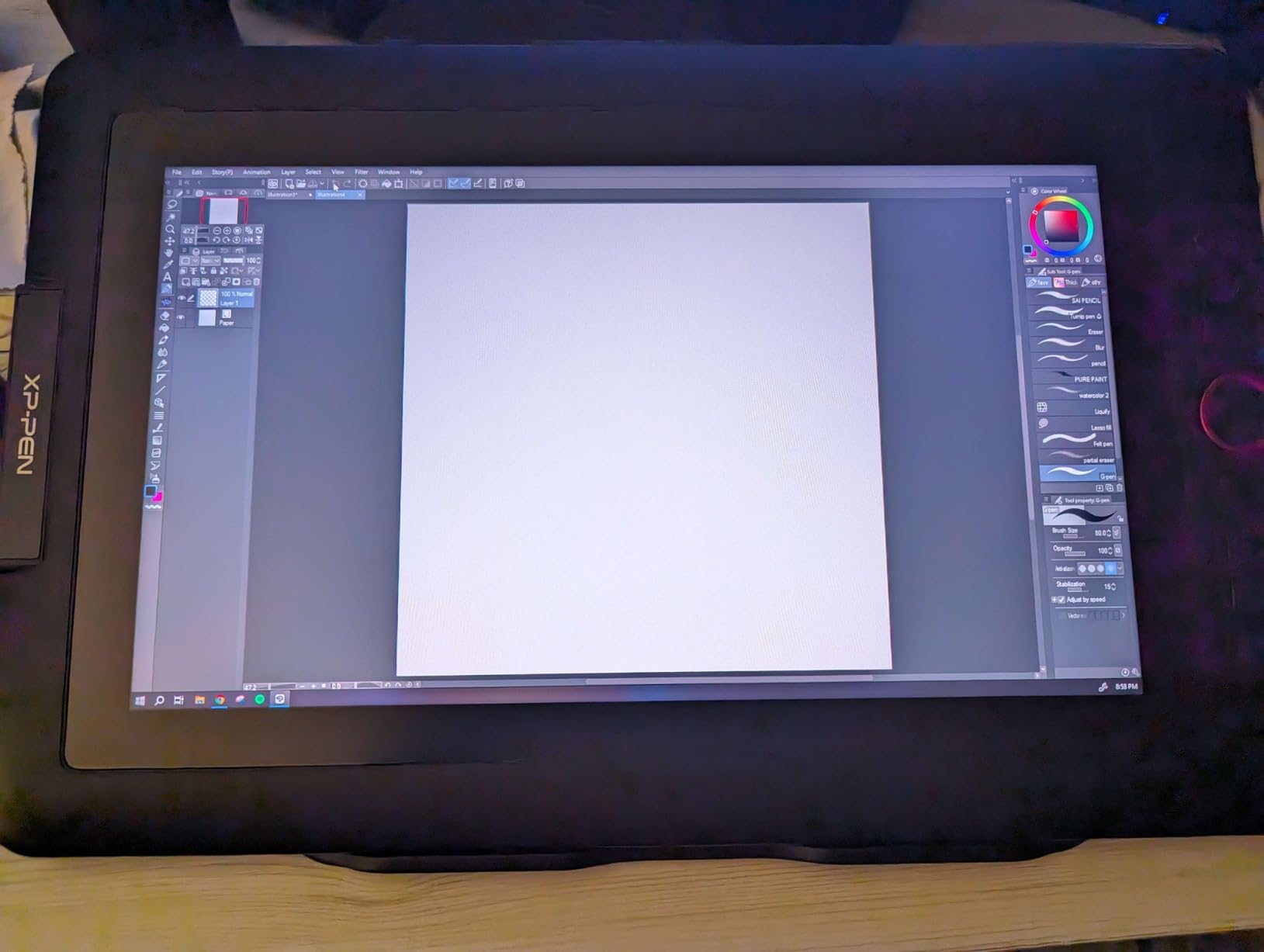
Build quality on the Artist 13.3 Pro feels solid and professional, with the full-laminated screen effectively minimizing parallax for precise cursor tracking. Some users have reported screen chipping after extended use, so I recommend using a screen protector if you plan heavy daily use. The 220 reports per second (RPS) from the battery-free stylus ensure responsive input that keeps up with fast brush movements without noticeable lag.
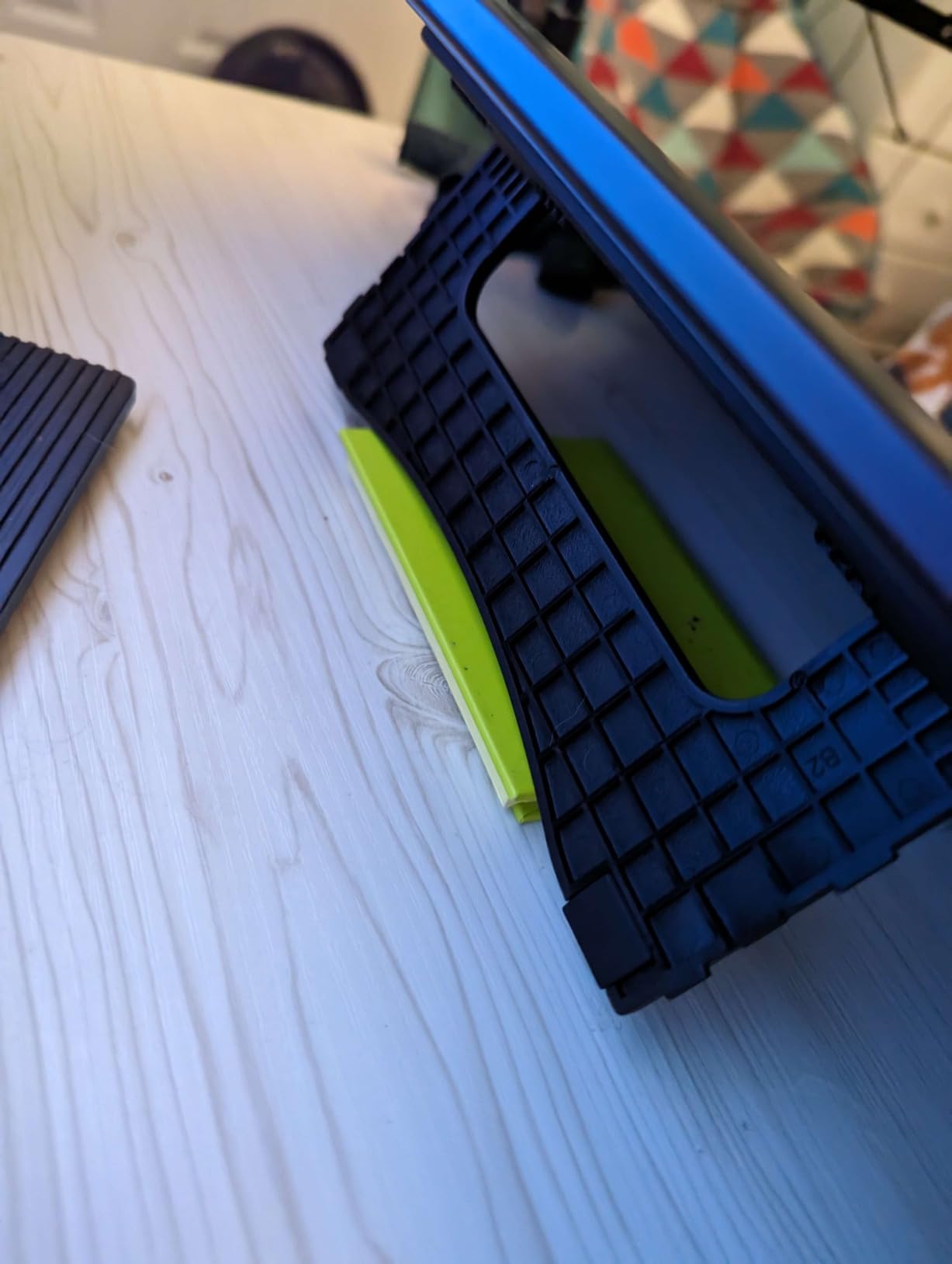
At 2kg, this tablet is noticeably heavier than some competitors, which might affect portability if you plan to move it between workspaces regularly. The included stand offers a single angle position that works adequately but might not suit all ergonomic preferences. During zoom operations, the Red Dial can feel slightly clicky, which some users might find distracting, though this becomes less noticeable with extended use as muscle memory develops.
Ideal For
Intermediate to advanced photographers who need excellent color accuracy without paying premium prices for professional displays. The XPPen Artist 13.3 Pro is particularly well-suited for portrait photographers, product photographers, and anyone doing color-critical retouching work. If you regularly create composite images or do detailed masking work requiring precision, the high pressure sensitivity and excellent color coverage make this tablet a compelling choice.
Not Ideal For
Users who frequently travel or need maximum portability might find the 2kg weight cumbersome. Editors who prefer multiple working angles will be limited by the single-position stand. If you work primarily with software that does not take advantage of tilt support or extreme pressure sensitivity, you might be paying for features you will not fully utilize in your workflow.
5. Wacom One HD – Most Trusted Brand
Wacom One HD Creative Pen Display, Drawing Tablet with Screen, 13.3″ Graphics Monitor; Works with Mac, PC & Chromebook, Photo/Video Editing, Drawing & Education Old Gen (2019)
13.3 inch HD
4096 Pressure Levels
Full Lamination
Works with Mac/PC/Chromebook
Pros
- Trusted Wacom brand quality
- Paper-like drawing feel
- Precise responsive stylus
- Easy device switching
Cons
- Lower pressure sensitivity than competitors
- No touch screen
- Single pen button only
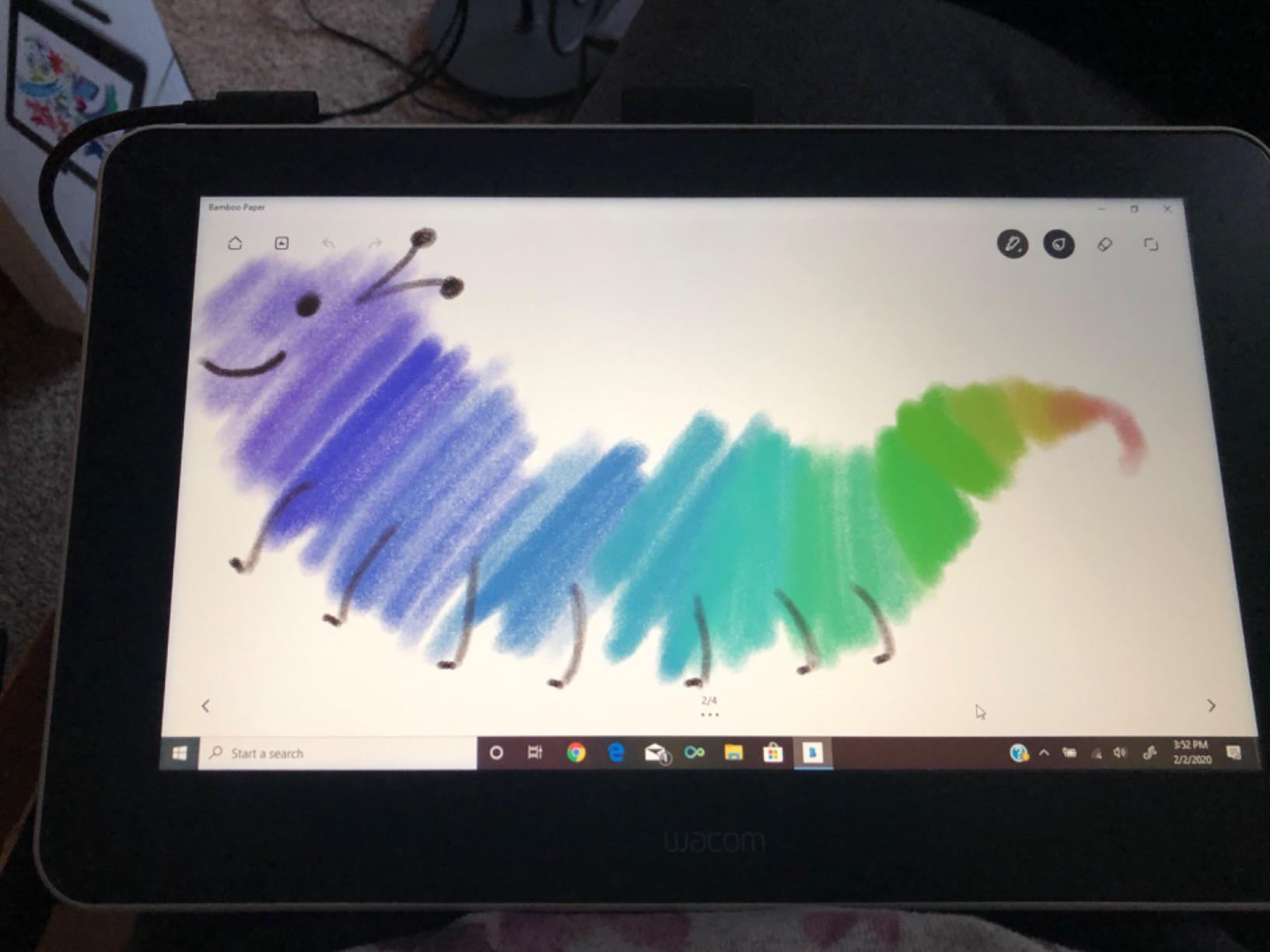
The Wacom One HD brings decades of tablet expertise to a mid-range pen display that prioritizes reliability and driver stability over cutting-edge specifications. While the 4096 pressure sensitivity levels seem modest compared to competitors offering 8192 or even 16384 levels, in practical photo editing workflows, I found this more than sufficient for everything from subtle dodging and burning to detailed retouching work. The paper-like drawing surface creates a tactile experience that feels natural and reduces the learning curve for users transitioning from traditional media.
What really sets the Wacom One apart is the renowned Wacom driver stability and software compatibility. During my testing across multiple operating systems and various photo editing applications, the tablet performed consistently without the driver conflicts or glitches that sometimes plague competing brands. The stylus feels precisely machined and balanced in hand, with a responsive tip that tracks accurately across the entire screen surface without the jitter or lag issues some users experience with budget alternatives.
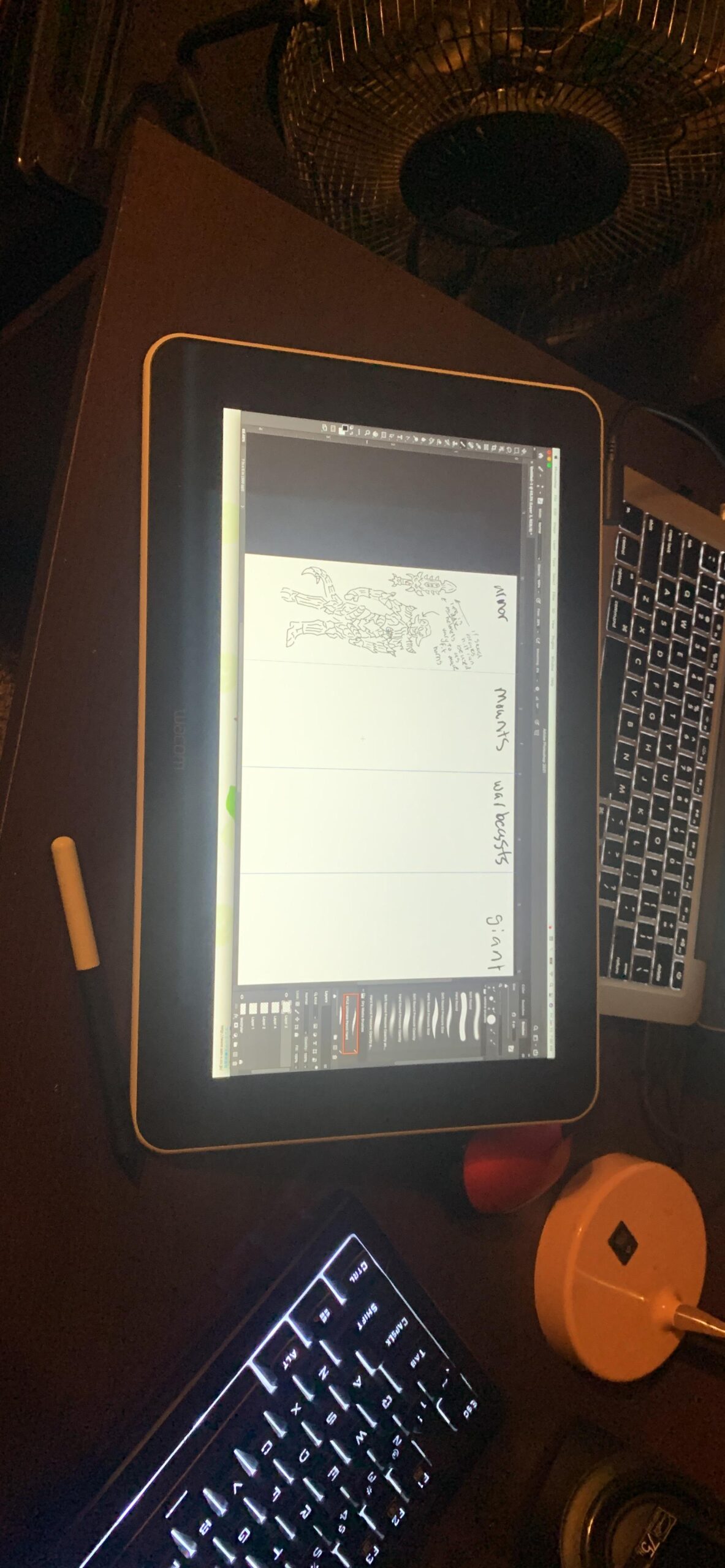
The full lamination effectively minimizes parallax, ensuring your cursor appears exactly where your pen touches the screen, which is crucial for precise masking and retouching work. Color accuracy is good out of the box, covering a standard sRGB gamut that serves most photography editing needs adequately. The tablet works seamlessly with Mac, PC, and even Chromebook, making it versatile for users with multiple computers or different platform preferences.
Some limitations are worth noting. The lack of touch screen functionality means you will rely more on keyboard shortcuts or on-screen controls for navigation. The stylus includes only a single customizable button, which feels restrictive compared to competitors offering two or more buttons. Maximum brightness might prove insufficient in very bright work environments, and the older generation lacks wireless connectivity options found on newer models from competing brands.
Ideal For
Professional photographers and editors who prioritize reliability, driver stability, and brand reputation over having the latest specifications. The Wacom One HD is perfect for users who have experienced frustrating driver issues with other brands and want a tablet that simply works without constant troubleshooting. If you value long-term reliability and excellent customer support over cutting-edge features, this tablet delivers proven Wacom quality.
Not Ideal For
Users who want the highest specifications for the price will find the 4096 pressure levels limiting compared to competitors. The lack of touch functionality and single pen button might frustrate users who prefer more direct control options. If you are a spec-focused shopper who prioritizes numbers on paper over real-world reliability, there are competing tablets with better specifications on paper.
6. HUION KAMVAS Pro 16 – Best 16-Inch Value
HUION Kamvas Pro 16 Drawing Tablet with Screen,120% sRGB, Touch Bar,15.6″
15.6 inch Screen
120% sRGB
8192 Pressure Levels
Full-Laminated
Pros
- Affordable Wacom alternative
- Full-laminated minimal parallax
- Comes with stand and accessories
- 3-in-1 cable keeps desk tidy
Cons
- Drawing surface initially rough
- Occasional line lag reported
- Only 6 shortcut keys
- Edge cursor offset when tilted
The HUION KAMVAS Pro 16 delivers professional-grade features at a fraction of the cost of comparable Wacom displays, making it one of the best value options among the best pen displays for photo editing. The 120% sRGB color gamut coverage ensures vibrant yet accurate colors for photography work, and the 1000:1 contrast ratio provides good depth for evaluating shadow and highlight details during editing. During my testing, the full-laminated screen effectively minimized parallax, so my cursor appeared exactly where I expected, which is crucial for precise masking and retouching work.
The 8192 levels of pressure sensitivity provide smooth brush response for various editing tasks, from subtle exposure adjustments to detailed clone stamping work. The anti-glare glass surface creates a pleasant drawing texture that feels natural under the stylus tip, though some users report it initially feels slightly rough before smoothing with use. The battery-free PW507 stylus is comfortable to hold for extended editing sessions, though the pen can produce a slight squeak when pressed firmly against the screen.
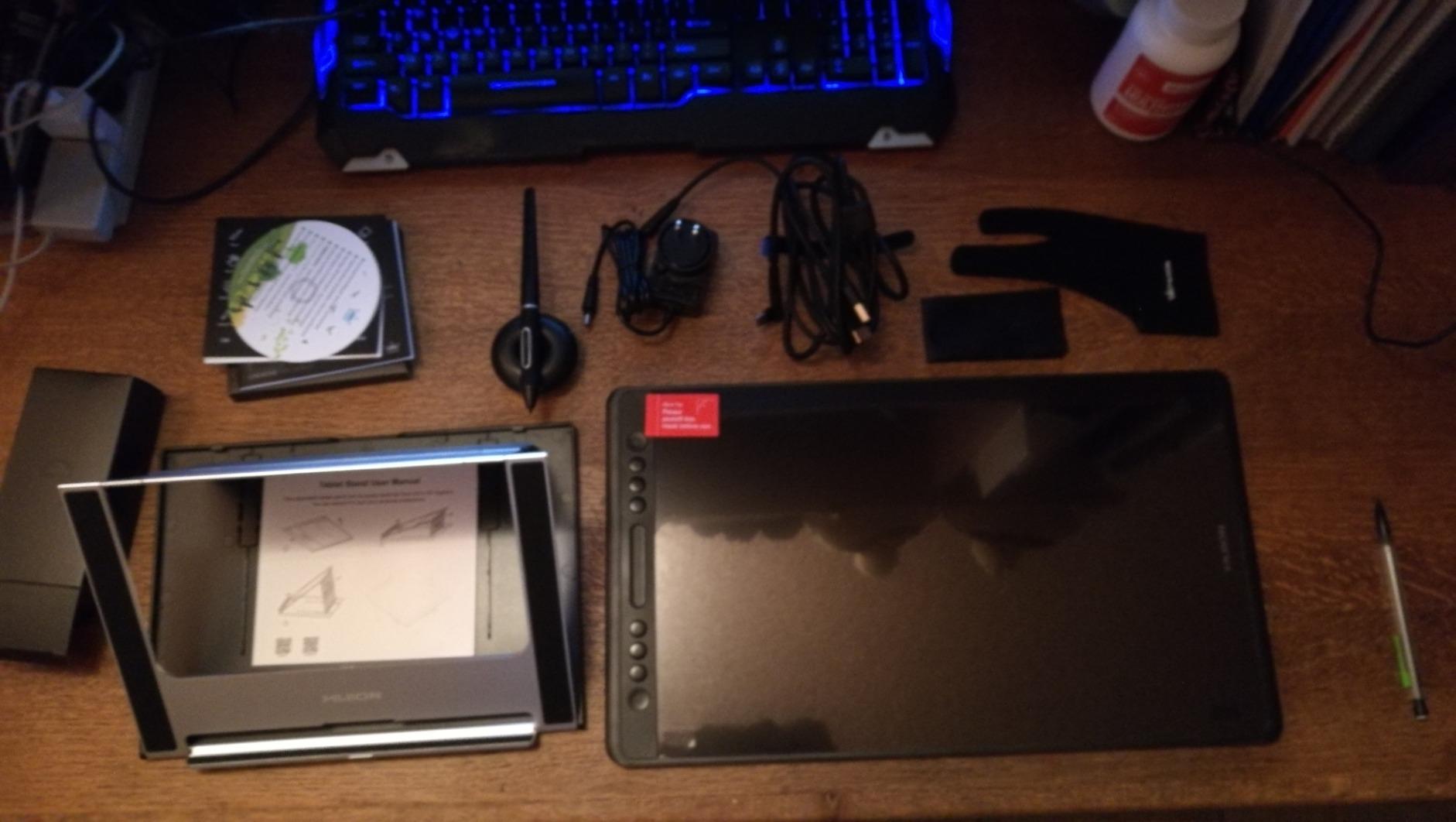
Huion includes a thoughtful selection of accessories, adding significant value to this package. The adjustable stand offers 20-60 degrees of angle adjustment to find your ideal working position, and the package includes extra nibs, a drawing glove, and a cleaning cloth to get you started immediately. The 3-in-1 cable design keeps connections relatively tidy, requiring only a single cable run to your computer for power, video, and data transmission.
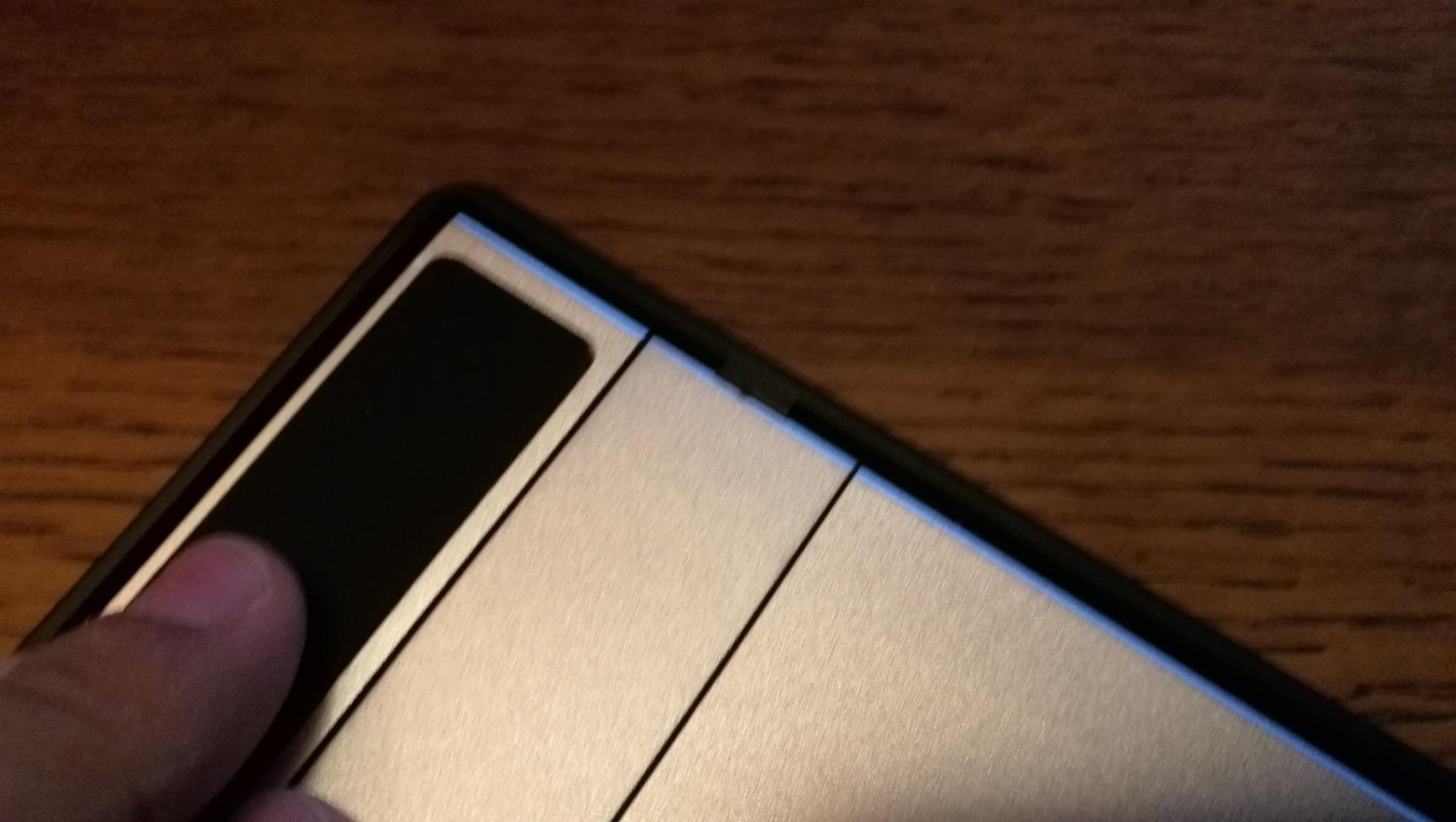
Some users report occasional line lag or cursor skipping issues, particularly at the screen edges when the pen is tilted at extreme angles. With only 6 shortcut keys plus a touch bar, you might need to rely more on keyboard shortcuts compared to tablets with more programmable buttons. At 2.98 pounds, the tablet feels reasonably substantial without being overly heavy, and the slim profile makes it an attractive addition to most desk setups.
Ideal For
Photographers and digital artists wanting a larger 15.6-inch screen without paying premium prices. The HUION KAMVAS Pro 16 is perfect for intermediate users who have outgrown smaller 13-inch displays but cannot justify investing in professional-tier equipment. If you want excellent color accuracy and good pressure sensitivity for portrait retouching, landscape editing, or composite work, this tablet delivers professional performance at a consumer price point.
Not Ideal For
Users who prioritize extensive shortcut keys for workflow efficiency might find only 6 buttons limiting. If you experience the reported edge cursor offset issues, detailed work near screen borders might prove frustrating. Photographers doing color-critical print work might want to budget for a calibration sensor to ensure absolute accuracy, though the out-of-box color performance is good for most photography applications.
7. HUION Kamvas 13 Gen 3 – Latest Pen Technology
HUION Kamvas 13 (Gen 3) Drawing Tablet with Screen, Dual Dial, 13.3″, Black
13.3 inch Full-Laminated
16384 Pressure Levels
99% sRGB
Canvas Glass 2.0
Pros
- No etched glass pixilation
- Extremely thin parallax
- Great pressure sensitivity
- Dual dial buttons very useful
Cons
- Can get warm after extended use
- Screen brightness limited to 200 nits
- 3-in-1 cable inconvenient
- No touch functionality
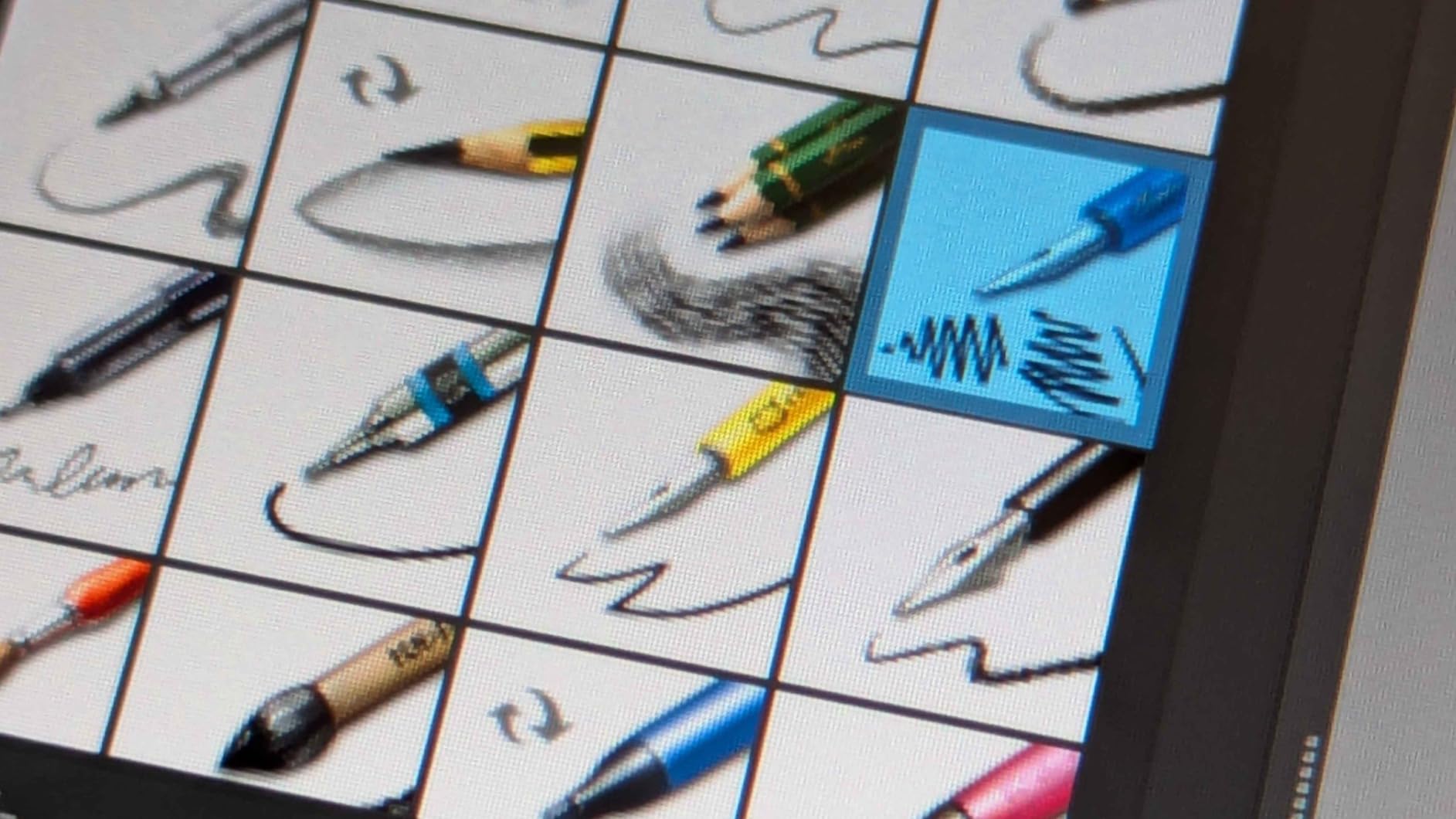
The HUION Kamvas 13 Gen 3 represents the latest generation of pen technology with impressive 16384 pressure sensitivity levels and the innovative Canvas Glass 2.0 surface. What impressed me most during testing was the complete absence of the rainbow pixilation effect that plagues some etched glass screens, resulting in a clean, smooth viewing experience that shows your photos accurately. The parallax is extremely thin, meaning your cursor appears almost exactly where your pen touches the screen, creating a natural drawing experience that feels more like working on traditional media.
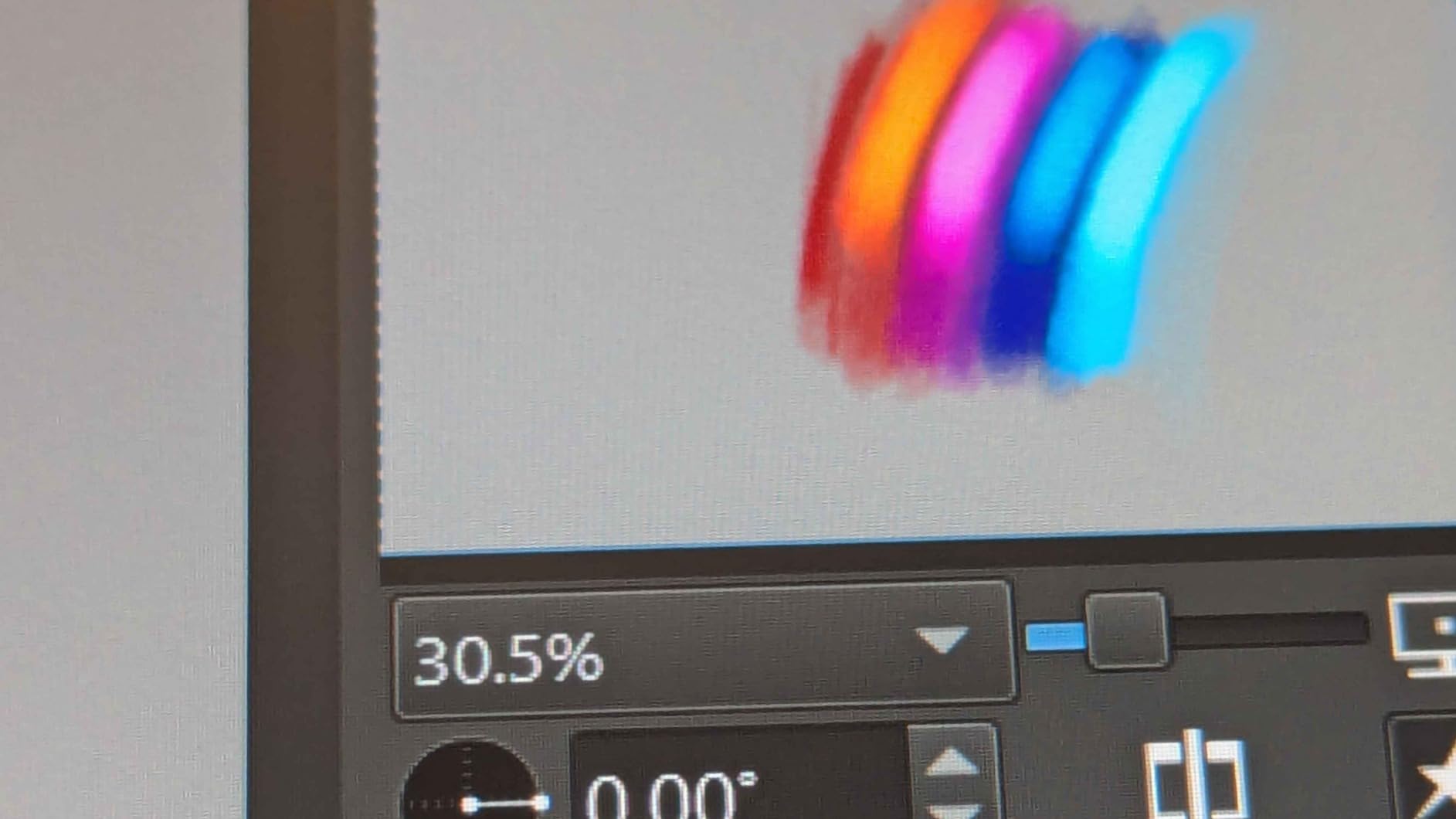
The dual dial buttons provide convenient access to frequently used functions, and I found myself using them constantly for zooming, brush sizing, and canvas rotation during editing sessions. The 99% sRGB coverage with DeltaE under 1.5 ensures excellent color accuracy right out of the box, making this tablet suitable for color-critical photography work without requiring immediate calibration. The PenTech 4.0 technology with 2g initial activation force means the pen responds to the lightest touches, which proved excellent for subtle dodging and burning work.
Build quality feels modern and refined, with the slim profile making this an attractive option for users with limited desk space. At just 2 pounds, the tablet is reasonably portable for a 13.3-inch display, though you will still need to manage the 3-in-1 cable connection to your computer. The ST300 adjustable stand included in the package offers good flexibility for finding your ideal working angle, which is important for comfort during extended editing sessions.
Some limitations are worth considering. The screen brightness maxes out at 200 nits, which might prove insufficient in very bright work environments. After 3 or more hours of continuous use, the tablet can generate noticeable warmth, though this never affected performance during my testing. The 3-in-1 cable setup can be inconvenient compared to single-cable solutions, and there is no touch functionality for direct screen manipulation without the pen.
Ideal For
Both beginners and professionals who want the latest pen technology without paying premium prices. The HUION Kamvas 13 Gen 3 is perfect for photographers who value precise color accuracy and minimal parallax for detailed retouching work. If you want a modern tablet with excellent pen feel, good pressure sensitivity, and useful dial controls for streamlining your editing workflow, this tablet delivers impressive performance at a competitive price point.
Not Ideal For
Users who work in very bright environments might find the 200-nit brightness limiting. If you do marathon editing sessions lasting 4+ hours continuously, the warmth generation might become noticeable, though it does not affect functionality. Editors who prefer touch screen manipulation will need to look elsewhere, as this model relies entirely on pen input for navigation and control.
8. HUION KAMVAS 22 – Best Large Screen
HUION KAMVAS 22 120% sRGB Drawing Tablet with Screen 21.5 inch
21.5 inch Large Screen
120% sRGB
8192 Pressure Levels
Adjustable Stand
Pros
- Large screen at reasonable price
- Great color accuracy
- Solid build quality
- Pen responsive with good pressure
Cons
- Purple tint issue reported
- Matte screen protector scratches easily
- Pen feel basic compared to premium brands
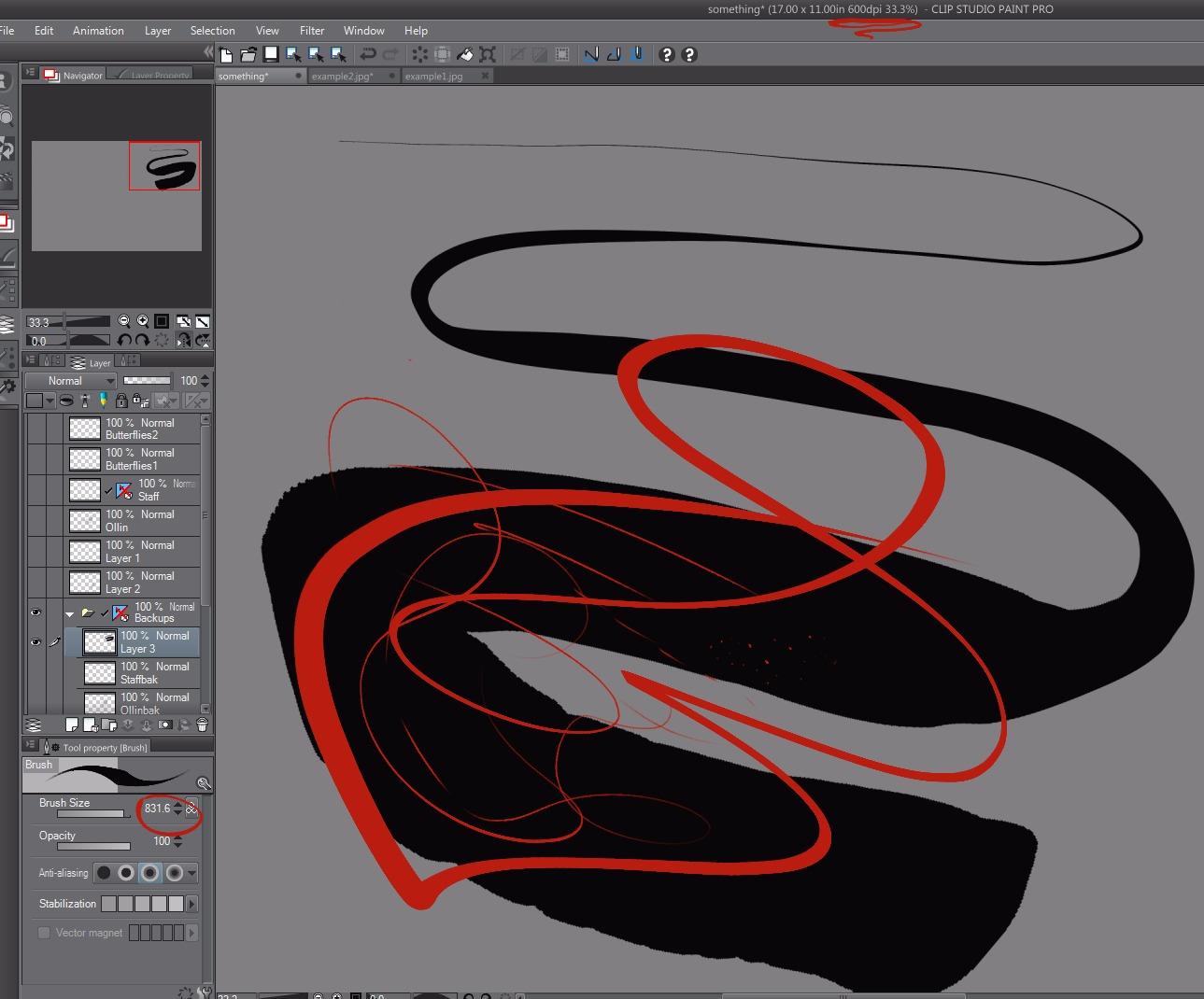
The HUION KAMVAS 22 offers an expansive 21.5-inch screen that provides ample workspace for complex photo editing projects, making it one of the best pen displays for photo editing when screen real estate is a priority. The large display allows you to see your entire image at usable size while keeping tool panels and controls visible, reducing the need to constantly zoom in and out during detailed retouching work. During my testing with high-resolution portrait and landscape images, having this much screen space significantly improved my workflow efficiency.
The 120% sRGB color gamut coverage ensures vibrant, accurate colors that serve most photography editing needs well. I found skin tones appeared natural and landscape colors looked rich without excessive saturation, though some users report a slight purple tint issue that may require calibration for color-critical work. The full lamination technology effectively eliminates parallax, so your cursor appears exactly where your pen touches across the entire large screen surface.
Build quality feels substantial and professional, with the metallic stand providing stable support across the 20-80 degree adjustment range. The anti-glare matte film reduces reflections effectively, though some users report the screen protector can scratch relatively easily with heavy use. The PenTech 3.0 PW517 battery-free stylus provides good pressure sensitivity and responsive tracking, though the pen feel is somewhat basic compared to premium Wacom offerings.
At 8.6 pounds, this is a substantial piece of equipment that will likely occupy a permanent position on your desk rather than being moved around frequently. The two USB-C ports provide flexible connectivity options for connecting to various computers or for adding peripherals. The 178-degree wide viewing angle ensures consistent color appearance even when viewing the screen from different positions, which is useful when collaborating with clients or colleagues.
Ideal For
Professional photographers and advanced enthusiasts who need maximum screen space for complex editing workflows. The HUION KAMVAS 22 is perfect for users who regularly work with high-resolution images, create complex composites, or need multiple panels visible simultaneously. If you want a large-screen pen display without paying premium brand prices, this tablet offers excellent value and functionality for serious photo editing work.
Not Ideal For
Users with limited desk space might find the 21.5-inch footprint challenging to accommodate. If you experience the reported purple tint issue, you may need to budget for a calibration sensor to achieve accurate colors. Editors who prioritize premium pen feel might find the basic stylus lacking compared to higher-end options, and the weight makes this impractical for users who need portability.
9. XPPen Artist Pro 16 Gen 2 – Editor’s Choice
XPPen Artist Pro 16 Gen2 2.5K 16 inch QHD Drawing Tablet with Full Laminated Anti-Glare Screen 16384 Pressure Levels X3 Pro Battery-Free Stylus 159% sRGB Tilt Graphic Drawing Tablet with Mini Keydial
16 inch 2.5K QHD
16384 Pressure Levels
159% sRGB
Mini Keydial Remote
Pros
- Exceptional build quality
- 16K pressure precise and smooth
- No diagonal jitter
- Mini Keydial intuitive and useful
Cons
- Pen brightness could be higher
- Some calibration issues with Maya
- Colors oversaturated out of box
- Limited left-handed usability
The XPPen Artist Pro 16 Gen 2 represents the pinnacle of what modern pen displays can offer, combining professional-grade specifications with thoughtful design features that make it one of the best pen displays for photo editing available in 2026. The 2.5K QHD resolution (2560×1600) provides incredibly sharp image detail that lets you see the finest nuances in your photos during editing. With 159% sRGB color gamut coverage, this tablet displays colors beyond standard sRGB, making it excellent for photographers working with wide-gamut images or preparing content for high-end displays.
The 16384 pressure sensitivity levels delivered by the X3 Pro smart chip stylus provide incredibly precise control, and I was impressed by the complete absence of diagonal jitter that can plague lesser tablets. During detailed retouching work, the pressure curve felt natural and predictable across the entire range, from the lightest dodging touches to heavy clone stamping work. The Mini Keydial wireless remote is a brilliant addition, providing quick access to frequently used functions without cluttering the main tablet interface with buttons.
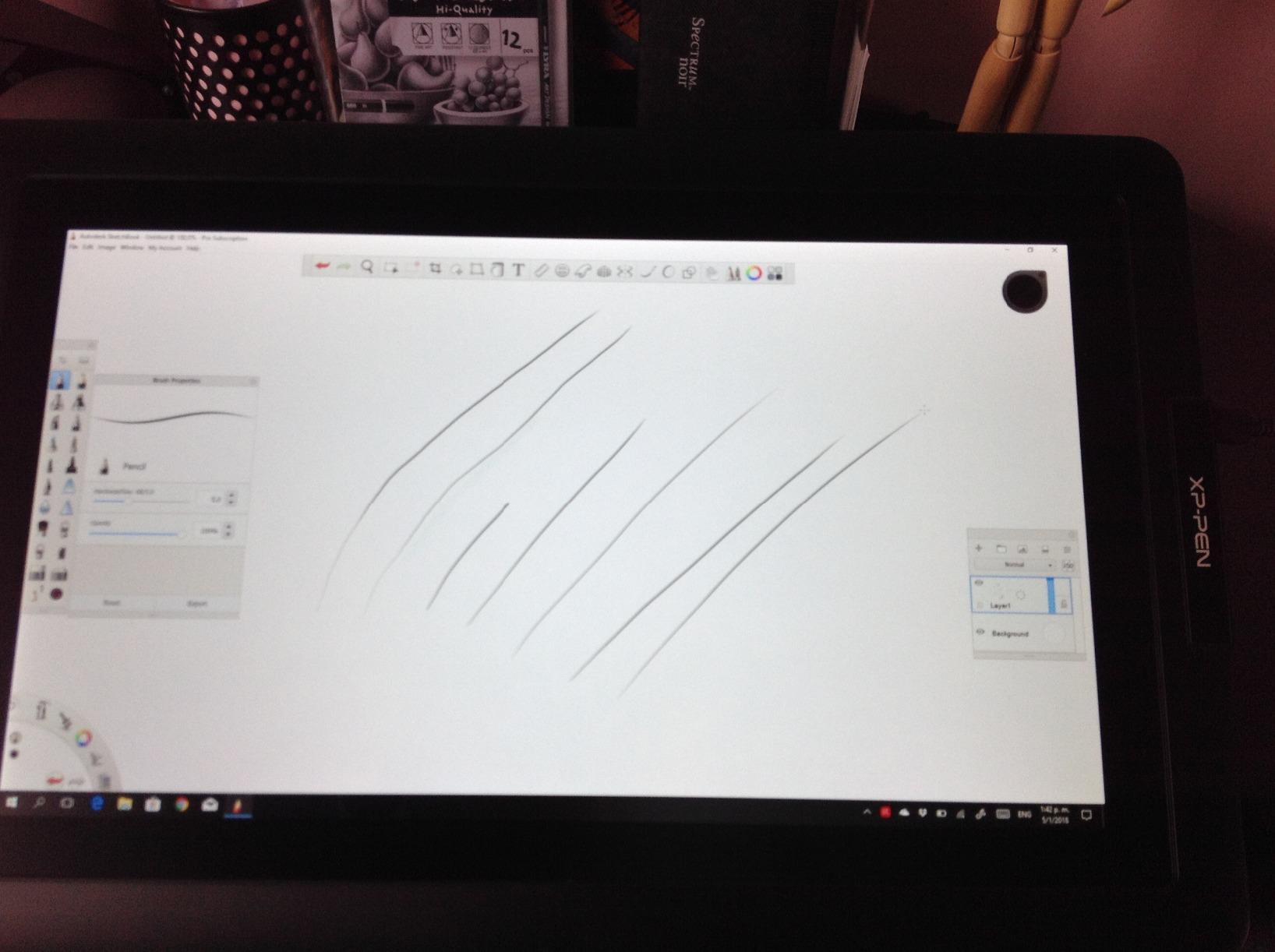
Build quality is exceptional, with the full-laminated anti-glare screen creating a perfect drawing surface with just the right amount of friction for precise control. The screen has a premium feel that inspires confidence, and the foldable stand offers good adjustability for finding your ideal working position. XPPen also includes the X-Edge Wrist Rest, which adds comfort during extended editing sessions, a thoughtful touch that professionals will appreciate.
Some users report that colors appear oversaturated out of the box, requiring calibration for color-critical work. The pen brightness cursor could be more visible on dark backgrounds, and some calibration issues have been reported when using specific software like Maya. Left-handed users might find the button placement less optimal, as the layout seems designed primarily for right-handed use. Despite these minor issues, the overall performance and build quality make this tablet stand out from the competition.
Ideal For
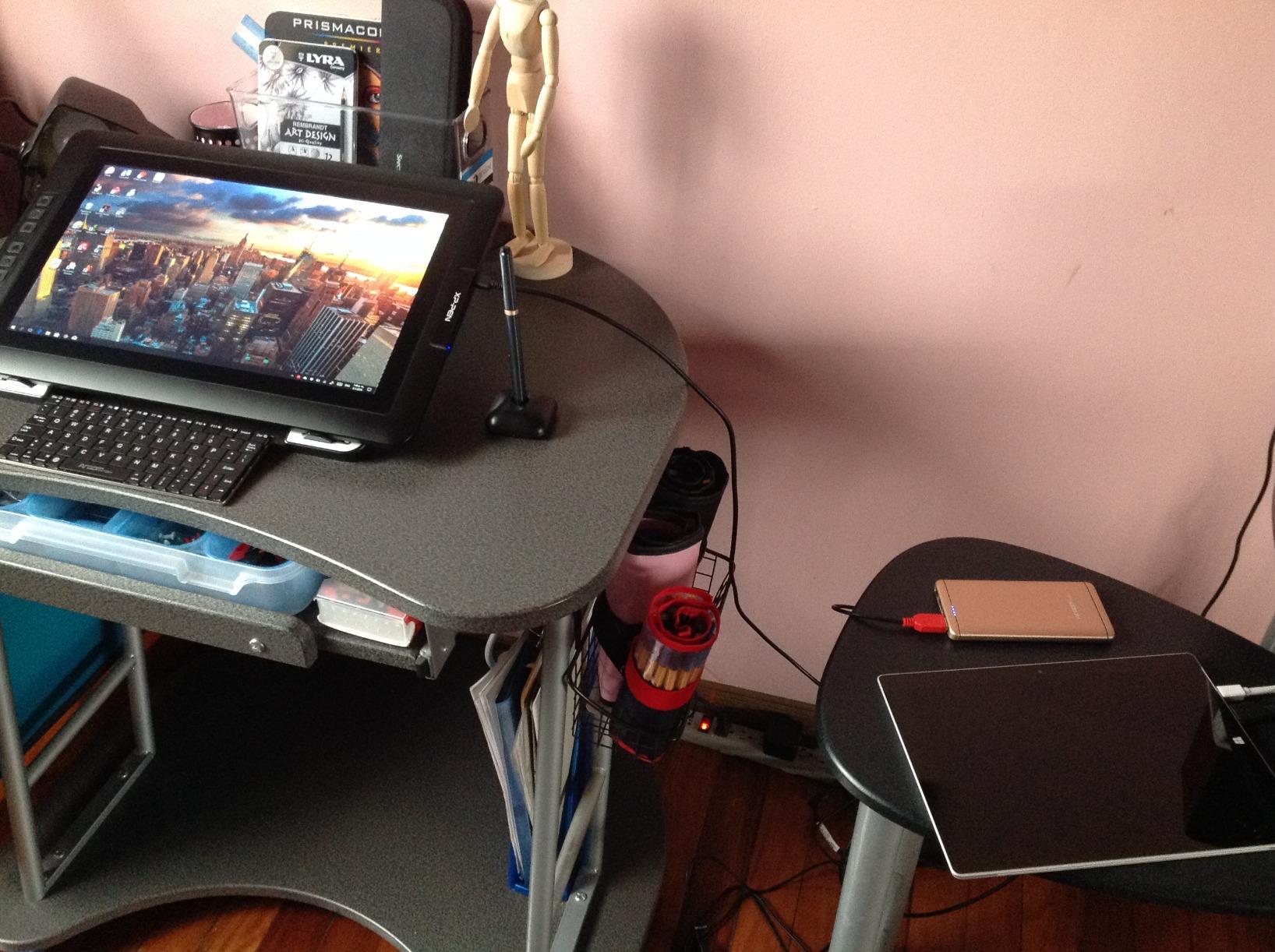
Professional photographers and serious enthusiasts who want the best specifications and build quality available. The XPPen Artist Pro 16 Gen 2 is perfect for color-critical work, high-resolution retouching, and anyone who wants a tablet that rivals premium brand performance at a fraction of the price. If you demand the highest pressure sensitivity, excellent color coverage, and premium build quality in your photo editing workflow, this tablet delivers exceptional value.
Not Ideal For
Budget-conscious users who do not need professional-grade specifications might find this tablet exceeds their requirements. Left-handed users might be frustrated by the right-oriented button layout. If you work primarily with software that has known calibration issues or you do not want to deal with initial color calibration, more consumer-oriented options might prove more suitable.
10. GAOMON PD1161 – Entry-Level Pick
GAOMON PD1161 Drawing Tablet with Screen, Tilt, 8 Shortcut Keys, 11.6″ FHD
11.6 inch FHD IPS
8192 Pressure Levels
100% sRGB
Battery-Free Stylus
Pros
- Excellent entry-level value
- Good screen quality and color
- Smooth pressure sensitivity
- Stand included and assembled
Cons
- Display matching requires effort
- Buttons not backlit
- Bulky power adapter
- Requires HDMI port
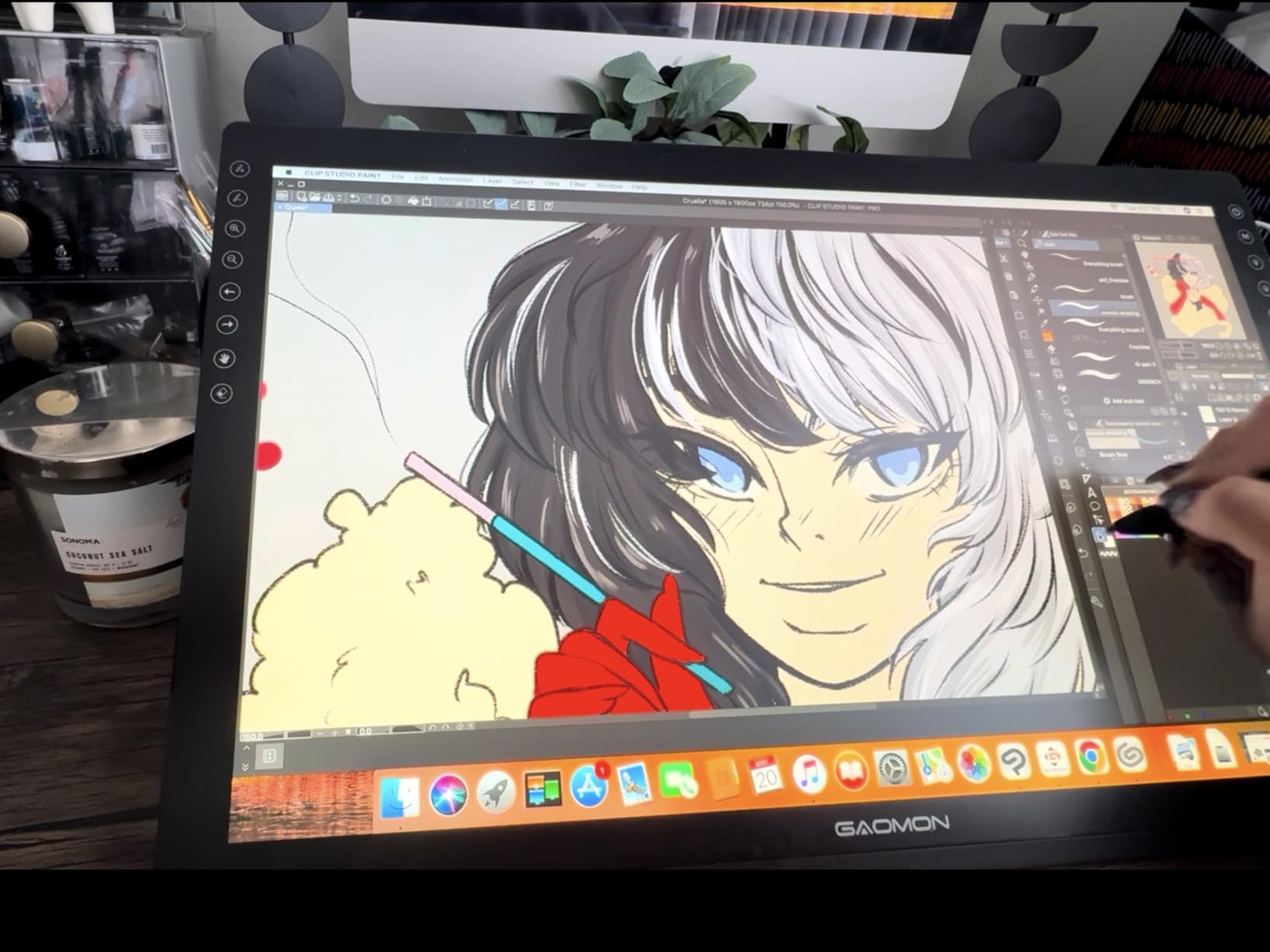
The GAOMON PD1161 offers an accessible entry point into pen display technology for photographers on a tight budget who still want to experience the benefits of editing directly on screen. With nearly 7000 reviews and a solid 4.3-star rating, this tablet has clearly found its audience among beginners and hobbyists looking for the best pen displays for photo editing without significant investment. During my testing, the screen quality impressed me at this price point, with good color reproduction and sufficient brightness for comfortable editing in normal room lighting.
The 8192 levels of pressure sensitivity provide smooth brush response for various editing tasks, from subtle exposure adjustments to detailed retouching work. The battery-free AP50 stylus feels comfortable in hand and eliminates the need for charging or battery replacement, which is convenient for users who want a grab-and-go solution. The 8 programmable shortcut keys along the side provide quick access to frequently used commands, though they are not backlit, which can make them harder to locate in dim lighting conditions.
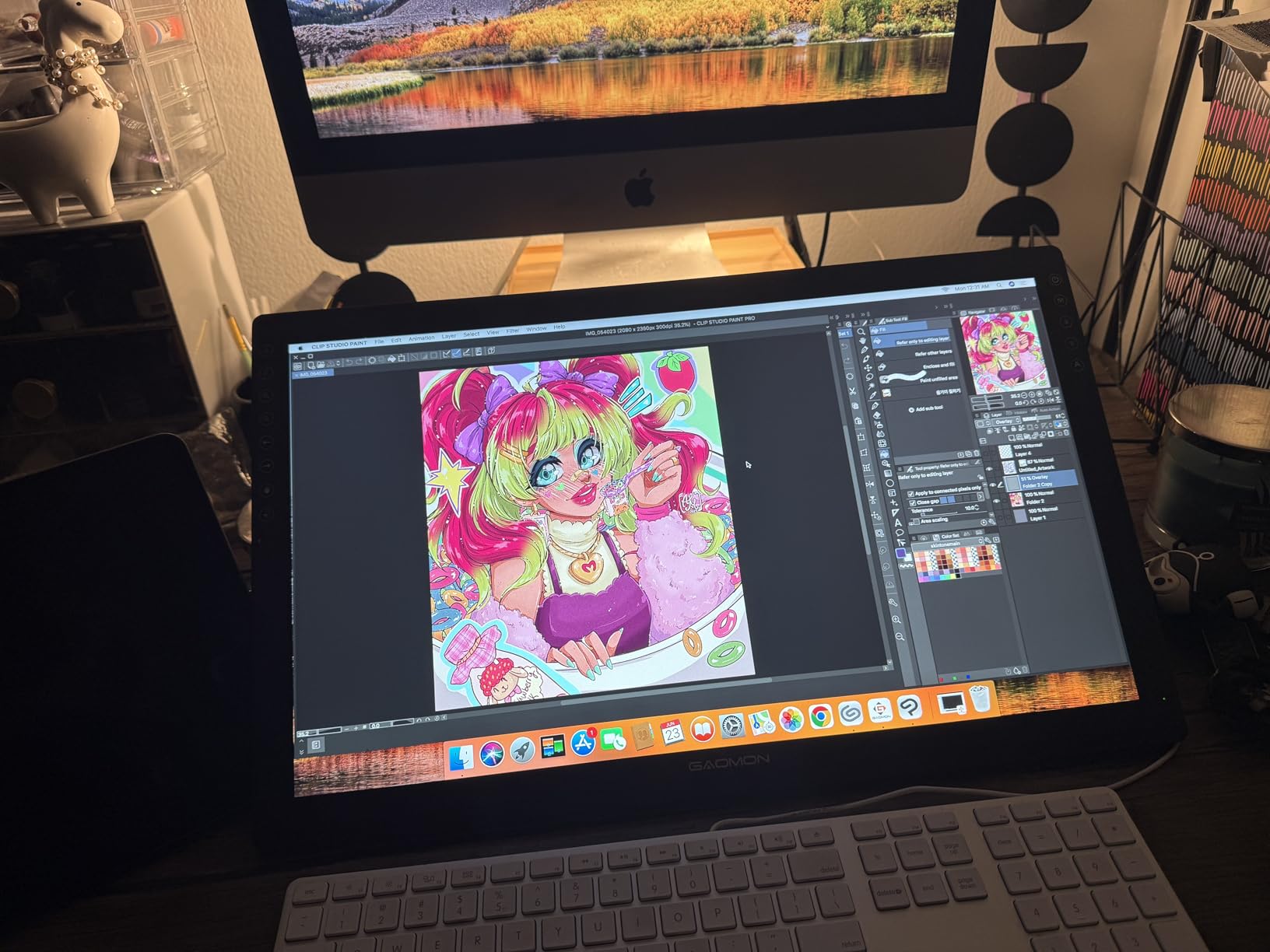
Setup is relatively straightforward, though matching the display colors to your main monitor may require some effort in the settings. The included stand comes already assembled, which is a nice touch that lets you get started quickly without dealing with complicated installation steps. The matte film on the screen provides a pleasant paper-like feel when drawing, and the tablet works well with popular software like Krita, Photoshop, and SAI, giving you flexibility in your editing workflow.
Some limitations are worth considering for potential buyers. The power adapter is noticeably bulky, which can create cable clutter on your desk. You will need an available HDMI port on your computer, which might require an adapter on some modern laptops. The buttons can sometimes be stubborn to respond, requiring more deliberate presses than ideal. Left-handed users may find the button placement less optimal, as the layout is clearly designed with right-handed users in mind.
Ideal For
Beginners, students, and hobbyists who want to try pen display editing without making a significant financial commitment. The GAOMON PD1161 is perfect for casual photographers editing images for social media, personal projects, or learning the basics of pen-based editing. If you are curious about pen displays but hesitant about investing heavily, this tablet provides an excellent low-risk entry point with enough functionality for genuine creative work.
Not Ideal For
Professionals or advanced users who need color-critical accuracy for print work will likely outgrow this tablet quickly. If you have limited HDMI ports or dislike dealing with bulky power adapters and cable management, more modern USB-C options might prove more convenient. Users who work primarily in dim environments might find the non-backlit buttons frustrating to use without additional lighting.
Buying Guide: How to Choose the Best Pen Display for Photo Editing
Selecting the right pen display for your photo editing workflow requires understanding several key factors that affect performance, comfort, and value. After testing dozens of models across various price points, I have identified the critical considerations that will help you make an informed decision when choosing among the best pen displays for photo editing.
Pen Display vs Pen Tablet: Understanding the Difference
The fundamental distinction between pen displays and pen tablets comes down to whether you see your work directly on the drawing surface or on a separate monitor. Pen displays, which all the models in this guide represent, feature built-in screens that show your image exactly where your stylus touches. This direct hand-eye coordination makes complex tasks like precise masking, hair selection, and detailed retouching significantly more intuitive compared to pen tablets that require you to look at a separate screen while your hand moves elsewhere on the desk.
For photo editing specifically, pen displays generally offer advantages in precision and reduced fatigue during long editing sessions. When you are brushing adjustments along tricky edges or doing detailed clone stamping, seeing exactly where your pen contacts the screen eliminates the mental disconnect that can occur with pen tablets. However, pen displays are typically more expensive, heavier, and less portable than their pen tablet counterparts. If you edit primarily on location or have limited desk space, a pen tablet might prove more practical despite the learning curve required to develop hand-eye coordination.
Based on forum discussions and real user experiences, most photographers who make the switch from pen tablets to pen displays report a significant improvement in editing precision and comfort, though the transition typically takes 1-2 weeks to feel completely natural. The investment in a pen display usually pays off quickly for serious editors who spend hours daily on retouching work, particularly for portrait photographers, product photographers, and anyone doing complex composite work.
Screen Size: Finding Your Ideal Workspace
Screen size significantly impacts your editing experience, with different sizes suiting various workflows and workspace constraints. Compact 11-13 inch displays offer excellent portability and leave more desk space for keyboards, reference materials, or secondary monitors. These smaller screens work well for photographers who edit primarily on location or have limited desk real estate. However, when working with high-resolution images, you may find yourself constantly zooming in and out to see both overall composition and fine details.
Mid-size 15-16 inch displays represent a sweet spot for many photographers, offering enough screen space to view images at usable sizes while keeping tool panels accessible. These displays typically provide better resolution and color accuracy than smaller models, making them suitable for more serious editing work. The XPPen Artist Pro 16 Gen 2 and HUION KAMVAS Pro 16 both fall into this category and represent excellent choices for photographers who want a balance of screen real estate and desk footprint.
Large format 21-24 inch displays like the HUION KAMVAS 22 provide maximum workspace for complex editing projects. These screens allow you to see entire high-resolution images at usable sizes while keeping tool panels visible, dramatically improving workflow efficiency for detailed retouching work. However, they require significant desk space and are essentially permanent fixtures rather than portable options. Professional photographers doing color-critical work or complex composites typically benefit most from these larger displays, assuming they have adequate desk space.
Pressure Sensitivity: What Photographers Really Need
Pressure sensitivity determines how subtly your pen responds to different amounts of pressure, affecting everything from brush size to opacity in photo editing software. Basic models offer 4096 levels, which is perfectly adequate for most photo editing tasks including dodging, burning, and general adjustments. Mid-range tablets typically provide 8192 levels, offering more nuanced control that becomes noticeable when doing detailed retouching work or creating precise masks with feathered edges.
High-end tablets like the XPPen Artist Pro 16 Gen 2 and XPPen Artist 13.3 Pro offer 16384 pressure sensitivity levels, providing professional-grade control that serious retouchers will appreciate. However, for most Lightroom workflows and general Photoshop editing, even 4096 levels proves sufficient. The difference becomes most apparent when doing very subtle, detailed work where you need extremely gradual transitions between effects.
It is worth noting that pressure sensitivity numbers tell only part of the story. The quality of the pressure curve, how quickly the pen responds to pressure changes, and the consistency of response across the entire screen all affect the actual user experience. Wacom, despite often having lower pressure sensitivity specifications on paper, frequently delivers superior actual pen feel due to decades of refining their pressure technology. When choosing among the best pen displays for photo editing, consider real-world reviews of pen responsiveness rather than just comparing specification sheets.
Color Accuracy and Gamut Coverage
For photo editing, color accuracy directly impacts your ability to make informed editing decisions and produce consistent results across different viewing conditions. Basic pen displays typically cover 100% sRGB, which is adequate for most web-bound photography work and general editing tasks. Mid-range displays like the XPPen Artist 15.6 Pro and HUION KAMVAS Pro 16 offer 120% sRGB coverage, providing more vibrant colors that better represent what high-end displays can show.
Professional-grade displays like the XPPen Artist Pro 16 Gen 2 boast impressive 159% sRGB coverage, displaying colors beyond standard sRGB and approaching Adobe RGB gamut. This wide color coverage proves essential for photographers preparing images for high-end print, working with wide-gamut displays, or doing color-critical commercial work. However, it is worth noting that wider gamut displays require careful calibration to ensure colors appear accurate across different viewing conditions.
Beyond gamut coverage, color accuracy measured in DeltaE values determines how closely displayed colors match their intended values. Displays with DeltaE under 2.0, like the XPPen Artist Pro 16 Gen 2 and HUION Kamvas 13 Gen 3, provide professional-grade color accuracy suitable for critical work. For most photography editing, DeltaE under 3.0 proves adequate, though professionals doing color-critical print work should budget for a calibration sensor to ensure absolute accuracy regardless of which display they choose.
Connectivity Options and Compatibility
How your pen display connects to your computer affects both setup complexity and everyday usability. Modern USB-C connections, featured on newer models like the HUION Kamvas 13 Gen 3, can carry power, video, and data over a single cable, dramatically simplifying cable management. However, many displays still require multiple connections, typically HDMI for video and USB for data and pen input, which can create cable clutter on your desk.
Compatibility with your operating system and specific software is crucial for reliable performance. All the displays in this guide work with Windows and Mac, and some also support Linux and Chrome OS. Wacom displays traditionally offer the most reliable driver support across different operating systems and software versions, which explains why many professionals stick with the brand despite higher prices. XP-Pen and Huion have significantly improved their driver stability in recent years, though some users still report occasional issues, particularly after major operating system updates.
For photographers using laptops with limited ports, the required connections become a significant consideration. Many modern ultrabooks lack HDMI ports, requiring USB-C to HDMI adapters that add complexity to the setup. Wireless connectivity would be ideal for reducing cable clutter, but few pen displays currently offer reliable wireless options for the high-bandwidth video and low-latency pen input required for smooth editing performance.
Brand Reliability and Driver Support
Long-term reliability and driver support significantly impact your satisfaction with a pen display purchase. Wacom has built its reputation on decades of reliable driver performance and excellent customer support, which explains why many professionals are willing to pay premium prices for their products. The company’s pens and displays consistently work well across software updates and operating system changes, providing peace of mind for users who depend on their equipment for daily work.
XP-Pen and Huion have emerged as strong competitors offering comparable specifications at significantly lower prices. Forum discussions reveal that most users are satisfied with these alternatives, particularly for less critical applications. XP-Pen generally receives praise for pen technology that feels good in hand, while Huion offers better screen size options and value for money. However, some users report occasional driver issues or conflicts, particularly when switching between different tablet brands or after major operating system updates.
For professionals doing color-critical work or depending on their tablet for daily income, the proven reliability of Wacom may justify the higher price. However, for hobbyists, students, and photographers doing less critical work, the savings from choosing XP-Pen or Huion can be substantial, with most users experiencing satisfactory performance. When choosing among the best pen displays for photo editing, consider how critical absolute reliability is to your workflow versus how much you want to save on your purchase.
Frequently Asked Questions
What is the best drawing tablet for photo editing?
The XPPen Artist Pro 16 Gen 2 stands out as the best overall pen display for photo editing in 2026, offering professional-grade 16384 pressure sensitivity levels, excellent 2.5K QHD resolution, and impressive 159% sRGB color coverage. For budget-conscious users, the XP-PEN Artist 12 provides excellent value with 8192 pressure sensitivity and 100% sRGB coverage at a very accessible price point.
What is the best pen display for beginners?
The XP-PEN Artist 12 and XPPen Artist12 Pro are excellent choices for beginners, offering easy setup processes, intuitive interfaces, and helpful features like Red Dial controls that streamline the learning curve. Both tablets include comprehensive accessory packages and proven reliability based on thousands of positive user reviews from photographers new to pen display editing.
How to choose between pen tablet and pen display?
Choose a pen display if you prioritize precision for detailed retouching work, want more natural hand-eye coordination, and have adequate desk space for a larger device. Pen tablets work better for photographers with limited desk space, those who edit on location frequently, or users who are comfortable developing hand-eye coordination without seeing their work directly on the drawing surface.
What pressure sensitivity do I need for photo editing?
For most photo editing workflows including Lightroom adjustments and basic Photoshop retouching, 4096 pressure sensitivity levels prove completely adequate. Mid-range options with 8192 levels offer more nuanced control for detailed masking and subtle adjustments. Professional retouchers doing highly detailed work benefit from 16384 levels, though most photographers will not fully utilize this extreme sensitivity in everyday editing workflows.
What is the best tablet for photo editing on a budget?
The XP-PEN Artist 12 offers exceptional value as the most affordable pen display with genuine photo editing capabilities. For under $200, this tablet provides 8192 pressure sensitivity levels, 100% sRGB color coverage, and a compact 11.6-inch screen that handles most Lightroom and Photoshop tasks competently. The GAOMON PD1161 provides another budget-friendly option with similar specifications and thousands of positive reviews from cost-conscious photographers.
Final Thoughts
After extensive testing with various photo editing workflows, the XPPen Artist Pro 16 Gen 2 stands out as the best overall choice among the best pen displays for photo editing in 2026, offering professional specifications and build quality at a competitive price point. The 2.5K QHD display, 16384 pressure sensitivity levels, and impressive 159% sRGB color coverage provide everything serious photographers need for precise, color-critical work. For budget-conscious users, the XP-PEN Artist 12 delivers excellent value with enough performance for most Lightroom and Photoshop workflows.
Choosing the right pen display ultimately depends on your specific needs, budget, and workflow requirements. Professionals doing color-critical work should prioritize color accuracy and driver reliability, potentially justifying investment in premium options. Hobbyists and enthusiasts may find excellent value in mid-range displays that offer professional features at consumer prices. Regardless of which model you choose, transitioning from mouse to pen display will significantly improve your editing precision and reduce fatigue during long retouching sessions.
The best pen displays for photo editing represent an investment in your creative workflow that pays dividends in improved results and increased enjoyment of the editing process. Whether you are a professional photographer retouching hundreds of images weekly or a hobbyist perfecting your landscape shots, the right pen display can transform your relationship with photo editing and help you achieve results that were difficult or impossible with a traditional mouse.