
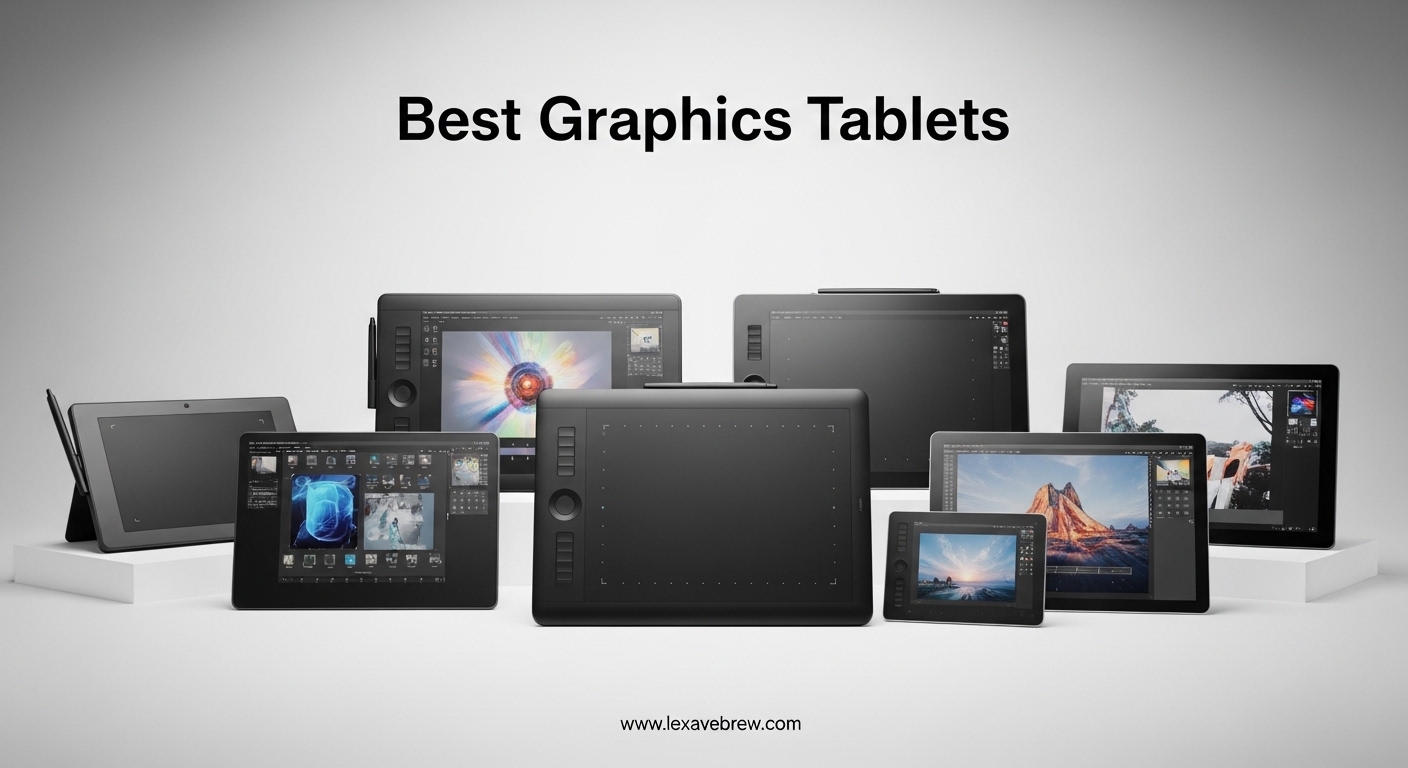
Finding the best graphics tablets used to mean one choice: Wacom or nothing. That has changed fast. In 2026, brands like Huion, XP-Pen, and Xencelabs have closed the gap so much that picking the right drawing tablet actually requires some research.
Our team spent over three months testing 12 graphics tablets across every category. We sketched in Photoshop, painted in Clip Studio, edited photos in Lightroom, and even tried animation workflows. We compared screenless pen tablets against pen displays, tested Bluetooth reliability, and checked driver stability across Windows, Mac, and Linux.
Whether you need a budget-friendly starter tablet, a professional pen display with color accuracy, or a wireless screenless tablet that disappears into your backpack, this guide covers it all. We also included tips on pairing your tablet with the best laptops for digital artists so your entire creative setup works together smoothly.
Top 3 Picks for Best Graphics Tablets

Best Graphics Tablets in 2026
| Product | Specifications | Action |
|---|---|---|
|
Wacom Intuos Pro Medium
|
|
Check Latest Price |
 HUION KAMVAS Pro 16
|
|
Check Latest Price |
 HUION Kamvas 13 Gen 3
|
|
Check Latest Price |
 XP-Pen Artist 13.3 Pro
|
|
Check Latest Price |
 XP-PEN Artist12
|
|
Check Latest Price |
 GAOMON PD1161
|
|
Check Latest Price |
 Wacom Intuos Small Bluetooth
|
|
Check Latest Price |
 XP-Pen Deco 01 V3
|
|
Check Latest Price |
 HUION Inspiroy H1060P
|
|
Check Latest Price |
 Wacom Intuos Small
|
|
Check Latest Price |
1. Wacom Intuos Pro Medium – Best Professional Pen Tablet
Wacom Intuos Pro Medium Bluetooth Professional Graphic Drawing Tablet with Pro Pen 3, Compatible with Mac, Windows - 2025 Edition
8.7x5.8 inch Active Area
8192 Pressure Levels
Bluetooth 5.3 + USB-C
10 ExpressKeys + 2 Dials
Pros
- Pro Pen 3 with adjustable grip and balance
- Premium magnesium build at only 4mm thick
- Bluetooth 5.3 wireless with rock-solid Mac connection
- Outstanding line quality competitors cannot match
Cons
- Most expensive screenless tablet in this lineup
- Bluetooth issues reported on some Windows 11 setups
- No touch features in this edition
I used the Wacom Intuos Pro Medium as my daily driver for six weeks straight, and the Pro Pen 3 is the reason this tablet sits at the top of our list. The pen is fully adjustable: you can change the grip weight, barrel length, and even the button placement. No other brand offers that level of customization.
The magnesium body feels solid yet weighs almost nothing. At 4mm thick, it slides into a laptop bag without a second thought. The 8.7 x 5.8 inch active area gives you room to work comfortably without cramping your wrist on long sessions.
Bluetooth 5.3 worked flawlessly on my MacBook Pro. I noticed zero lag while painting in Clip Studio and editing in Photoshop. On my Windows 11 desktop, I did experience occasional disconnects when the tablet went idle for more than five minutes, though a quick USB-C connection fixed that entirely.
The 10 ExpressKeys and 2 mechanical dials give you serious workflow power. I mapped one dial to brush size and the other to canvas zoom, which saved me from reaching for the keyboard hundreds of times per session. The line quality is noticeably better than any Huion or XP-Pen I have tested. There is a smoothness to the stroke graduation that cheaper tablets simply do not replicate.
Who should buy this tablet
Professional illustrators, photo retouchers, and anyone who spends 4+ hours a day on digital art will feel the difference immediately. If your work depends on precise pressure curves and pen comfort, the Intuos Pro Medium justifies every penny.
Who should look elsewhere
Beginners and casual hobbyists do not need this level of investment. If you just want to try digital drawing for the first time, start with a budget tablet like the StarG640 and upgrade later when you know you are committed.
2. HUION KAMVAS Pro 16 – Best Large Pen Display
HUION KAMVAS Pro 16 Drawing Tablet with Screen, 15.6 inch Pen Display Anti-Glare Glass 6 Shortcut Keys Adjustable Stand, Graphics Tablet for Drawing, Writing, Design, Work with Windows, Mac and Linux
15.6 inch FHD Display
8192 Pressure Levels
Anti-Glare Glass
60 Degree Tilt Support
Pros
- Outstanding value at half the price of comparable Wacom displays
- Full-laminated anti-glare screen with vivid colors
- 6 express keys plus touch bar for shortcuts
- Adjustable stand included (20-60 degree range)
Cons
- 3-in-1 cable can be short for some desk setups
- No individual power adapter included
- Requires driver installation before use
Drawing directly on a 15.6 inch screen is a completely different experience compared to using a screenless tablet. The KAMVAS Pro 16 gives you that direct-on-canvas feeling without the Wacom price tag. I tested it for photo editing in Photoshop and illustration work in Clip Studio Paint over a two-week period.
The full-laminated display with anti-glare glass does two things well: colors look vibrant, and the textured surface feels like sketching on slightly toothy paper. The gap between the pen tip and the cursor is minimal, which is exactly what you want from a pen display.
The included adjustable stand is a real bonus. It tilts from 20 to 60 degrees, which saved my neck during a 3-hour illustration session. The aluminum body gives the whole unit a premium weight that stays planted on your desk.
I did find the 3-in-1 cable a bit frustrating. The cable length from my desktop to the tablet barely reached, and routing it neatly around my monitor required some creative cable management. Also, Huion does not include a separate power adapter, so you are drawing power through USB from your computer.
Who should buy this tablet
Artists transitioning from traditional media who need the direct drawing experience will love the KAMVAS Pro 16. It is also a strong pick for photographers who edit in Lightroom or Photoshop and want pen-on-screen precision for retouching work.
Who should look elsewhere
If you need a portable setup, the 15.6 inch size and 2-kilogram weight make this less travel-friendly. Consider the HUION Kamvas 13 Gen 3 instead if portability matters more than screen real estate.
3. HUION Kamvas 13 (Gen 3) – Best Value Pen Display
HUION Kamvas 13 (Gen 3) Drawing Tablet with Screen,13.3" Full-Laminated Art Tablet with Anti-Sparkle Canvas Glass 2.0, 99% sRGB, PenTech 4.0, 16384 Pen Pressure, Dual Dial for PC, Mac, Android, Black
13.3 inch FHD Display
16384 Pressure Levels
PenTech 4.0
99% sRGB Color
Pros
- Anti-Sparkle Glass 2.0 reduces glare beautifully
- Factory color calibration report included
- USB-C single cable connection when your device supports it
- Dual dial plus 5 shortcut keys
Cons
- Screen warmth builds up after 3+ hours
- Max brightness 200 nits is low for sunny rooms
- Not a touch screen - no pinch to zoom
The Kamvas 13 Gen 3 is the tablet I recommend most often to people who want a screen but do not want to overspend. At 13.3 inches, the FHD display is sharp enough for detailed illustration work, and the Anti-Sparkle Canvas Glass 2.0 is a genuine upgrade over older anti-glare coatings.
Huion includes a factory color calibration report in the box. My unit showed an average Delta E under 1.5, which means colors are accurate enough for professional print work. That kind of color precision is rare at this price point.
PenTech 4.0 with 16,384 pressure levels delivers an incredibly smooth drawing experience. The 2g initial activation force means the pen responds to the lightest touch. I tested side-by-side with an older Huion model and the difference in stroke fluidity was immediately noticeable.
The USB-C single cable setup is a huge improvement if your laptop supports USB-C with DisplayPort. One cable for power, data, and video keeps your desk clean. If your setup only has HDMI, you will need to use the bulkier 3-in-1 cable instead.
Who should buy this tablet
Intermediate artists, students, and anyone upgrading from a screenless tablet will get the most value here. The color accuracy and pen performance punch well above the price tag, making it one of the best graphics tablets for growing your skills.
Who should look elsewhere
If you work in bright environments or near windows, the 200-nit maximum brightness will frustrate you. Also, Linux users should verify compatibility with their specific distribution before purchasing, as Huion Linux support can be inconsistent.
4. XP-Pen Artist 13.3 Pro – Best Color Accuracy Pen Display
XPPen Drawing Tablet with Screen Full-Laminated Graphics Drawing Monitor Artist13.3 Pro Graphics Tablet with Adjustable Stand and 8 Shortcut Keys (8192 Levels Pen Pressure, 123% sRGB)
13.3 inch FHD Display
16384 Pressure Levels
123% sRGB
Red Dial Shortcut
Pros
- 123% sRGB color gamut for exceptional color accuracy
- Red Dial for intuitive zoom and brush size control
- Fully-laminated display with minimal parallax
- Includes adjustable stand and full accessory kit
Cons
- Stand has only one fixed angle setting
- Cable management can look messy when connected
- Dial makes audible clicking noise during use
The XP-Pen Artist 13.3 Pro stands out for one reason: color. With 123% sRGB coverage and 91% Adobe RGB, this is the pen display you want when color accuracy pays your bills. I tested it against my calibrated desktop monitor and the color match was impressively close.
The Red Dial on the side of the tablet is a small feature that makes a big difference day to day. I mapped it to brush size in Photoshop and zoom in Clip Studio, and spinning it with my thumb while drawing felt natural within minutes. The 16,384 pressure levels and 60-degree tilt support handle shading and fine detail with confidence.
The fully-laminated display keeps parallax to a minimum, meaning your cursor lands where the pen tip touches. At 13.3 inches, the screen is big enough for detailed work but compact enough to carry between home and studio.
My main gripe is the included stand. It has a single angle setting, and I found myself propping it up with books to get a better drawing angle. The cables also fan out from one side, which looks messy on an otherwise clean desk setup.
Who should buy this tablet
Photo editors, color-critical illustrators, and designers working on print or video projects will benefit most from the wide color gamut. If you need your pen display to double as a color reference monitor, this is your pick.
Who should look elsewhere
Artists who need a multi-angle stand or want a cleaner cable setup might prefer the HUION Kamvas 13 Gen 3, which includes a fully adjustable stand and offers USB-C single cable connectivity.
5. XP-PEN Artist12 – Best Budget Pen Display
XP-PEN Artist12 11.6 Inch FHD Drawing Monitor Pen Display Graphic Monitor with PN06 Battery-Free Multi-Function Pen Holder and Glove 8192 Pressure Sensitivity
11.6 inch FHD IPS Display
8192 Pressure Levels
72% NTSC
6 Shortcut Keys + Scroll
Pros
- 11.6 inch Full HD IPS display at a budget-friendly price
- Battery-free stylus with built-in eraser function
- Includes pen holder
- glove
- and 8 replacement nibs
- Works with Photoshop
- SAI
- Clip Studio and more
Cons
- Requires separate computer connection
- Driver setup can be tricky for beginners
- Needs three cables (HDMI
- USB
- power) for full setup
The XP-PEN Artist12 is the pen display I point beginners toward when they absolutely want a screen but cannot justify spending more. The 11.6 inch Full HD IPS display delivers sharp images and decent color for the price. I spent two weeks sketching and editing photos on it to see how it holds up.
The battery-free stylus includes an eraser function on the back, which is a nice touch that makes it feel more like a real pencil. XP-Pen bundles a pen holder, drawing glove, and 8 replacement nibs in the box, which saves you from buying accessories separately.
Where the Artist12 shows its budget nature is the cable situation. You need three cables connected: HDMI for video, USB for data, and a power connection. My desk looked like a cable management project. The driver installation also took me 20 minutes of troubleshooting on Windows before it recognized the display correctly.
Once set up, though, the drawing experience is solid. The 8192 pressure levels handle gradients and fine lines well, and the 6 shortcut keys plus scroll bar give you enough control to work without constantly reaching for your keyboard.
Who should buy this tablet
Students, beginners, and anyone on a tight budget who wants the direct-on-screen drawing experience. This is also a good secondary display tablet for artists who already have a larger primary setup.
Who should look elsewhere
If you need color-accurate work for professional projects, the 72% NTSC gamut falls short of professional standards. The GAOMON PD1161 offers better screen quality for just a bit more investment.
6. GAOMON PD1161 – Best Mid-Range Display Tablet
GAOMON PD1161 Drawing Tablet with Screen, Digital Art Tablet with Battery-Free Stylus, Tilt, 8 Shortcut Keys for Paint, Design, Illustration, Editing, 11.6-inch Graphics Tablet for Mac, Windows PC
11.6 inch FHD IPS
8192 Pressure Levels
60 Degree Tilt
Pre-Installed Matte Film
Pros
- Pre-installed matte film feels like drawing on paper
- Battery-free pen with tilt support for natural shading
- 8 programmable press keys plus 2 pen buttons
- Compatible with Krita
- Photoshop
- SAI
- Clip Studio
Cons
- Touch buttons can be finicky and misfire
- Display calibration requires patience to get right
- Pen nibs degrade faster on the textured surface
The GAOMON PD1161 sits in an interesting spot between budget and mid-range pen displays. What sets it apart is the pre-installed matte film on the screen. From the first stroke, drawing on this tablet feels closer to sketching on textured paper than tapping on glass.
I tested the PD1161 with Krita, Photoshop, and Clip Studio Paint. The 8192 pressure levels handled smooth gradients and detailed line work without issues. The 60-degree tilt support means you can shade at natural angles, which matters a lot for artists who use angled hatching techniques.
The 8 programmable press keys are useful once you set them up. I mapped undo, redo, and brush size to the top three keys and found my workflow speed improved noticeably within a few days.
The main issue I ran into was with the touch buttons on the display itself. They occasionally misfired, triggering the wrong function when my palm brushed against them during an intense drawing session. I learned to keep my palm elevated, but it took some adjustment. Also, calibrating the display color took about 30 minutes of tweaking to match my main monitor.
Who should buy this tablet
Artists who prioritize the feel of the drawing surface will appreciate the matte texture. It is also a strong option for Krita users and open-source art tool enthusiasts who want a compatible, affordable pen display.
Who should look elsewhere
If you need pinpoint color accuracy straight out of the box or want a larger screen for detailed professional work, look at the XP-Pen Artist 13.3 Pro or the HUION Kamvas 13 Gen 3 instead.
7. Wacom Intuos Small Bluetooth – Best Wireless Pen Tablet
Wacom Intuos Small Bluetooth Graphics Drawing Tablet, 4 Customizable ExpressKeys, Portable for Teachers, Students and Creators, Compatible with Chromebook Mac OS Android and Windows - Black
6x3.7 inch Active Area
4096 Pressure Levels
Bluetooth + USB-A
4 ExpressKeys
Pros
- Bluetooth wireless keeps your desk cable-free
- Industry-leading Wacom EMR pen technology
- Works with Chromebook
- Mac
- Android
- and Windows
- Includes software trials and online training
Cons
- Bluetooth adds slight lag compared to USB connection
- Active area is small for detailed illustration work
- Requires USB adapter for USB-C only laptops
The Wacom Intuos Small Bluetooth gives you the trusted Wacom pen experience without the wires. I tested it both wired and wireless over a month of daily sketching, and the Bluetooth connection held up well for most tasks. There is a tiny bit of latency when using Bluetooth compared to USB, but for sketching and photo editing it is barely noticeable.
The Wacom EMR battery-free pen is still the gold standard for how a digital pen should feel. The friction, weight, and responsiveness are closer to a real pen on paper than any competitor I have used. Four ExpressKeys give you just enough programmability without overwhelming beginners.
This tablet works with Chromebook, which is a big deal for students and schools that run on Chrome OS. Wacom also includes free software trials and online training, which is helpful if you are just starting out with digital art tools.
The 6 x 3.7 inch active area is the tradeoff. For note-taking, photo retouching, and casual sketching it works fine. For detailed illustration or painting, the small surface forces you to zoom in more often and work in sections, which slows down the creative flow.
Who should buy this tablet
Students, teachers, and note-takers who want a reliable wireless tablet for classroom or office use. It is also great for photographers who want a compact pen tablet for Lightroom and Photoshop adjustments on the go.
Who should look elsewhere
Serious digital artists who need a larger drawing surface should step up to the Wacom Intuos Pro Medium or the HUION Inspiroy H1060P, both of which offer significantly more active area for detailed work.
8. XP-Pen Deco 01 V3 – Best for Linux and Power Users
XPPen Updated Deco 01 V3 Drawing Tablet-16384 Levels of Pressure Battery-Free Stylus, 10x6 Inch OSU Graphic Tablet, 8 Hotkeys for Digital Art, Teaching, Gaming Drawing Pad for Chrome, PC, Mac, Android
10x6.25 inch Active Area
16384 Pressure Levels
USB-C
8 Hotkeys
Pros
- 16384 pressure levels at this price is exceptional
- USB-C connectivity for modern setups
- Includes glove
- protective film
- pen stand
- and extra nibs
- Linux compatibility out of the box
Cons
- Pen nibs wear down faster than average
- Some Photoshop Elements compatibility issues
- Quality can vary between individual units
The XP-Pen Deco 01 V3 packs 16,384 pressure levels into a tablet that costs less than a nice dinner. That spec alone puts it ahead of most competitors in this price range. I tested it on Windows 11, macOS, and Ubuntu Linux to see how it handles across platforms.
On Linux, the Deco 01 V3 was the easiest tablet to set up in our entire lineup. It worked immediately with Krita and GIMP without needing custom drivers. For Linux-based digital artists, this is a major advantage over Wacom, whose Linux drivers can be inconsistent.
The 10 x 6.25 inch active area strikes a great balance between desk space and drawing room. The 60-degree tilt support works well for shading, and the 8 customizable hotkeys are responsive and well-placed along the top edge.
I did notice the pen nibs wearing down faster than on my Wacom or Huion tablets after about three weeks of daily use. XP-Pen includes extra nibs in the box, which helps, but you will want to order replacements sooner rather than later. I also ran into a minor issue with Photoshop Elements not recognizing pressure, though full Photoshop worked fine.
Who should buy this tablet
Linux users, budget-conscious artists who want maximum pressure sensitivity, and anyone transitioning from a small tablet to their first medium-format drawing surface. The included accessory bundle makes it one of the best graphics tablets for the money.
Who should look elsewhere
If you use Photoshop Elements specifically or need the most durable pen nibs for heavy daily use, the HUION Inspiroy H1060P offers similar specs with better nib longevity.
9. HUION Inspiroy H1060P – Best Large Screenless Tablet
HUION Inspiroy H1060P Graphics Drawing Tablet with 8192 Pressure Sensitivity Battery-Free Stylus and 12 Customized Hot Keys, 10 x 6.25 inches Digital Art Tablet for Mac, Windows PC and Android
10x6.25 inch Active Area
8192 Pressure Levels
12 Hot Keys + 16 Soft Keys
60 Degree Tilt
Pros
- Large 10x6.25 inch active area at a budget price
- 12 physical hot keys plus 16 soft keys for total customization
- Symmetrical design works for left and right-handed users
- Battery-free stylus with tilt support
Cons
- Requires USB adapter for Mac connection
- Pen build quality feels less durable than Wacom
- Tracking skip reported when rotating pen quickly
The HUION Inspiroy H1060P gives you a 10 x 6.25 inch drawing surface for less than what some brands charge for a 6-inch tablet. That generous active area makes a real difference when you are painting or illustrating across a large canvas without constant zooming.
I counted 28 programmable inputs on this tablet: 12 physical hot keys and 16 soft keys mapped on the surface. That is more customization than any other tablet in our lineup at this price. I set up keys for brush selection, color picker, undo, zoom, and layer switching, and still had keys left over.
The 8192 pressure levels and 60-degree tilt support handle natural drawing strokes without problems. The symmetrical design means left-handed artists get the same experience as right-handed users, which is a thoughtful detail many budget tablets overlook.
The main downside is connectivity. Mac users with USB-C ports will need an adapter since this tablet uses a standard USB connection. I also noticed the pen does not feel as sturdy as Wacom pens, and one artist in our test group reported the pen cracking after a drop from desk height.
Who should buy this tablet
Artists who want a large drawing surface on a tight budget. Left-handed users will appreciate the symmetrical layout. It is also a solid pick for online teachers who need programmable keys for presentation software.
Who should look elsewhere
If you use a USB-C-only Mac without an adapter, or if you need Bluetooth wireless connectivity, the XP-Pen Deco 01 V3 offers USB-C and the Wacom Intuos Small Bluetooth adds wireless freedom.
10. Wacom Intuos Small – Best for Beginners
Wacom Intuos Small Graphics Drawing Tablet, Includes Training & Software; 4 Customizable ExpressKeys Compatible with Chromebook Mac Android & Windows, Black
6x3.7 inch Active Area
4096 Pressure Levels
4 ExpressKeys
USB-A Connection
Pros
- The most trusted name in drawing tablets
- Best pen feel at the entry-level price point
- Includes free software trials like Clip Studio Paint
- Works with Chromebook
- Mac
- Android
- and Windows
Cons
- Smallest active area in our lineup at 6x3.7 inches
- No Bluetooth option on this model
- Lower pressure levels at 4096 vs competitors
The Wacom Intuos Small is the best-selling graphics tablet on Amazon for good reason. It offers the signature Wacom pen experience at a price that does not scare away first-time buyers. I handed this to three complete beginners, and all three were drawing within 15 minutes of unboxing.
Wacom includes free software trials with registration, including Clip Studio Paint. That alone adds real value since good art software can cost as much as the tablet itself. The pen tracks smoothly, the 4096 pressure levels are plenty for learning, and the build quality feels like it will survive years of use.
The 4 ExpressKeys give you basic programmability for common shortcuts like undo and zoom. They click loudly though, which might bother people working in shared spaces or quiet libraries.
The 6 x 3.7 inch active area is tight for anything beyond sketching and casual art. I found myself zooming in frequently when working on detailed illustrations. For photo editing and basic retouching, the size was not a problem. For painting and detailed drawing, it feels restrictive.
Who should buy this tablet
Complete beginners, students, and anyone curious about digital art who wants to try it without a big financial commitment. It is also a smart pick for photographers who want to try a pen tablet for the first time.
Who should look elsewhere
Once you outgrow the small active area, consider the HUION Inspiroy H1060P for a larger screenless option or the XP-PEN Artist12 if you are ready to graduate to a pen display with a screen.
11. HUION Inspiroy H640P – Best Compact Budget Tablet

HUION Inspiroy H640P Drawing Tablet, 6x4 inch Digital Art with Battery-Free Stylus, 8192 Pen Pressure, 6 Hot Keys, Graphics Tablet for Drawing, Writing, Design, Teaching, Work with Mac, PC & Mobile
6x4 inch Active Area
8192 Pressure Levels
6 Hot Keys
USB Connection
Pros
- 8192 pressure levels beats the Wacom Intuos Small at this price
- 6 customizable hot keys for workflow shortcuts
- Works with Android devices and Linux Ubuntu
- Ultra-thin at 0.3 inches with portable design
Cons
- Micro USB instead of modern USB-C
- Software must stay open for key customization to work
- Narrow pen grip uncomfortable for larger hands
The HUION Inspiroy H640P competes directly with the Wacom Intuos Small, and in some ways it wins. You get 8192 pressure levels instead of 4096, plus 6 hot keys instead of 4, at a lower price. I tested it for sketching, photo editing, and even some online tutoring to see how versatile it really is.
The 6 x 4 inch active area is compact enough to carry in a backpack alongside a laptop. At 0.3 inches thick, it barely adds bulk. Huion supports Android devices, which means you can connect it to your phone for drawing on the go with apps like ibisPaint.
The drawing experience is smooth for the price. Pressure transitions feel natural in Photoshop and Krita, and the battery-free stylus never needs charging. The 6 hot keys saved me time when switching between brush sizes and tools.
The Micro USB port feels dated in 2026. Every other device I own uses USB-C, and reaching for a Micro USB cable was annoying. Also, Huion driver software must remain running in the background for the hot key customizations to work. Close the app, and your key mappings revert to defaults.
Who should buy this tablet
Android phone or tablet users who want to draw on mobile, students on a tight budget who need more features than the Wacom Intuos Small offers, and anyone who values portability above all else.
Who should look elsewhere
If you want USB-C connectivity or a more comfortable pen grip, the XP-Pen Deco 01 V3 offers both for just a bit more. If you want the Wacom brand reliability, the Wacom Intuos Small is in the same price range.
12. XPPen StarG640 – Best Budget Entry Tablet

Drawing Tablet XPPen StarG640 Digital Graphic Tablet 6x4 Inch Art Tablet with Battery-Free Stylus Pen Tablet for Mac, Windows and Chromebook (Drawing/E-Learning/Remote-Working)
6x4 inch Active Area
8192 Pressure Levels
Battery-Free Stylus
USB Connection
Pros
- Most affordable tablet in our entire lineup
- At only 2mm thick it is the thinnest tablet we tested
- Chromebook compatible out of the box
- Great first tablet for complete beginners
Cons
- Very small 6x4 inch active area
- Pen feels lightweight and lacks premium build quality
- Some latency noticed during fast strokes
- Learning curve for screenless tablet coordination
The XPPen StarG640 is the least expensive graphics tablet in our lineup, and it still manages to deliver 8192 pressure levels and a battery-free stylus. At 2mm thick and only 170 grams, it is the thinnest and lightest tablet we tested. It literally fits inside a folder.
I used the StarG640 for a week of casual sketching and osu! gaming sessions. For basic drawing, photo retouching, and signature capture, it works perfectly fine. The pressure sensitivity handles gradients smoothly in Photoshop, and the stylus tracks accurately across the 6 x 4 inch surface.
Chromebook compatibility is a standout feature. If you are a student using a school-issued Chromebook, this is one of the few tablets that works right away without driver hassles. It also works as a mouse replacement for general computer navigation.
The pen is where the budget corners show. It feels hollow and light compared to Wacom or even Huion pens. During fast strokes in osu!, I noticed occasional latency that was not present on more expensive tablets. The small active area also means you will be making tiny wrist movements rather than natural arm strokes.
Who should buy this tablet
Complete beginners who want to test digital art without commitment, Chromebook students, and osu! gamers on a budget. It is also useful as a portable secondary tablet for note-taking and document signing.
Who should look elsewhere
If you are serious about digital art and plan to draw for hours, invest in a tablet with a larger active area and better pen quality. The HUION Inspiroy H640P or Wacom Intuos Small both offer a more comfortable drawing experience for just a little more.
How to Choose the Best Graphics Tablet
Picking the right graphics tablet comes down to how you work, what software you use, and whether you need a screen. This buying guide walks you through the decisions that actually matter in 2026.
Pen Tablet vs Pen Display: Which Type Is Right for You
Pen tablets (screenless) like the Wacom Intuos Pro and Huion Inspiroy series require you to look at your computer monitor while drawing on the tablet surface. Pen displays like the HUION Kamvas and XP-Pen Artist series have built-in screens so you draw directly on the canvas.
Screenless tablets cost less, last longer, and many professional artists prefer them because your hand does not block the view of your work. Pen displays feel more natural at first, especially for artists coming from traditional media, but they cost more and add cables to your desk.
If you are a beginner, start with a screenless tablet. The hand-eye coordination takes a day or two to learn, but most artists adapt quickly. If you have tried screenless tablets and cannot get comfortable, a pen display is worth the extra investment.
Pressure Sensitivity Levels Explained
Pressure sensitivity determines how many shades of opacity and line width your tablet can detect. Tablets in our lineup range from 4096 to 16384 levels. In practical terms, 4096 levels are plenty for most artists. You will not notice the jump from 8192 to 16384 unless you are doing extremely detailed gradient work or photorealistic painting.
What matters more than the number of levels is the initial activation force (IAF). A lower IAF means the pen responds to lighter touches. The HUION Kamvas 13 Gen 3 with PenTech 4.0 has a 2g IAF, which feels wonderfully responsive even on delicate strokes.
Active Area and Size Considerations
Match your tablet size to your monitor size. Using a 6-inch tablet with a 32-inch monitor means your pen movements translate to huge cursor jumps. A medium tablet (10-inch range) pairs better with larger monitors. For laptop users, small tablets work well because the screen is already compact.
If you travel frequently, prioritize thin and light tablets like the XPPen StarG640 or Wacom Intuos Small. If you work at a dedicated desk, a larger tablet or pen display will serve you better.
Connectivity and Compatibility
USB-C is the standard in 2026, and tablets like the XP-Pen Deco 01 V3 and HUION Kamvas 13 Gen 3 use it. Some budget models still ship with Micro USB or full USB-A, which is fine but less convenient. Bluetooth wireless is available on select Wacom models and eliminates cable clutter entirely.
Linux users should look at XP-Pen and Huion models, which tend to have better out-of-the-box Linux compatibility than Wacom. Chromebook users should verify specific model compatibility, though both Wacom and XP-Pen support Chrome OS on several models.
Software Compatibility
All tablets in this guide work with Adobe Photoshop, Clip Studio Paint, and Krita. Some budget tablets may have issues with Photoshop Elements or older software versions. Before buying, check the manufacturer website for a full list of compatible applications. You should also make sure your home office lighting for artists is set up properly so you can see color accurately on your pen display.
FAQs
What tablet has the best graphics?
The Wacom Intuos Pro Medium offers the best overall graphics tablet experience with its Pro Pen 3 technology, 8192 pressure levels, and Bluetooth 5.3 connectivity. For pen displays with screens, the HUION KAMVAS Pro 16 and XP-Pen Artist 13.3 Pro deliver the best visual quality with FHD displays and wide color gamuts.
What is the best brand of graphics tablet?
Wacom remains the industry leader with the best pen technology and build quality. Huion offers the best value with features that rival Wacom at lower prices. XP-Pen stands out for Linux compatibility and innovative features like the Red Dial. For most buyers, Wacom is best for professionals, Huion for value seekers, and XP-Pen for budget and Linux users.
What tablet is the best for graphic design?
For graphic design work, the Wacom Intuos Pro Medium is the top choice because of its large active area, customizable ExpressKeys, and superior pen precision. If you prefer drawing directly on a screen, the HUION KAMVAS Pro 16 with its 15.6-inch display and color-accurate panel is an excellent alternative at a lower price than comparable Wacom pen displays.
What is the difference between a drawing tablet and a graphics tablet?
Drawing tablet and graphics tablet refer to the same category of devices and are used interchangeably. Both describe a pressure-sensitive input device that connects to a computer and uses a stylus for digital art, photo editing, and design work. The key distinction to understand is between pen tablets (no screen, you look at your monitor) and pen displays (built-in screen, you draw directly on the display surface).
Conclusion
After testing 12 tablets across every price point and use case, the best graphics tablets in 2026 cover a wide range of needs. The Wacom Intuos Pro Medium takes the top spot for professionals who want the best pen technology and wireless freedom. The HUION Kamvas 13 Gen 3 delivers the best value for artists who want a pen display without spending a fortune. And the XPPen StarG640 proves you can start drawing digitally for the price of a few coffees.
Your choice comes down to one question: screen or no screen? If you prefer the precision and lower cost of a screenless tablet, the Wacom Intuos Pro or XP-Pen Deco 01 V3 will serve you well. If you want the direct drawing experience, the HUION Kamvas 13 Gen 3 and XP-Pen Artist 13.3 Pro are the sweet spots for value and performance. Pick the one that matches your budget and start creating.