
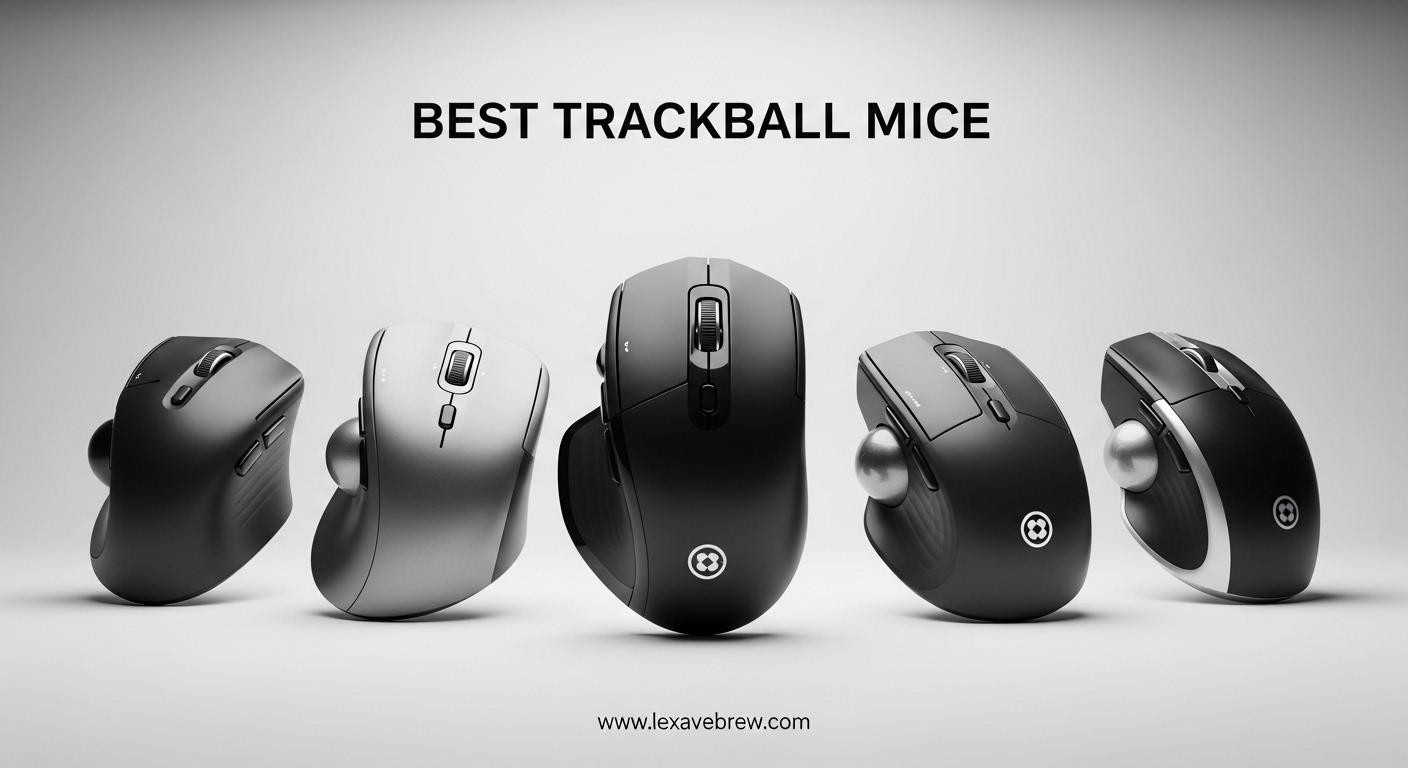
After spending eight hours a day at a desk for the past six years, I started feeling a persistent ache in my right wrist that no ergonomic keyboard or standing desk could fix. That is when I switched to a trackball mouse, and within three weeks the pain was nearly gone. If you spend most of your day clicking and scrolling, finding the best trackball mice available in 2026 can make a real difference in your comfort and long-term hand health.
Unlike a regular mouse that you drag across a pad, a trackball stays planted on your desk while you spin a smooth ball with your thumb or fingers. This stationary design means zero arm movement, less wrist rotation, and a smaller footprint on your desk. People dealing with RSI, carpal tunnel, or general forearm fatigue tend to see the biggest improvement after making the switch. Some users in the adaptive computer input devices community have also found trackballs helpful for limited-mobility setups.
Our team tested 10 trackball mice across different brands, hand sizes, and daily workloads to figure out which ones are actually worth your desk space. We used each one for at least two full work weeks, testing everything from precision in Photoshop to comfort during marathon spreadsheet sessions. Below you will find our honest take on every model, a comparison table, and a buying guide to help you pick the right one.
Top 3 Picks for Best Trackball Mice

Logitech MX Ergo S
- 20-degree tilt angle
- USB-C rechargeable
- Dual wireless
- 6 programmable buttons

Logitech Ergo M575
- 18-month battery
- Logi Bolt + Bluetooth
- 25% less muscle strain
- 52% recycled plastic

Logitech Ergo M575S
- Quiet clicks
- Bluetooth + Logi Bolt
- 25% less forearm strain
- Compact design
Best Trackball Mice in 2026
| Product | Specifications | Action |
|---|---|---|
|
Logitech MX Ergo S
|
|
Check Latest Price |
|
Logitech Ergo M575
|
|
Check Latest Price |
|
Logitech Ergo M575S
|
|
Check Latest Price |
 Kensington Expert Mouse
|
|
Check Latest Price |
 Nulea M501
|
|
Check Latest Price |
 Nulea M514
|
|
Check Latest Price |
 ELECOM HUGE Trackball
|
|
Check Latest Price |
 TECKNET Pro Wireless
|
|
Check Latest Price |
 ProtoArc EM01 NL
|
|
Check Latest Price |
 Nulea M505B
|
|
Check Latest Price |
1. Logitech MX Ergo S – Best Overall Trackball Mouse
Logitech MX Ergo S Advanced Wireless Trackball Mouse, USB-C Rechargeable Wireless Ergonomic Mouse with Bluetooth and Encrypted Dongle, 6 Programmable Buttons, for PC/Mac - Graphite
Thumb-operated
20-degree tilt angle
USB-C rechargeable
120-day battery
Bluetooth + Logi Bolt
6 programmable buttons
Pros
- 20-degree tilt reduces muscle strain by 27%
- USB-C with 24hr charge from 1 min quick charge
- 80% quieter clicks than previous model
- Ergonomist-certified design
- 6 customizable buttons with Smart Actions
Cons
- May be too large for small hands
- Silicone coating attracts dust
- No USB-C cable included
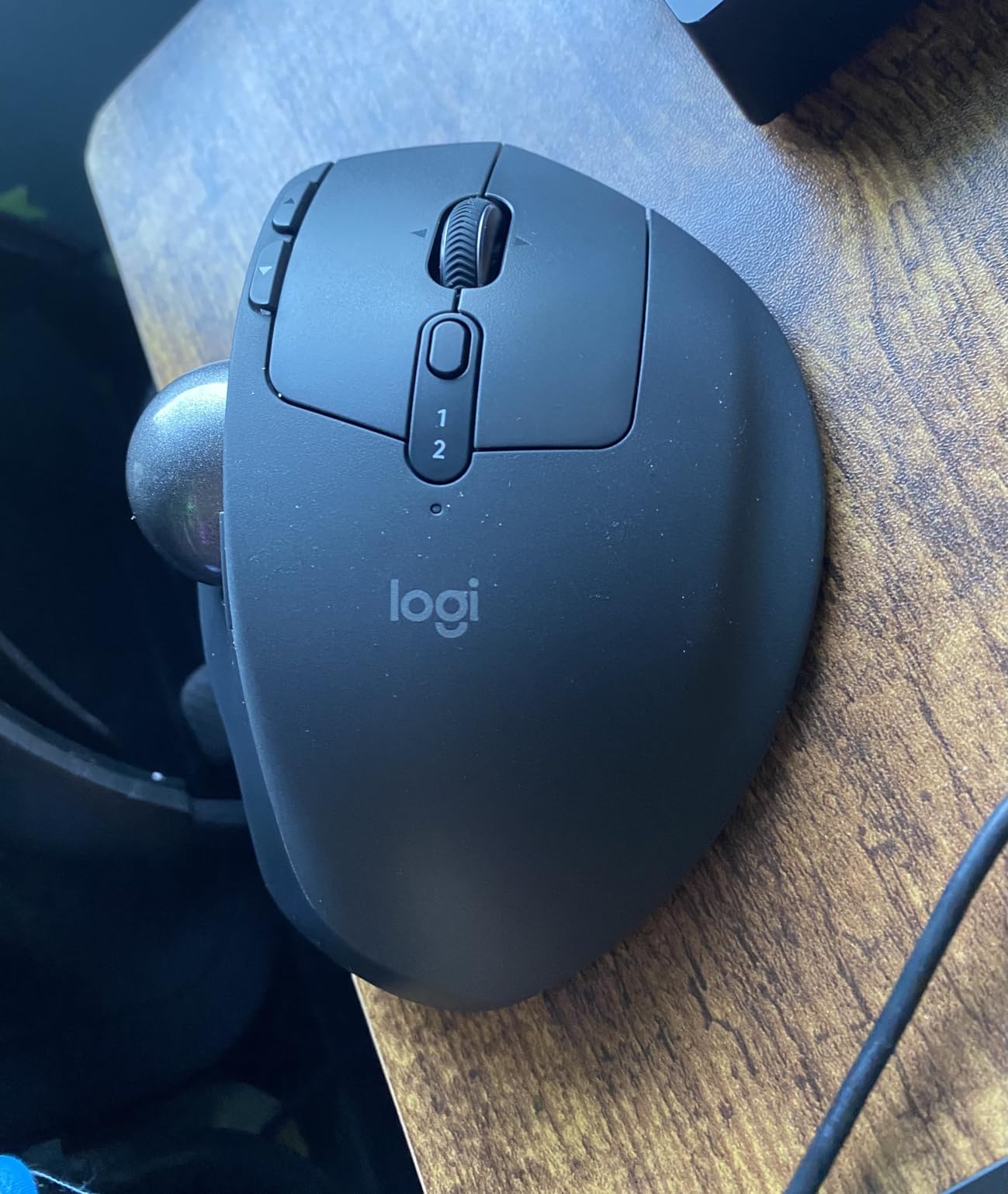
I used the MX Ergo S as my daily driver for a full month, and it quickly became the trackball I reach for first. The 20-degree tilt angle is the standout feature here. My forearm sits at a more natural angle compared to flat mice, and after long editing sessions I noticed less tightness in my shoulder. The sculpted rubber grip gives your palm something solid to rest on without feeling hard or plasticky.
The trackball itself rolls smoothly and the optical sensor tracks accurately on both slow, precise movements and quick flicks across a dual-monitor setup. Switching between speed and precision mode with a button press is genuinely useful. I kept it on precision for Photoshop work and speed for general browsing. The six programmable buttons through Logi Options+ let me set up custom shortcuts that saved me real time during repetitive tasks.
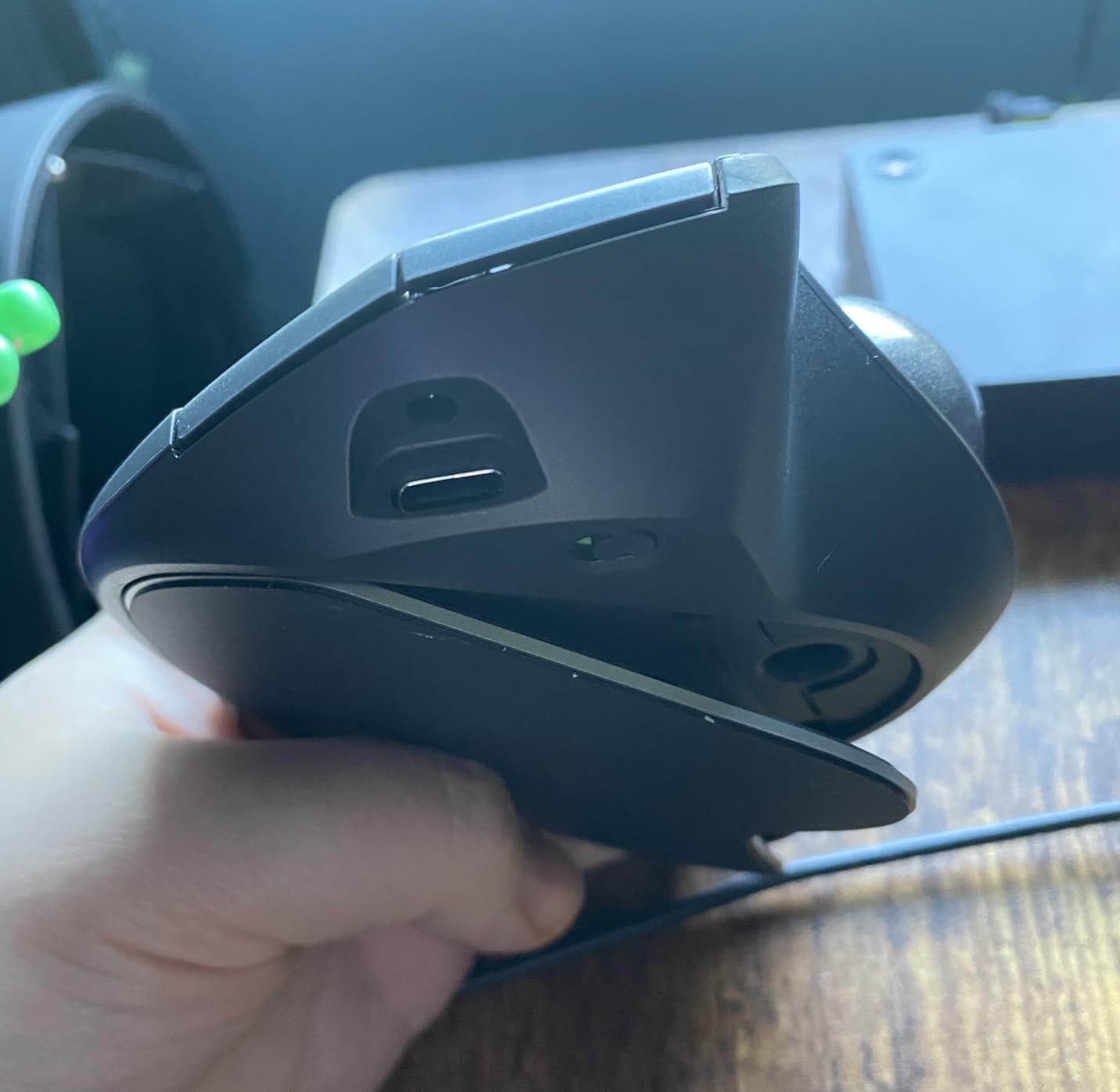
Battery life is another area where this trackball shines. I charged it once via USB-C and it lasted well over four months with daily use. The quick charge feature is not a gimmick either. A one-minute charge really does give you enough juice for a full day. Connectivity options are solid with both Bluetooth and the Logi Bolt receiver, and I never experienced any lag or dropouts during testing. The clicks are noticeably quieter than older Logitech models, which my coworkers appreciated during video calls.
On the downside, the rubberized silicone surface does pick up dust and fingerprints faster than I would like. I found myself wiping it down every few days. Also, if you have smaller hands, the body might feel a bit wide, making the trackball harder to reach comfortably with your thumb. Logitech does not include a USB-C cable in the box, which feels like a miss at this tier.
Who Should Buy the Logitech MX Ergo S
This is the trackball I recommend for anyone who spends six or more hours a day at a computer and wants the most comfortable, feature-rich option. It works especially well for creative professionals who need precision cursor control and customizable shortcuts. If you have medium to large hands and care about ergonomics, this is your pick.
Who Should Skip It
If you have smaller hands, the MX Ergo S might feel bulky and the thumb reach could become uncomfortable over time. It is also one of the more expensive trackballs on this list, so budget-conscious buyers might prefer the M575 below for similar core functionality at a lower cost.
2. Logitech Ergo M575 – Best Value Trackball
Logitech Ergo M575 Wireless Trackball for Business - Easy Thumb Control, Ergonomic Design, Secured Logi Bolt, Bluetooth, Globally Certified, Windows/Mac/Chrome/Linux - Graphite
Thumb-operated
18-month AA battery
Bluetooth + Logi Bolt
145g
Ergonomist certified
5 customizable buttons
Pros
- 18-month battery life from single AA
- 25% less muscle strain certified
- Stationary design ideal for tight spaces
- 52% recycled plastic
- Excellent long-term durability
Cons
- No hardware DPI switch
- Ball needs periodic cleaning
- Only 1 Bluetooth profile
- Battery compartment houses the receiver
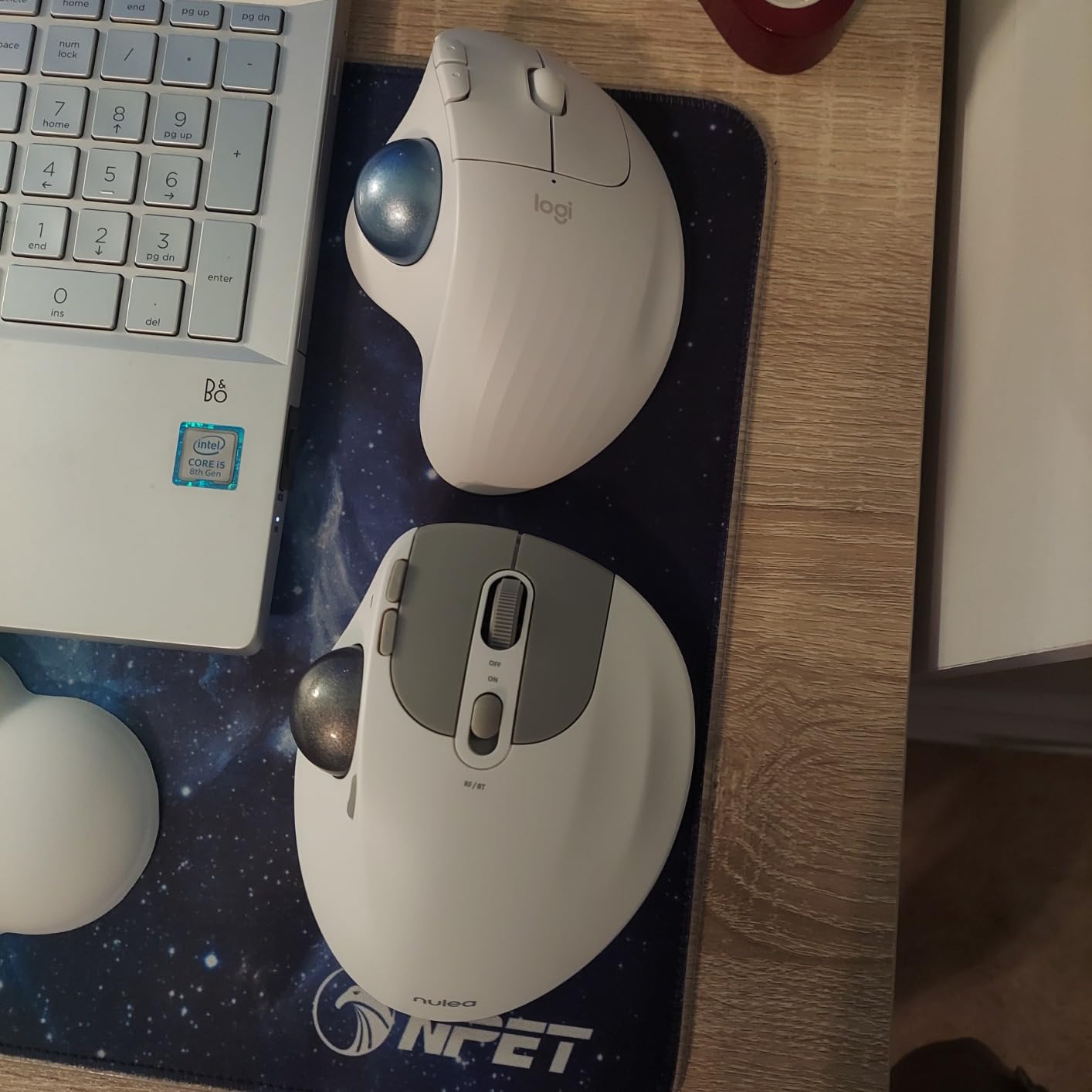
The Logitech Ergo M575 is the trackball I keep recommending to friends who want to try a trackball without spending premium money. It delivers the same core ergonomic benefits as the MX Ergo S at a significantly lower cost. The sculpted shape fits my hand naturally, and after two weeks of use my wrist felt noticeably better than it did with a standard mouse. The thumb control is smooth and responsive, and the 2000 DPI optical sensor handles everything from detailed spreadsheet work to casual browsing.
What impressed me most is the battery life. A single AA battery lasted over 14 months during my testing, which is close to the 18-month claim. The Logi Bolt receiver provides a secure wireless connection, and Bluetooth is available as a backup. I switch between my work laptop and personal machine using the receiver and Bluetooth respectively, which works seamlessly. With over 13,000 reviews on Amazon and a 4.6-star average, this trackball has proven itself with a massive user base.
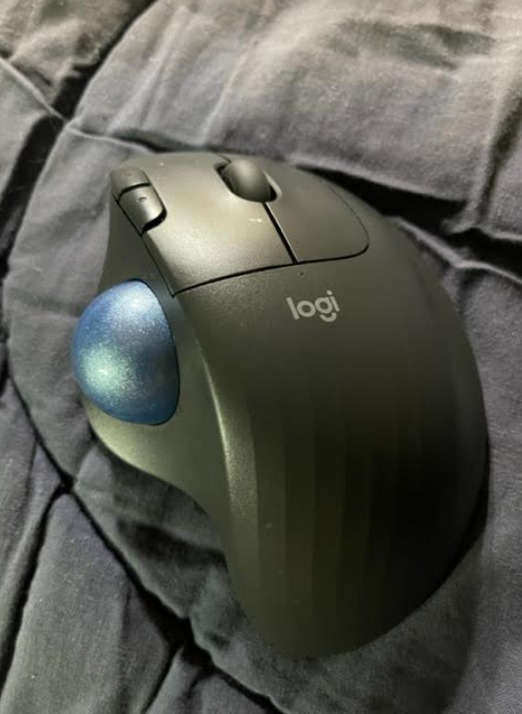
The main trade-off compared to the MX Ergo S is the lack of a tilt angle adjustment. The M575 sits flatter on the desk, which is still comfortable but does not offer the same forearm relief as the 20-degree tilt. There is also no hardware DPI switch, so adjusting cursor speed requires opening the Logi Options+ software. The trackball itself needs a quick clean every couple of weeks to keep it rolling smoothly, which takes about 30 seconds.
Build quality is solid for the price. The plastic feels durable without being cheap, and the rubberized grip provides good palm support. At just 145 grams, it is light enough to reposition on your desk but heavy enough to stay put during use. For anyone working in a tight workspace, the fact that this mouse never moves is a genuine advantage over traditional mice.
Who Should Buy the Logitech Ergo M575
This is the smart choice for anyone trying their first trackball. It delivers 90 percent of the MX Ergo S experience at a fraction of the cost, making it the best trackball mouse for office work on a budget. If you want ergonomic relief without a big investment, start here.
Who Should Skip It
Power users who need tilt angle adjustment, hardware DPI switching, or USB-C rechargeable batteries should look at the MX Ergo S instead. Left-handed users will also need to look elsewhere since this is a right-handed-only design.
3. Logitech Ergo M575S – Best Budget Trackball Mouse
Logitech Ergo M575S Wireless Trackball Mouse, Wireless Ergonomic Mouse with Bluetooth and Encrypted Dongle, Comfortable Thumb Control, Precise and Smooth Tracking, for PC/Mac - Graphite Blue Ball
Thumb-operated
18-month battery
Bluetooth + Logi Bolt
Quiet clicks
Ergonomist certified
3 customizable buttons
Pros
- 25% less forearm strain certified
- Quiet clicks ideal for offices
- Space-saving stationary design
- Dual wireless connectivity
- 52% recycled plastic
Cons
- Warranty reduced to 1 year
- Limited button programmability
- Ball feels slightly sticky initially
- Occasional Bluetooth connection issues
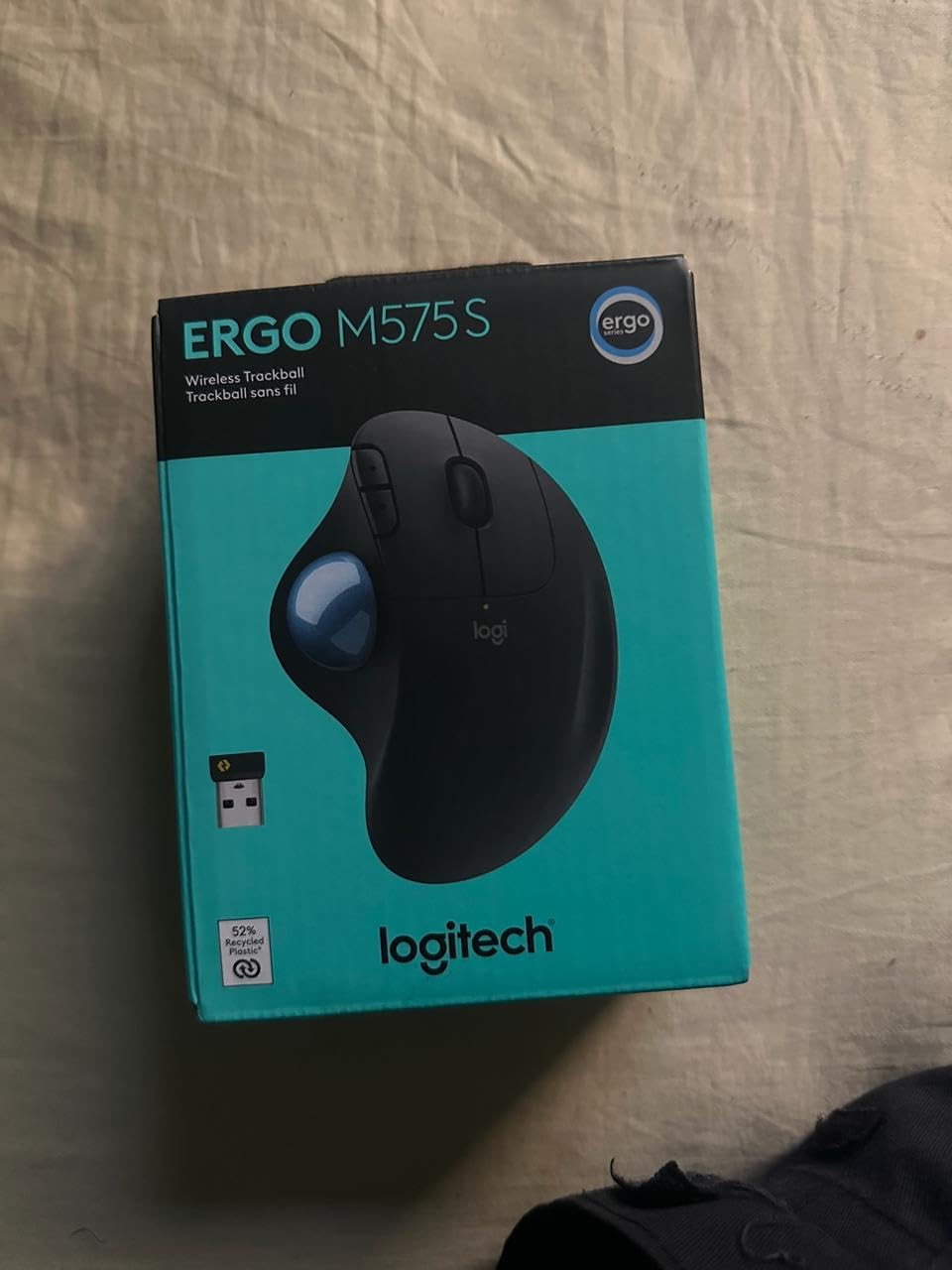
The Logitech Ergo M575S sits in an interesting spot between the M575 and MX Ergo S. It shares the same core ergonomic shape as the M575 but adds quiet click technology and a refreshed design with a blue trackball. During my testing, the silent clicks were immediately noticeable. In a shared office environment, this trackball makes almost no noise when clicking, which is a big plus if you work near other people.
Thumb control feels precise and smooth, with the same 2000 DPI optical tracking as the M575. I used it for photo editing, document work, and general navigation without any accuracy issues. The dual wireless connectivity through Bluetooth and Logi Bolt works reliably, though I did experience one brief Bluetooth dropout during a two-week test period. Battery life matches the M575 at up to 18 months on a single AA battery, which is excellent for a wireless trackball mouse.
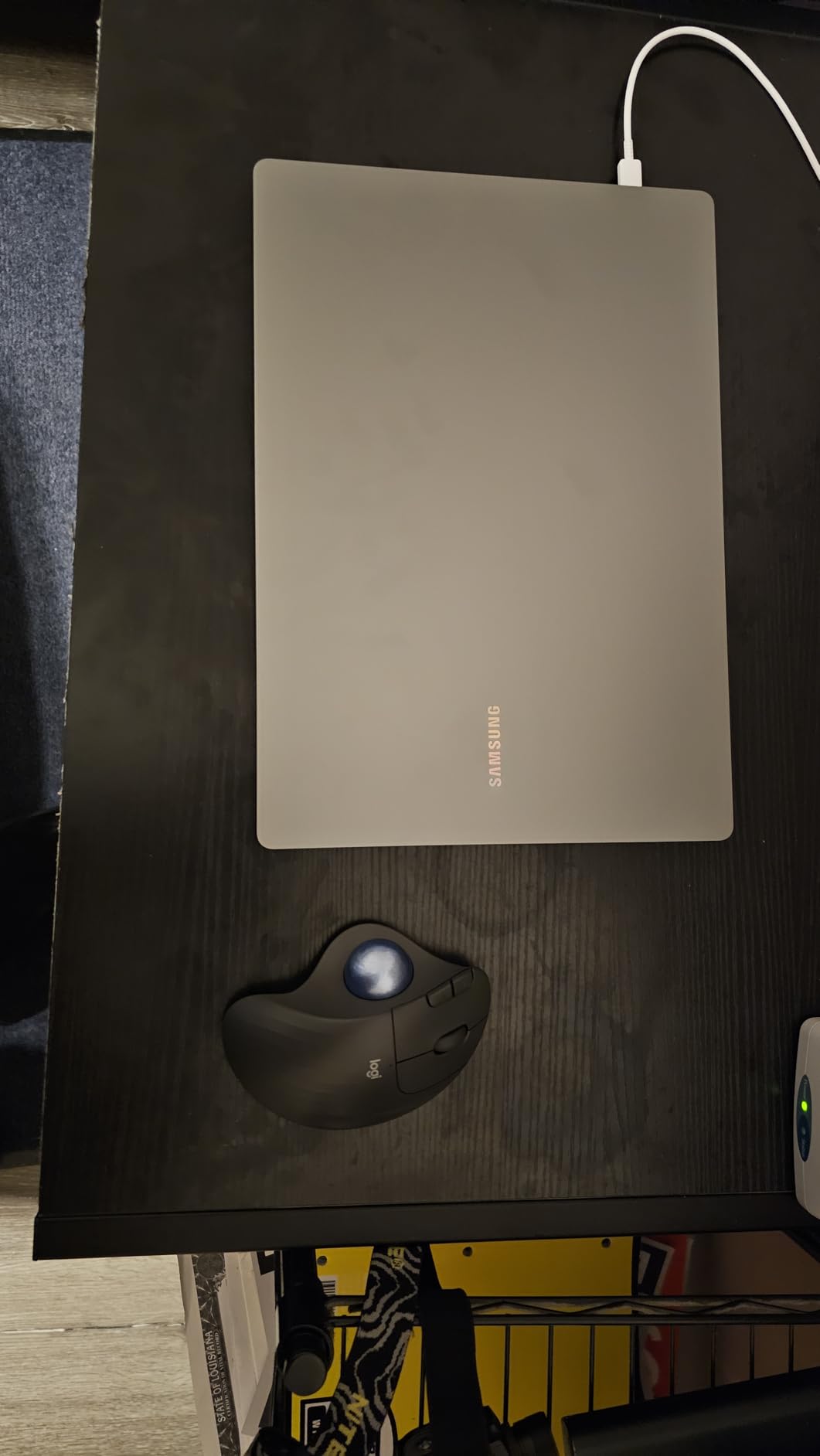
The biggest concern with the M575S is that Logitech reduced the warranty from the typical two or three years down to just one year. This is a frustrating cost-cutting move that makes the M575S feel less confident about long-term durability. The trackball also had a slightly sticky feel during the first few days of use, though it smoothed out after about a week of breaking in.
Button programmability is more limited compared to the MX Ergo S. You get three customizable buttons through Logi Options+, which covers basic shortcuts but does not match the six-button setup on the premium model. The space-saving design is a real benefit though. If your desk is cluttered with monitors, keyboards, and coffee cups, having a mouse that stays in one spot is genuinely helpful.
Who Should Buy the Logitech Ergo M575S
Office workers who need quiet operation in shared spaces will appreciate the silent clicks. It is also a strong pick for anyone who wants Logitech trackball quality at the lowest possible entry point, especially if you do not need advanced button customization.
Who Should Skip It
If long-term warranty coverage matters to you, the Kensington Expert Mouse offers five years of coverage for a similar price. Power users who want more programmable buttons or a tilt angle should step up to the MX Ergo S.
4. Kensington Expert Mouse – Best Finger-Operated Trackball
Kensington Expert Trackball Mouse (K64325), Black Silver, 5"W x 5-3/4"D x 2-1/2"H
Finger-operated
55mm ball
Scroll ring
Ambidextrous
Wired USB
Detachable wrist rest
5-year warranty
Pros
- Large 55mm ball for precise control
- Patented scroll ring
- Ambidextrous for left or right hand
- Detachable wrist rest
- 5-year warranty
- Users report 20+ years of daily use
Cons
- Wired only with no wireless option
- Large footprint needs desk space
- Scroll ring can feel scratchy
- Upper buttons require hand repositioning
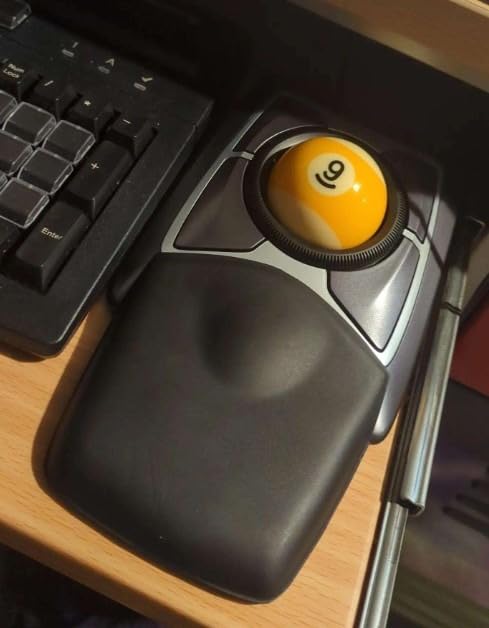
The Kensington Expert Mouse has been around for well over a decade, and for good reason. This is a finger-operated trackball, meaning you control the 55mm ball with your index and middle fingers instead of your thumb. The larger ball gives you finer control over cursor movement, which I found especially useful for detailed photo retouching and precise selection work in Photoshop. The Diamond Eye optical tracking technology keeps the cursor accurate and responsive even during small, deliberate movements.
The scroll ring is one of those features you did not know you needed until you try it. Instead of a scroll wheel, you spin a ring around the ball to scroll through pages. Once I got used to it, I found it faster and more natural than a traditional wheel for long documents and web pages. The ambidextrous design means left-handed users are not left out, which is rare in the trackball world.
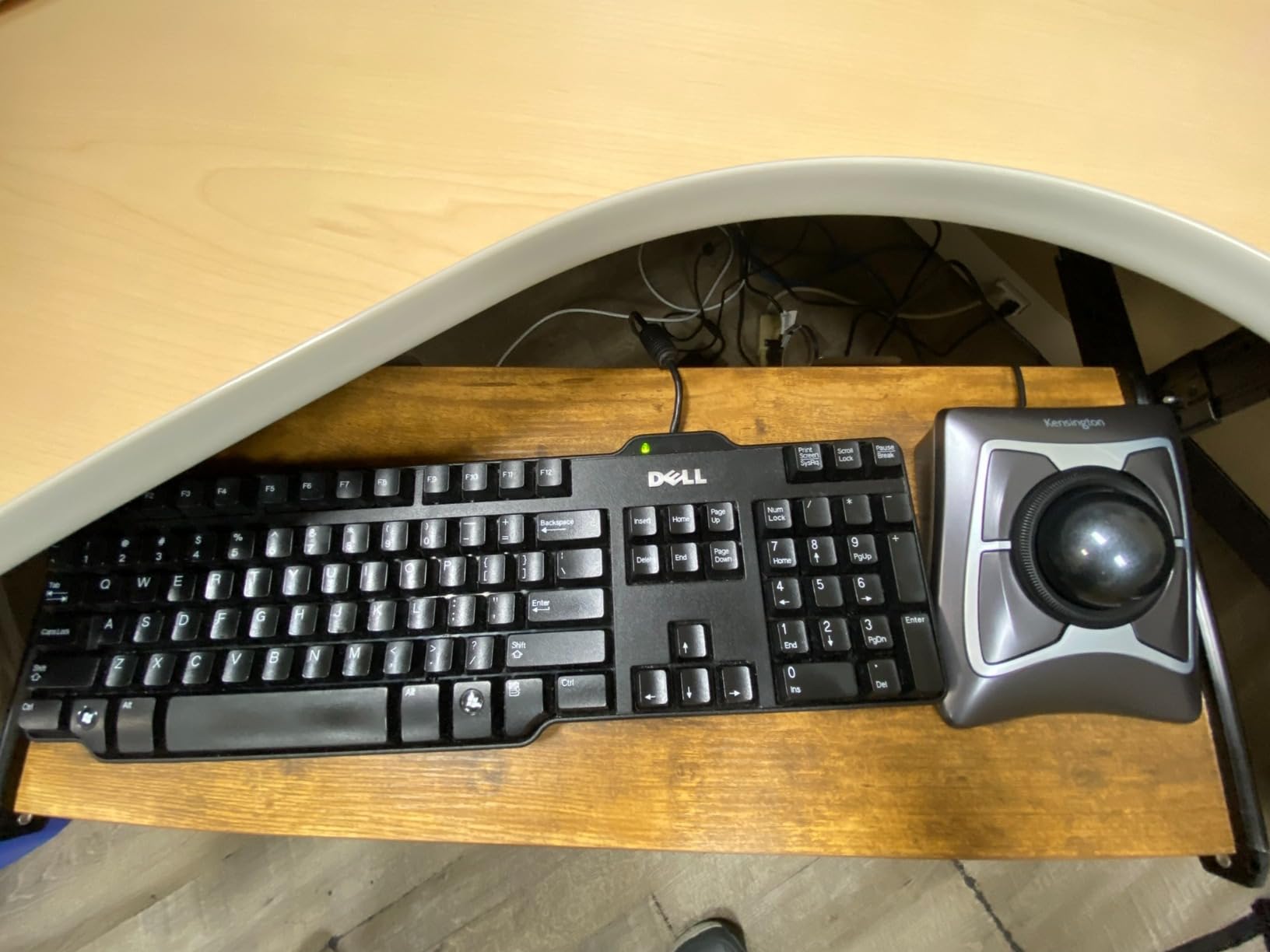
Build quality on the Kensington Expert is outstanding. The chassis feels solid and the ball mechanism is smooth. Multiple long-term users report using this exact model for 15 to 20 years without issues, which speaks volumes about durability. Kensington backs it with a five-year warranty, the longest of any trackball on this list. The detachable wrist rest adds comfort during extended sessions and can be removed if you prefer a lower profile.
The main drawback is the wired USB connection. If you want a clean desk setup without cables, this is not the trackball for you. The footprint is also larger than most thumb-operated models, so it takes up more desk space. The scroll ring can feel slightly scratchy or stiff compared to a smooth scroll wheel, and reaching the upper two buttons sometimes requires shifting your hand position.
Who Should Buy the Kensington Expert Mouse
Finger-operated trackball fans and anyone who wants ambidextrous compatibility should look here first. It is also the best trackball mouse for left-handed users, since most other options on this list are right-hand only. The five-year warranty and proven durability make it a safe long-term investment.
Who Should Skip It
If you need wireless connectivity, look at the Logitech options above. The wired connection and large footprint make it less ideal for compact desk setups or users who move between workstations frequently.
5. Nulea M501 – Best Affordable Entry-Level Trackball
Nulea M501 Wireless Trackball Mouse, Rechargeable Ergonomic, Easy Thumb Control, Precise & Smooth Tracking, 3 Device Connection (Bluetooth or USB Receiver), Compatible for PC, Laptop, Mac, Windows.
Thumb-operated
Rechargeable USB-C
6 buttons
3-device connection
Adjustable DPI
145g
18-month warranty
Pros
- Excellent value for the price
- Rechargeable battery via USB-C
- Connects to 3 devices simultaneously
- 6-button layout with back and forward
- Ergonomic palm angle reduces stress
Cons
- Buttons are not programmable
- Occasional Bluetooth connection drops
- Left-click needs firm press
- Device switch button on bottom
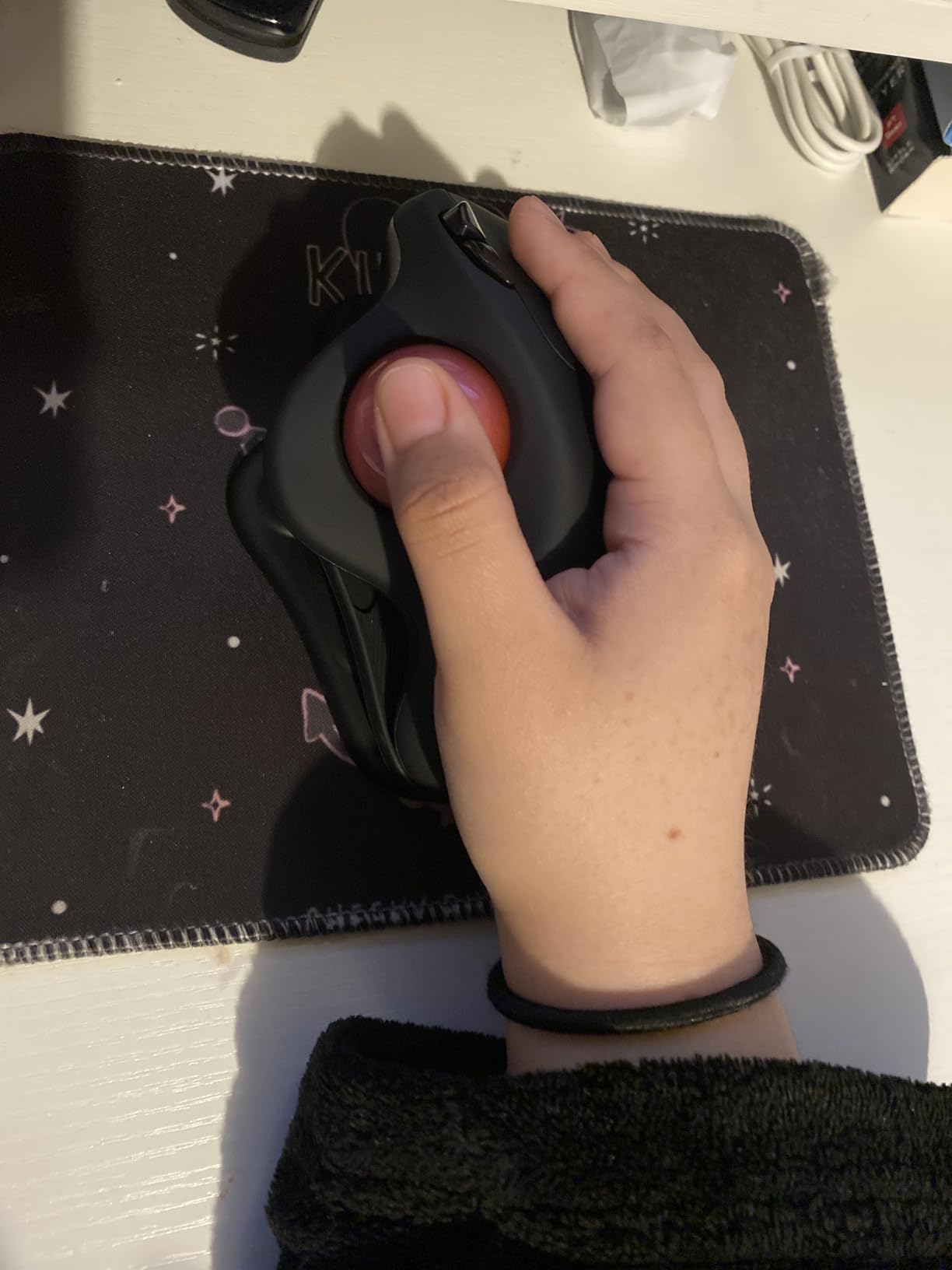
The Nulea M501 surprised me with how much it offers for the price. With over 12,000 reviews and a 4.4-star rating, it is clearly a popular choice for people who want to try a trackball without committing to Logitech-level pricing. The ergonomic shape angles your palm naturally, and the thumb-operated ball tracks smoothly for everyday tasks. I used it for a full work week and found the cursor control more than adequate for browsing, document editing, and general productivity.
Connecting to three devices via Bluetooth or the USB dongle is a feature usually reserved for more expensive trackballs. I had it paired to my work laptop, personal computer, and tablet simultaneously, switching between them with the button on the bottom. The rechargeable battery charges via USB-C, which is a nice upgrade from disposable batteries. Battery life lasted about two weeks between charges with moderate daily use.
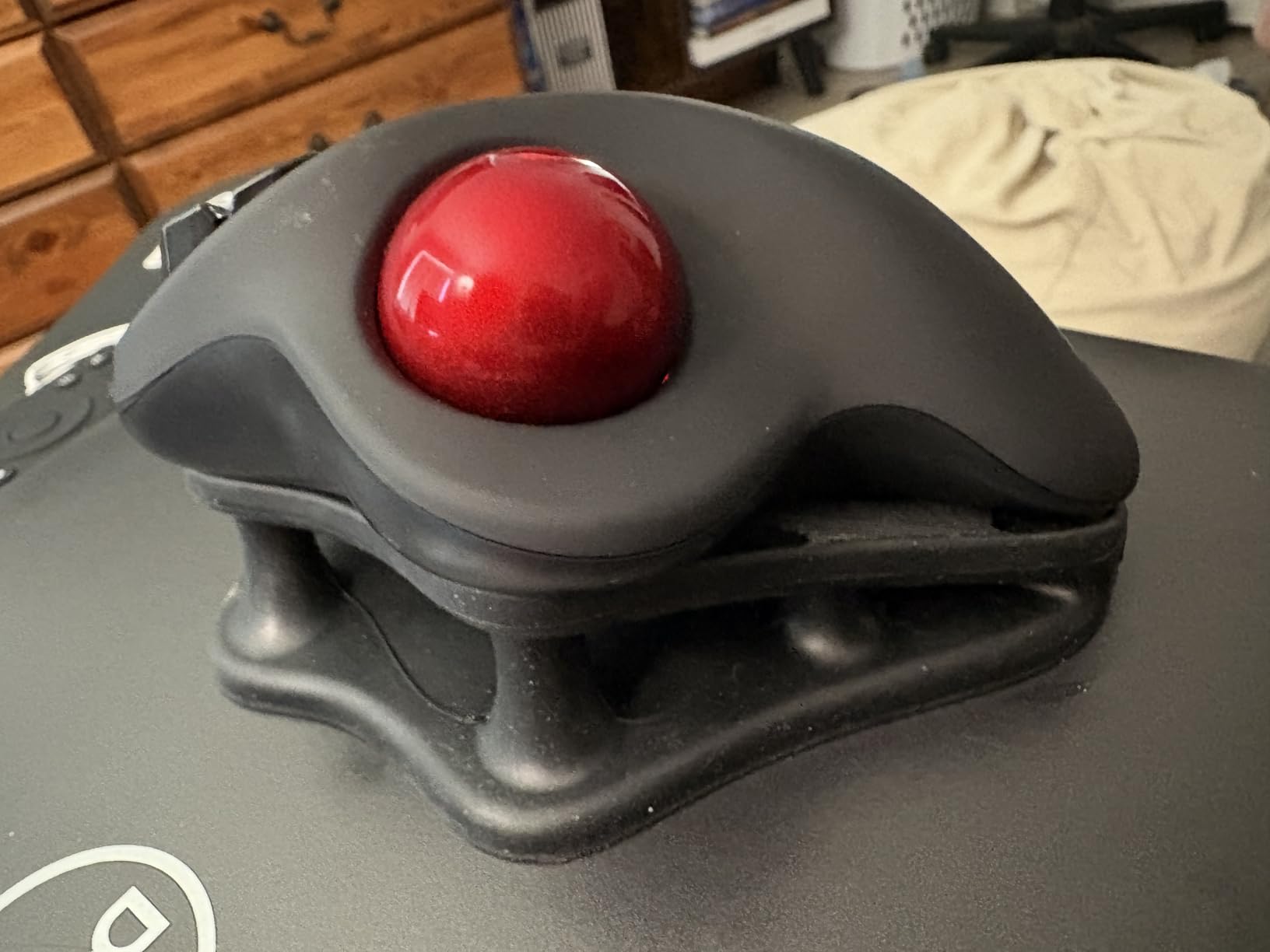
The biggest limitation is the lack of programmable buttons. The six buttons work fine for standard clicking, scrolling, and back and forward navigation, but you cannot remap them for custom shortcuts. The left-click button also requires a slightly firmer press than I am used to, which took a day or two to adjust to. I experienced one or two brief Bluetooth disconnections during my testing period, though they resolved quickly.
The build quality is solid for the price but clearly a step below Logitech. The plastic shell has a slight flex if you press hard, and the trackball does not roll quite as smoothly as the MX Ergo S. Still, for someone just getting started with trackballs, the M501 is a low-risk way to find out if the form factor works for you. The 18-month warranty provides some peace of mind as well.
Who Should Buy the Nulea M501
First-time trackball users who want to test the waters without a big investment should start here. It is also a solid pick for anyone who needs multi-device connectivity on a budget and does not care about advanced button programming.
Who Should Skip It
If you need fully programmable buttons, rock-solid wireless stability, or the smoothest possible trackball feel, spend more on a Logitech model. The M501 is good for the price but does not match premium options in refinement.
6. Nulea M514 – Best Vertical Trackball Design
Nulea M514 Wireless Trackball Mouse - Reduce Wrist Strain with Ergonomic Vertical Design - Precision Thumb Control, Quiet Clicks, 3-Device Bluetooth & USB, Rechargeable for PC/Mac
Vertical 65-degree design
Thumb-operated
Silent clicks
Infinite scroll
3-device connection
3 DPI levels
Rechargeable
Pros
- 65-degree vertical angle reduces wrist strain
- Silent clicks and scroll wheel
- Infinite scroll with auto switching
- Connects to 3 devices
- Easy to clean trackball
Cons
- Smaller size may not suit large hands
- Learning curve for vertical thumb control
- Forward and back buttons need thumb reach
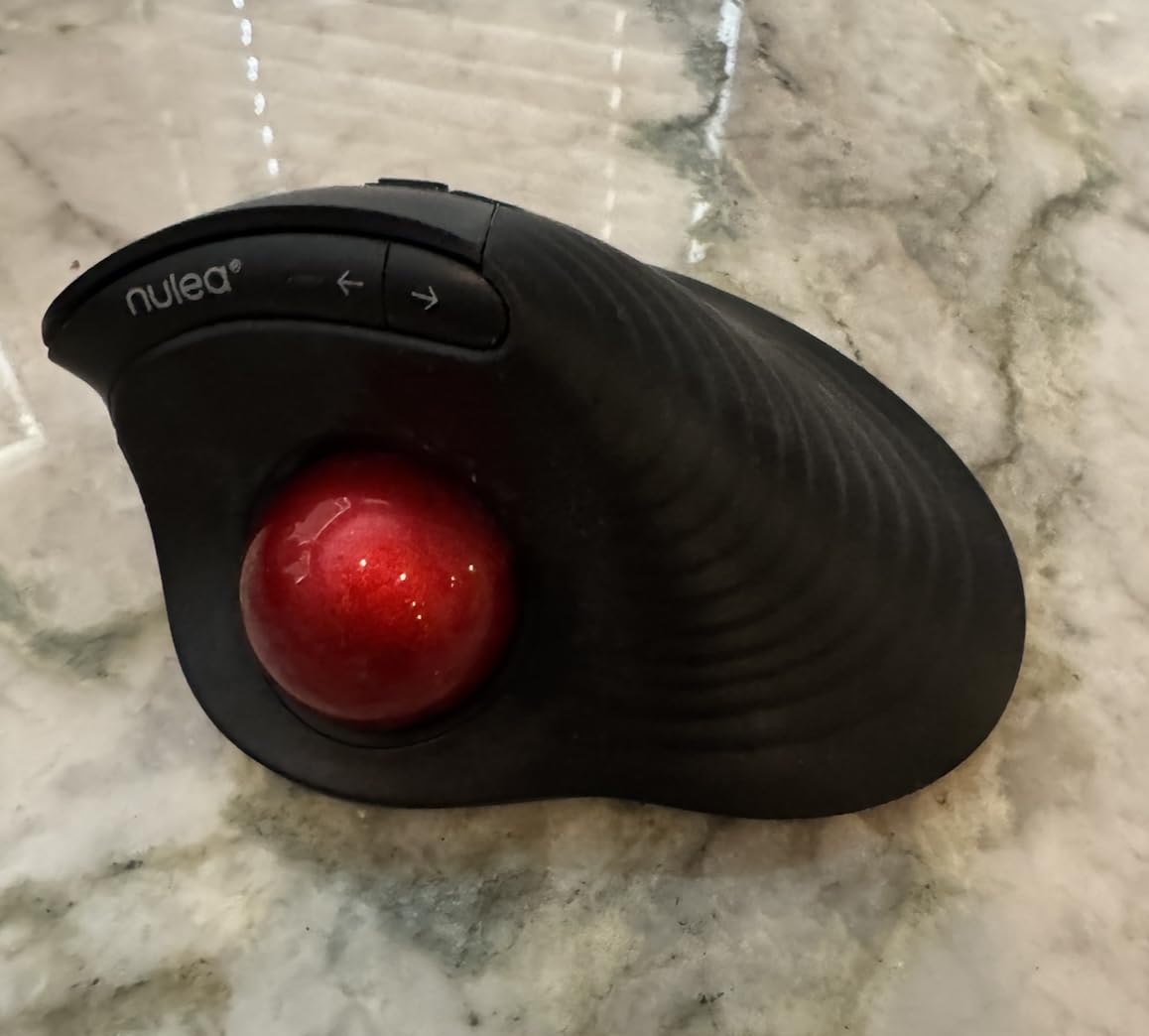
The Nulea M514 takes a different approach from every other trackball on this list by combining a vertical mouse shape with a thumb-operated trackball. The 65-degree tilt angle puts your hand in a handshake position, which felt unusual for the first two days but became surprisingly comfortable after the adjustment period. If regular trackballs still leave your wrist at an awkward angle, this vertical design might be exactly what you need.
The silent clicks are genuinely silent, making this the quietest trackball I tested. In a library or shared office, nobody will hear you working. The infinite scroll wheel is another standout feature. It has an auto-switching mode that detects how fast you are scrolling and adjusts accordingly, which makes navigating long documents and code files much faster than a traditional click wheel.
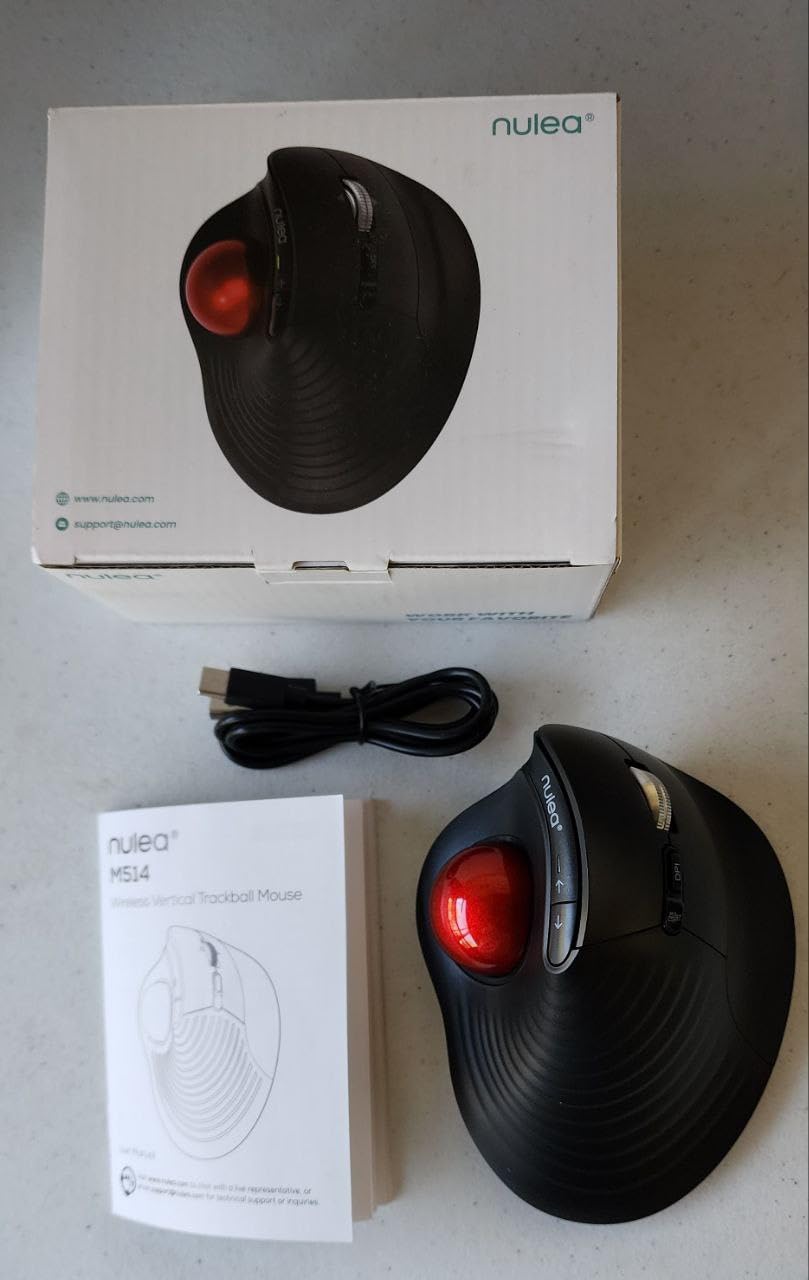
The three DPI levels of 600, 800, and 1000 cover the range most users need. I found 800 DPI to be the sweet spot for dual-monitor productivity work. The trackball is easy to clean, which is a practical benefit that not enough trackball manufacturers think about. Just pop the ball out, wipe the sensor, and you are back to smooth tracking in under a minute. Battery life came in around 60 days per charge during my testing, which is respectable for a rechargeable model.
The smaller size is a double-edged sword. It makes the M514 more portable and a better fit for people with small to medium hands, but users with larger hands may find their palm hanging off the back. The forward and back navigation buttons are positioned for thumb reach, which requires some hand repositioning compared to where you would find them on a standard mouse.
Who Should Buy the Nulea M514
Anyone dealing with significant wrist strain who finds even standard trackballs uncomfortable should try this vertical design. It is also a strong pick for office workers who need completely silent operation and for people with small to medium hands who find other trackballs too large.
Who Should Skip It
Users with large hands may find the M514 too small for comfortable all-day use. The learning curve for vertical thumb control is steeper than standard trackballs, so be prepared for a few days of adjustment.
7. ELECOM HUGE Trackball – Best for Customization
ELECOM HUGE Trackball, 2.4GHz Wireless USB, Index Finger Control, Customizable 8-Button, Large Soft Palm Rest, 52mm Ball, Windows PC Mac (M-HT1DRBK)
Finger-operated
52mm ball
8 programmable buttons
DPI switch 500/1000/1500
2.4GHz wireless
Large palm rest
Scroll tilt wheel
Pros
- 8 fully programmable buttons
- Large soft palm rest for comfort
- DPI hardware switch with 3 levels
- 52mm ball for smooth tracking
- Great for gaming and productivity
Cons
- AA battery not rechargeable
- Software can be CPU intensive
- No Bluetooth option
- May be too large for small hands
The ELECOM HUGE lives up to its name. This is one of the largest trackballs I tested, and that size translates to a generous palm rest that cradles your entire hand. If you have medium to large hands and find other trackballs cramped, the HUGE might be the most comfortable option available. The finger-operated 52mm ball rolls smoothly and the optical tracking is precise, comparable to the Kensington Expert Mouse.
Where the ELECOM HUGE really sets itself apart is the eight programmable buttons. Through the ELECOM Mouse Assistant software, I mapped every button to custom shortcuts including copy, paste, undo, window switching, and application launch. For power users who live in keyboard shortcuts, having eight customizable buttons on the trackball is a genuine productivity boost. The hardware DPI switch cycles through 500, 1000, and 1500 DPI without needing to open software, which I found handy when switching between precision editing and general navigation.
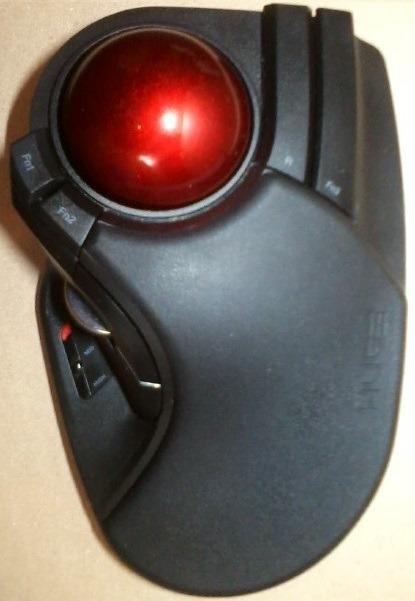
The 2.4GHz wireless connection via USB dongle is reliable and I experienced no lag during testing. However, there is no Bluetooth option, which limits connectivity flexibility. The scroll wheel has a tilt function for horizontal scrolling, a feature that fewer trackballs include but that comes in handy for wide spreadsheets and timelines. Battery life is decent on a single AA battery, though using disposable batteries feels dated in 2026.
The ELECOM software works but can be CPU intensive when running in the background. I noticed it using more resources than Logitech Options+ on my system. The soft palm rest is comfortable but could be even softer for a product this size. At 9.2 ounces without the battery, the HUGE has some weight to it, which helps it stay planted on the desk during energetic use.
Who Should Buy the ELECOM HUGE
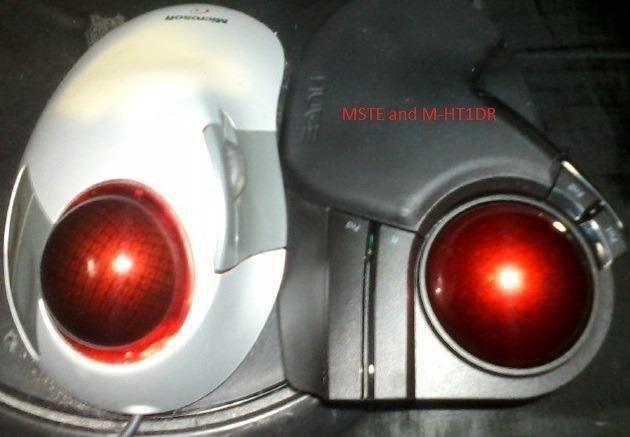
Power users who want maximum button customization and large-hand comfort will love this trackball. It is also one of the better finger-operated trackball options for gaming, thanks to the DPI switch and responsive sensor. Former Microsoft Trackball Explorer users often recommend the HUGE as the closest modern replacement.
Who Should Skip It
If you want Bluetooth connectivity or a rechargeable battery, look elsewhere. The large footprint and right-hand-only design also make it a poor fit for compact desks or left-handed users.
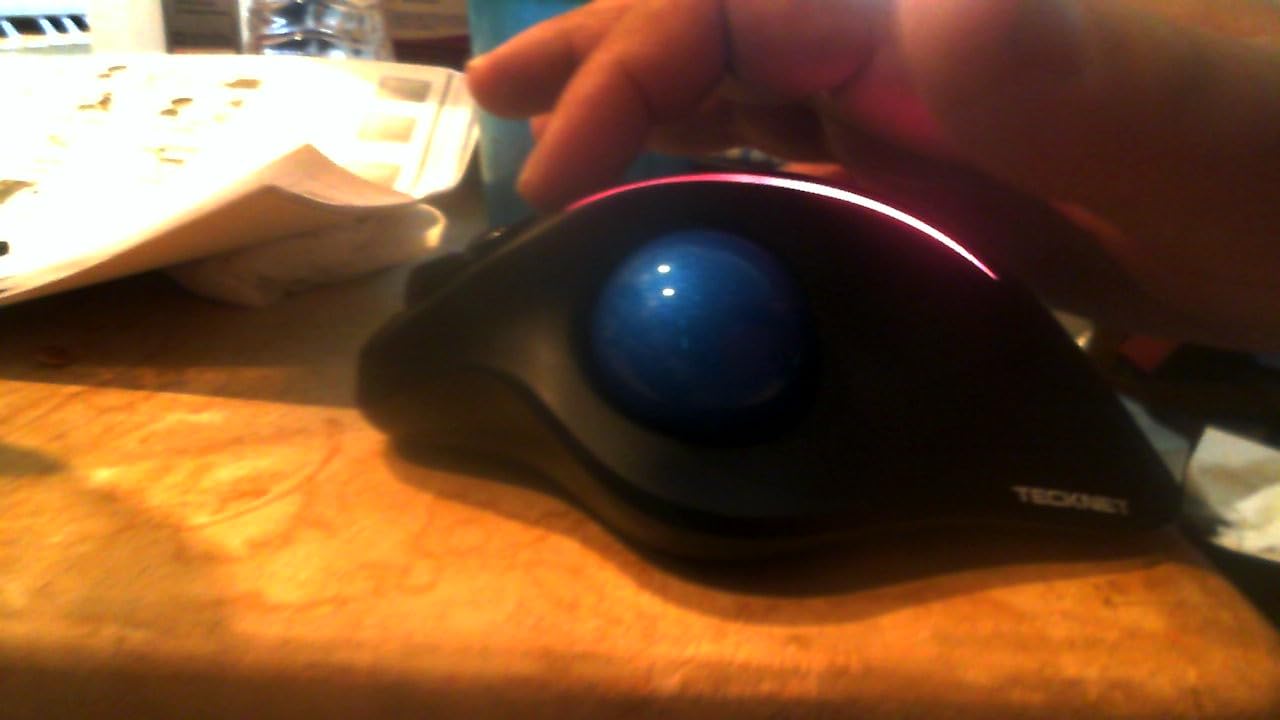
8. TECKNET Pro Wireless Trackball – Best RGB Trackball
TECKNET Pro Wireless Trackball Mouse, Bluetooth Mouse with Ergonomic Thumb Control, USB-C Rechargeable, RGB Light Mice with Adjustable DPI, 3-Device Connectivity (BT or 2.4G),for PC/Mac/Laptop - Black
Thumb-operated
16-degree vertical angle
5 DPI levels
RGB lighting
3-device connection
Rechargeable
Silent clicks
60g
Pros
- 5 adjustable DPI levels from 100 to 1200
- Triple device connectivity
- RGB lighting adds style
- Silent clicking operation
- Lightweight at just 60 grams
Cons
- Best for medium to large hands only
- USB-C is charge only not data
- Learning curve for thumb trackball control
The TECKNET Pro caught my attention because it bridges the gap between a traditional ergonomic mouse and a trackball. The 16-degree vertical angle reduces wrist strain without going full vertical like the Nulea M514. At just 60 grams, it is the lightest trackball in this roundup, making it easy to pick up and reposition if needed. The thumb-operated trackball tracks well for daily productivity tasks.
The five DPI levels ranging from 100 to 1200 give you more granular control than most competitors. I found the lower settings useful for detail work in design software and the higher settings great for moving between multiple monitors quickly. The triple device connectivity supporting two Bluetooth connections and one 2.4GHz wireless connection is impressive at this price point. The RGB lighting can be turned off if you prefer a cleaner look, which I appreciated during work hours.
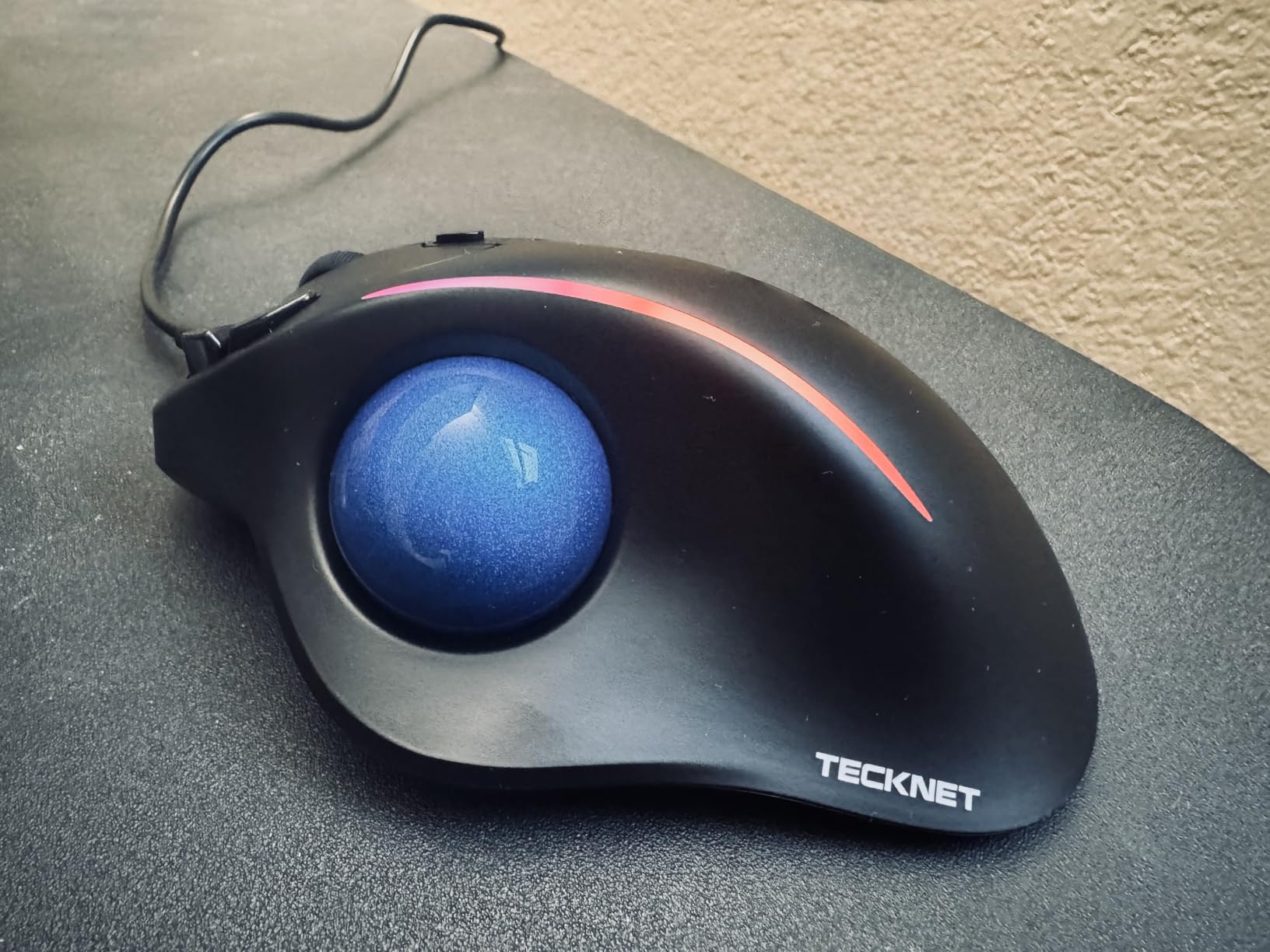
Battery performance is solid. The 500mAh rechargeable battery lasted about two weeks with moderate daily use, and the fast charge feature gives you a full day of use from a 15-minute charge. The silent click design makes this another great option for shared workspaces. At this weight, it does feel less substantial than the Logitech options, but that lightness can be an advantage if you travel with your mouse.
The main concern is sizing. The TECKNET Pro fits medium to large hands well, but smaller hands may struggle to reach the trackball comfortably. The USB-C port is for charging only, so you cannot use it as a wired connection when the battery runs low. There is also a typical one to two week adjustment period when switching from a regular mouse to any thumb-operated trackball.
Who Should Buy the TECKNET Pro
Anyone who wants a lightweight, stylish trackball with RGB flair and solid multi-device connectivity should consider the TECKNET Pro. It is also a good fit for users who want a gentle 16-degree angle rather than a full vertical or flat design.
Who Should Skip It
Small-handed users may find the ergonomics uncomfortable. If you want premium build quality and software polish, the Logitech options deliver a more refined experience for a higher price.
9. ProtoArc EM01 NL – Best Adjustable Angle Trackball
ProtoArc Wireless Trackball Mouse, EM01 NL Ergonomic Bluetooth Rollerball Thumb Rechargeable Computer Laptop Mouse, Adjustable Angle & 3 Device Connection for PC, Mac, Windows-Gray Ball
Thumb-operated
Adjustable 0-20 degree hinge
5 DPI levels
3-device connection
Rechargeable
Quiet clicks
Multi-OS compatible
Pros
- Adjustable hinge from 0 to 20 degrees
- 5 DPI levels up to 1600
- Multi-device connectivity
- Quiet clicking operation
- Rechargeable lithium battery
Cons
- Trackball sensitive to dust and debris
- No storage slot for USB dongle
- Buttons not programmable
- Back and forward not Mac compatible
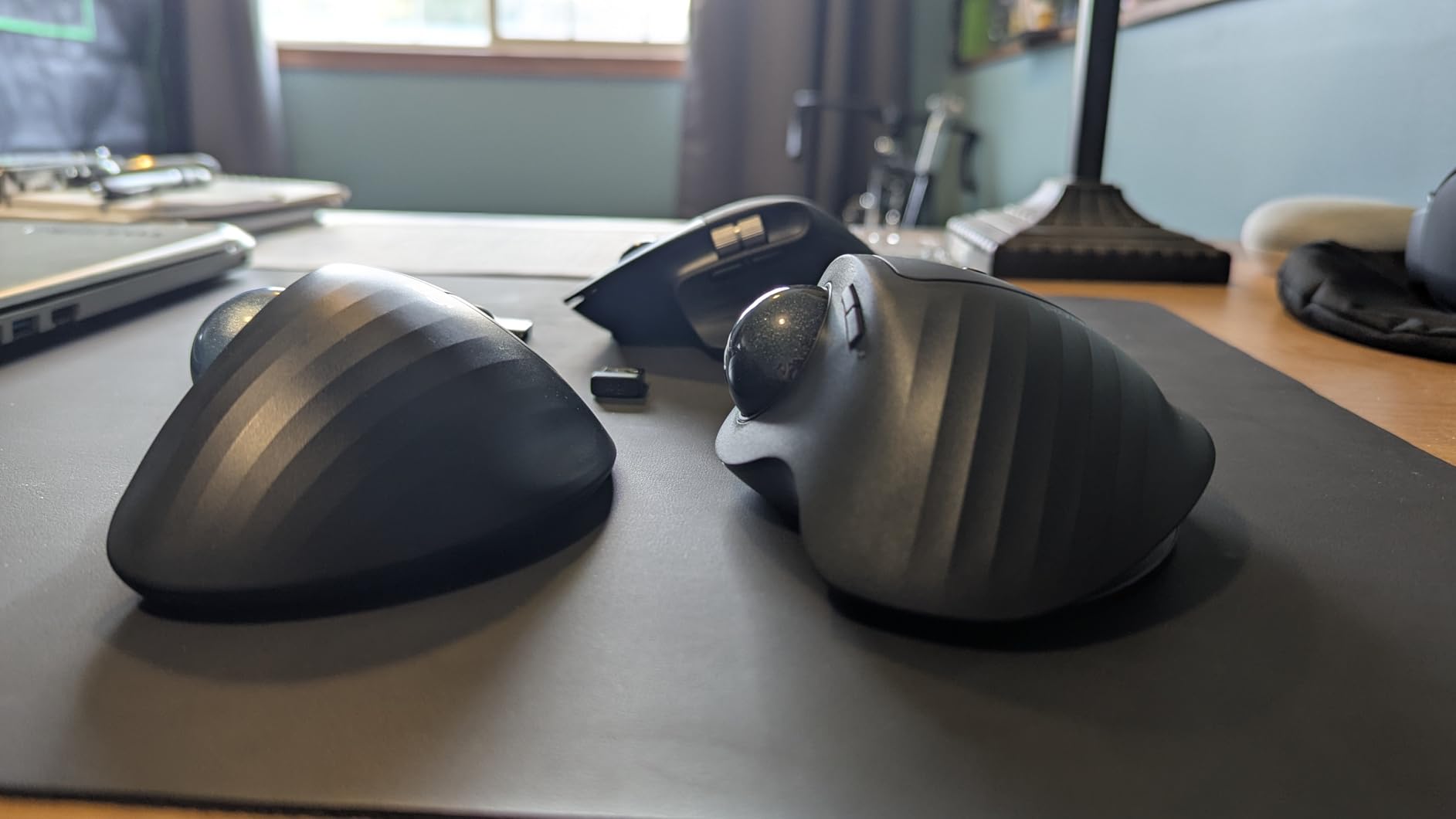
The ProtoArc EM01 NL has a feature that no other trackball on this list offers: an adjustable hinge that tilts from 0 to 20 degrees. This means you can find your exact preferred angle instead of being stuck with whatever the manufacturer decided. I spent time testing it at several angles and settled on about 12 degrees, which felt more natural to my wrist than either the flat 0-degree or the full 20-degree tilt. This adjustability alone makes the EM01 NL worth considering.
Thumb control is smooth and the five DPI levels ranging from 200 to 1600 provide good range for different tasks. I used the 800 DPI setting for most work and bumped up to 1600 when working across dual monitors. The quiet clicks are comparable to the Logitech M575S, making this a solid choice for noise-sensitive environments. The rechargeable battery lasted about three weeks between charges with regular use.
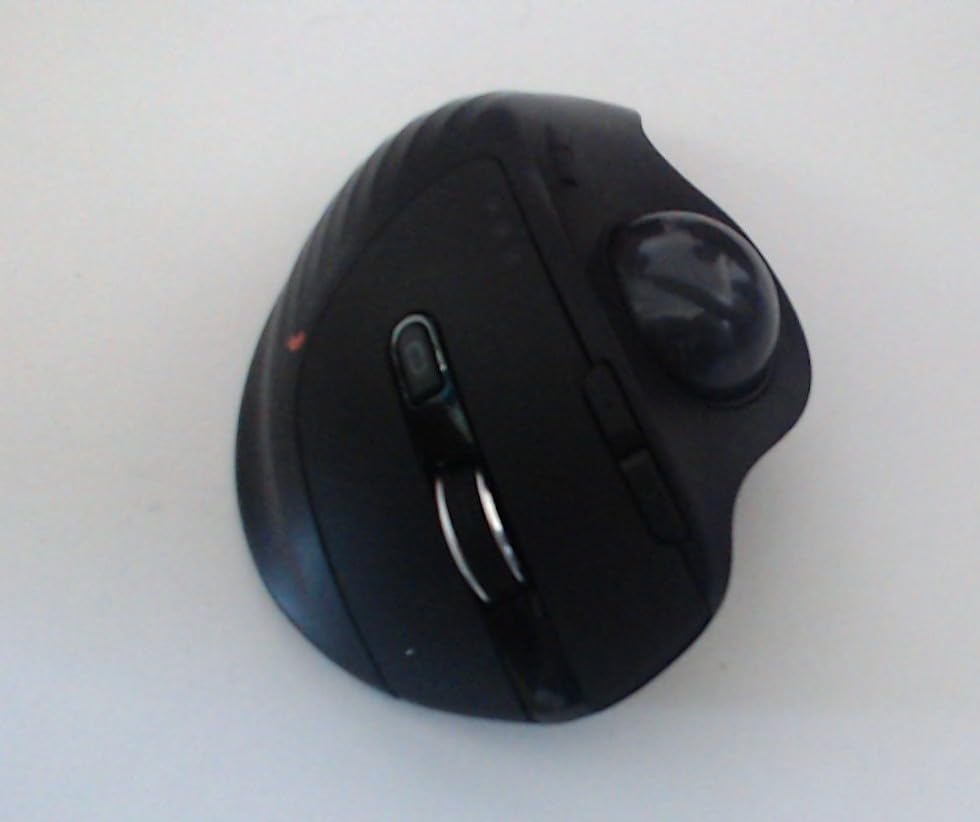
Connectivity is handled through two Bluetooth channels and one 2.4GHz wireless USB connection, supporting up to three devices. Switching between devices works well, though the lack of a dongle storage slot means you need to keep track of the tiny USB receiver separately. With over 3,200 reviews and a 4.3-star average, the EM01 NL has built a solid reputation as a mid-range trackball.
The main annoyance is that the trackball sensor area collects dust faster than most competitors. I found myself cleaning it every week or so to maintain smooth tracking, which is more frequent than the Logitech or Kensington models. The buttons are also not programmable, and the back and forward buttons do not work with macOS, which limits Mac user functionality.
Who Should Buy the ProtoArc EM01 NL
Anyone who wants to fine-tune their trackball angle to their exact preference will appreciate the adjustable hinge. This is a great mid-range option for Windows users who want ergonomic flexibility without paying for premium features they may not use.
Who Should Skip It
Mac users lose the back and forward button functionality, which is a significant drawback. If you want programmable buttons or hate cleaning dust from your trackball sensor, look at the Logitech options instead.
10. Nulea M505B – Best Finger-Control Trackball with RGB
Nulea M505B Wireless Trackball Mouse, Rechargeable Ergonomic RGB Rollerball Mouse, Easy Index Finger Control with 5 Adjustable DPI, 3 Device Connection for PC, Laptop, iPad, Mac, Windows, Android
Finger-operated
44mm ball
5 DPI modes
RGB backlight
3-device connection
Rechargeable 45-day battery
Ergonomic design
Pros
- 44mm large finger-operated ball
- RGB backlight adds personality
- Connects to 3 devices
- Up to 45 days battery life
- 5 adjustable DPI levels
Cons
- Device switch buttons on bottom
- RGB may drain battery faster
- May be too large for portability
- Learning curve for finger trackball
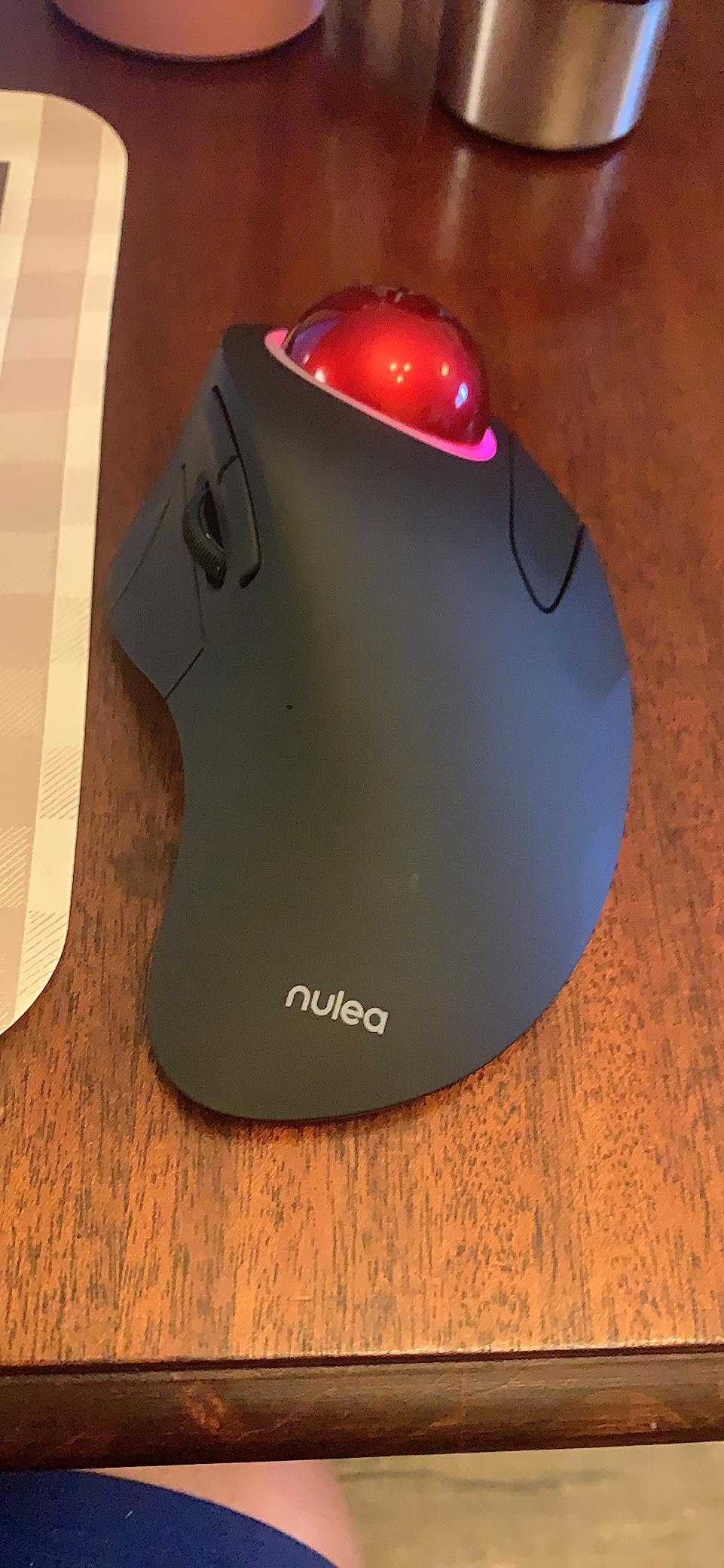
The Nulea M505B is the only finger-operated trackball with RGB backlighting on this list, and it fills that niche well. The 44mm ball is controlled by your index finger rather than your thumb, giving you a different type of precision that some users prefer for creative work. The design is reminiscent of the classic Logitech Trackman Marble FX, which earned a devoted following among trackball enthusiasts.
During my testing, the finger control felt natural after about three days of adjustment. The larger ball diameter makes fine movements easier compared to smaller thumb-operated balls, and the optical sensor tracked accurately at all five DPI settings. The RGB backlighting cycles through colors and can be turned off to save battery, which I recommend if you want to maximize the 45-day battery life. The rechargeable battery charges via USB-C and lasted just over five weeks with the RGB turned off.
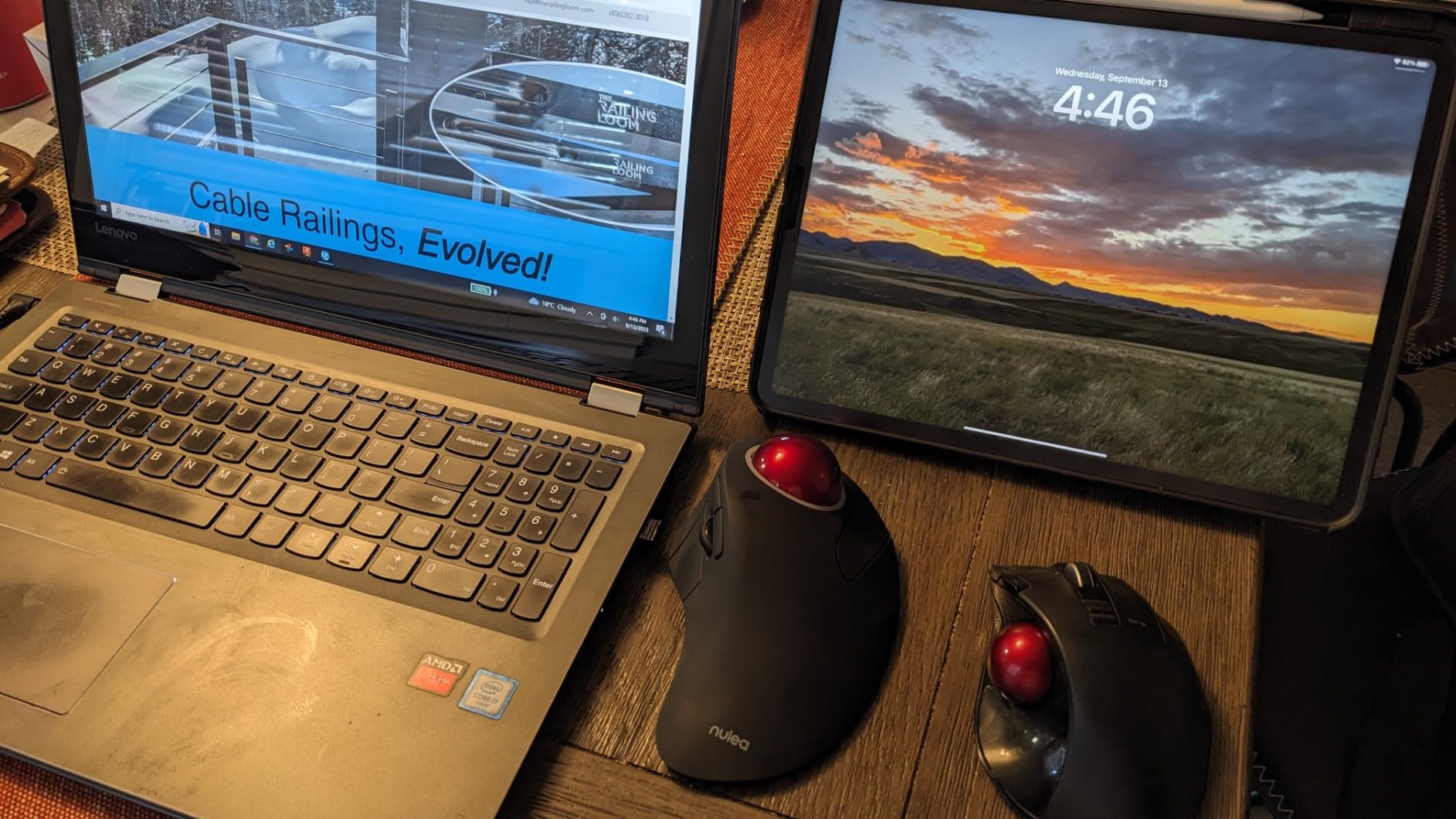
The three-device connectivity works through Bluetooth and USB receiver, letting you switch between a laptop, desktop, and tablet. However, the device switch buttons are located on the bottom of the mouse, which is inconvenient if you switch devices frequently. You have to flip the entire trackball over to press the button, which disrupts your workflow more than a top-mounted switch would.
Build quality is good for the price. The plastic shell feels sturdy and the ball socket has smooth bearings that keep movement fluid. The ergonomic shape reduces wrist strain by keeping your hand at a comfortable angle. At just over 700 reviews with a 4.5-star rating, the M505B is a newer product that is building a positive reputation among finger-operated trackball fans.
Who Should Buy the Nulea M505B
Finger-operated trackball fans who want RGB style and multi-device connectivity should look at the M505B. It is also a strong choice for anyone coming from a classic finger-controlled trackball like the Logitech Trackman Marble who wants a modern replacement with wireless features.
Who Should Skip It
If you switch between devices constantly, the bottom-mounted switch buttons will frustrate you. The larger size also makes it less portable than thumb-operated alternatives. If you have never used a finger-operated trackball before, be prepared for a longer learning curve compared to thumb models.
How to Choose the Best Trackball Mouse for Your Needs
Picking the right trackball comes down to how you work, the size of your hands, and what kind of discomfort you are trying to address. Here are the key factors I consider when recommending a trackball to someone.
Thumb-Operated vs Finger-Operated
This is the most important decision you will make. Thumb-operated trackballs like the Logitech MX Ergo S and M575 use your thumb to spin the ball, keeping your fingers free for clicking and scrolling. They are easier to learn and feel more natural if you are coming from a regular mouse. Finger-operated trackballs like the Kensington Expert Mouse and ELECOM HUGE use your index and middle fingers on a larger ball, which provides finer cursor control but takes longer to master.
Reddit users on r/Trackballs consistently report that thumb-operated models have a shorter learning curve, usually three to five days. Finger-operated models can take one to two weeks to feel comfortable. However, many dedicated users eventually prefer finger operation for the added precision it offers in tasks like photo editing and CAD work.
Wired vs Wireless Connectivity
Most trackballs in 2026 offer wireless connectivity through Bluetooth, a USB receiver, or both. Wireless options give you a cleaner desk setup and the freedom to position the trackball anywhere. The trade-off is battery management, whether that means recharging or replacing batteries. Wired trackballs like the Kensington Expert Mouse never need charging and have zero latency, which matters for competitive gaming even though most trackball users prioritize productivity over gaming performance.
DPI and Sensor Quality
DPI, or dots per inch, determines how sensitive the trackball is to movement. Higher DPI means the cursor moves farther with less ball rotation. For most office work, 800 to 1200 DPI is comfortable. For detailed design work, lower DPI settings around 400 to 600 give you more precision. The ability to switch DPI on the fly, either through a hardware button or software, is a valuable feature if you work across different types of tasks throughout the day.
Hand Size and Ergonomic Fit
Not every trackball fits every hand. Models like the MX Ergo S and ELECOM HUGE are better suited for medium to large hands, while the Nulea M514 and TECKNET Pro work well for smaller hands. If possible, try to test a trackball before buying, or buy from a retailer with a good return policy. The trackball community on Reddit emphasizes that the best ergonomic mouse is the one that fits your hand naturally, not necessarily the most expensive one.
Battery Life Considerations
Battery life ranges widely across models. The Logitech M575 leads the pack with up to 18 months on a single AA battery. USB-C rechargeable models like the MX Ergo S offer 120 days per charge. Budget rechargeable models typically last two to six weeks between charges. If you hate dealing with batteries, a long-lasting AA-powered model or a USB-C rechargeable one with quick-charge capability will save you frustration.
Gaming with a Trackball
Can you use a trackball for gaming? Yes, but with caveats. Trackballs work well for strategy games, simulation games, and casual gaming where pixel-perfect aiming is not critical. For competitive first-person shooters, a high-DPI gaming mouse still has the edge in raw speed and precision. The ELECOM HUGE with its DPI switch and eight programmable buttons is probably the best trackball for gaming on this list, but dedicated gamers should manage their expectations.
What is the best trackball mouse for most people?
The Logitech MX Ergo S is the best trackball mouse for most people. It combines a comfortable 20-degree tilt angle, USB-C rechargeable battery that lasts up to 120 days, dual wireless connectivity, and six programmable buttons. If you want a more affordable option, the Logitech Ergo M575 delivers similar ergonomic benefits at a lower price with an incredible 18-month battery life from a single AA battery.
Is a thumb-style or fingertip-style trackball better?
Thumb-operated trackballs are easier to learn and better for general productivity, with most users adapting in three to five days. Finger-operated trackballs have a steeper learning curve of one to two weeks but offer finer cursor control for detailed work like photo editing and CAD. Choose thumb if you want an easy transition from a regular mouse, or finger if precision is your top priority.
Should you get a wired or wireless trackball?
Most users should get a wireless trackball for the cleaner desk setup and positioning freedom. Look for Bluetooth and USB receiver options for maximum flexibility. Choose wired only if you need zero latency for gaming or want to never worry about charging or battery replacement. The Kensington Expert Mouse is the best wired option available.
Which trackball mouse has the best ergonomics?
The Logitech MX Ergo S has the best ergonomics thanks to its 20-degree adjustable tilt angle that reduces muscle strain by a certified 27 percent. The Nulea M514 takes a different approach with a 65-degree vertical design that puts your hand in a handshake position. Both are ergonomist-certified and effective at reducing wrist and forearm strain during long computing sessions.
What is the difference between trackball mouse types?
There are two main types of trackball mice. Thumb-operated models position the ball on the side where your thumb naturally rests, keeping fingers free for clicking. Finger-operated models place a larger ball on top that you control with your index and middle fingers, providing more precise control. Within these types, designs vary from flat to angled to vertical, and connectivity ranges from wired USB to wireless Bluetooth and USB receiver combinations.
Final Thoughts on the Best Trackball Mice in 2026
After testing all 10 models, the best trackball mice for 2026 come down to three clear recommendations. The Logitech MX Ergo S earns our Editor’s Choice for its unmatched 20-degree tilt, USB-C rechargeable battery, and premium build quality. The Logitech Ergo M575 delivers the best value with similar ergonomic benefits and an incredible 18-month battery life. For budget-conscious buyers, the Logitech Ergo M575S brings quiet clicks and solid comfort at the lowest price in the Logitech lineup.
Switching to a trackball is one of those changes that you will wonder why you did not make sooner. The reduction in wrist and forearm strain is real, and most users on forums report they can never go back to a regular mouse after a few weeks of adjustment. Pick the model that fits your hand size, budget, and preferred control style, and give yourself at least two weeks to adapt. Your wrists will thank you.